Kling 4.0 supports 4K video and 21:9 ultrawide output, but 10-bit HDR is still marked Coming Soon in the official user guide.Although 4K and 21:9 are individually supported, their availability together depends on the selected workflow, and a combined 4K HDR 21:9 export is not yet confirmed. For cinematic production, the difference between an advertised capability and an available export setting matters.
A video can look cinematic in a preview yet fail delivery requirements. The distinction also matters when comparing Kling 4.0 with earlier versions. A 4K file does not prove native 4K rendering, 10-bit color alone does not guarantee HDR, and a 21:9 crop is not the same as composing an ultrawide shot. Understanding these differences helps creators avoid unsuitable formats, lost framing, and unnecessary generations.
For creators producing both reference images and finished videos, LinkModel brings supported image and video models into one unified API at competitive, model-specific prices. Seedance 2.5 starts at $0.09766/second for 480p—approximately 53% below the displayed fal reference rate—while Nano Banana 2.1 is priced 25% below Google Standard. Explore models and control spending with pay-as-you-go billing, $0 minimum spend, and $0 monthly platform fee.
Published: October 26, 2026 | Last verified: October 26, 2026
Product specifications and HDR availability were checked against Kling AI's official documentation. Features marked “Coming Soon” may change after publication.
Does Kling 4.0 Support 4K HDR and 21:9 Video?
Yes for 4K and 21:9 as individual output options; not yet for available 10-bit HDR. Kling's official user guide lists 4K resolution and 21:9 aspect ratio, while describing 10-bit HDR for 1080p and 4K as Coming Soon.
That means creators should distinguish three questions:
1. Does the model advertise the capability?
2. Does the selected creation mode expose the required setting?
3. Does the exported file meet the delivery specification?
Only the third question establishes whether a finished asset is suitable for a particular production.
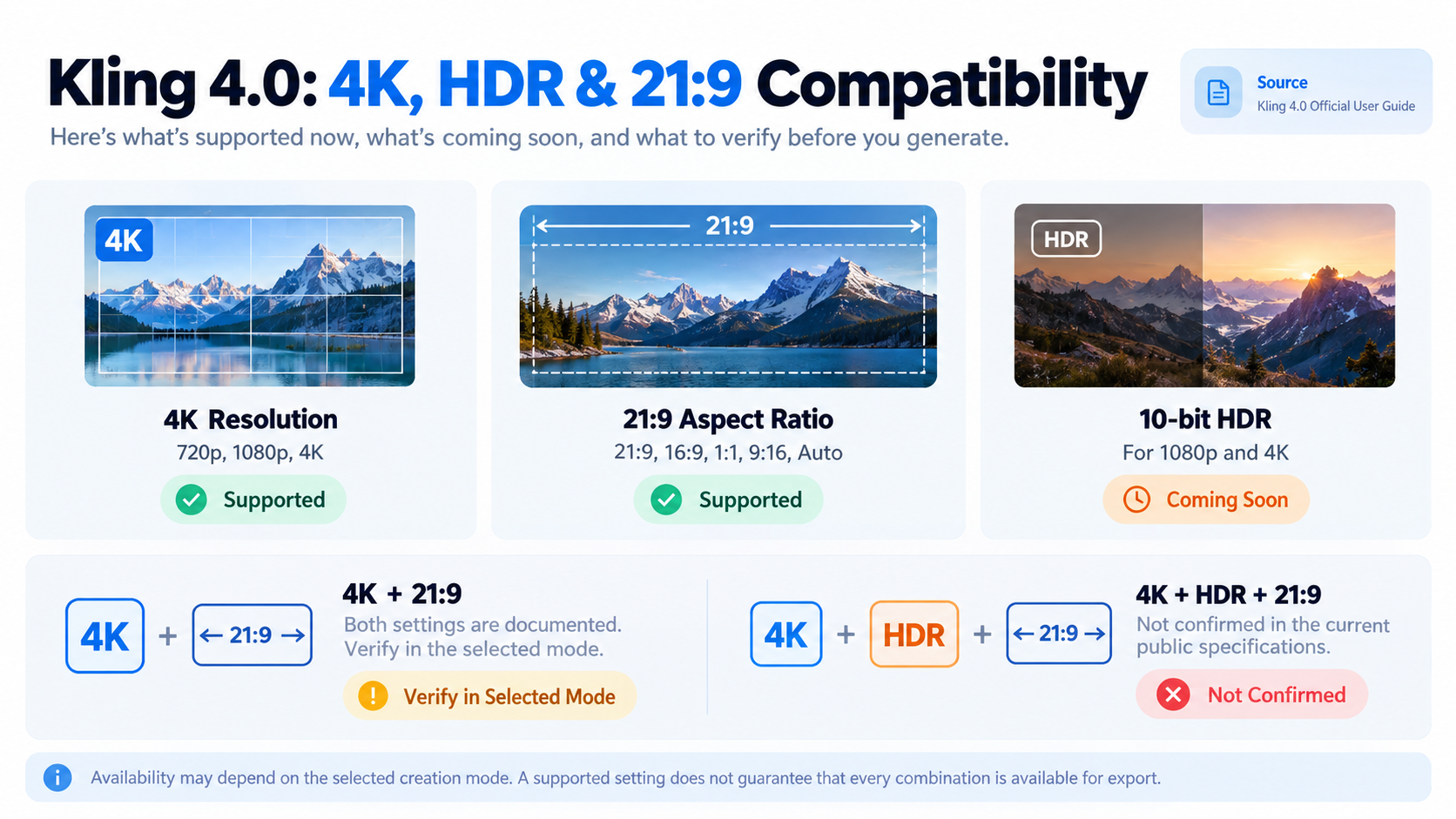
Kling 4.0 Official Specifications
| Feature | Kling 4.0 Specification | Production Implication |
|---|---|---|
| Resolution | 720p, 1080p, 4K | Multiple output-quality choices |
| Aspect ratio | 21:9, 16:9, 1:1, 9:16, Auto | Ultrawide and conventional compositions |
| HDR | 10-bit HDR for 1080p and 4K, Coming Soon | Not yet a confirmed deliverable |
| Generation duration | 3–30 seconds | Longer continuous video generation |
| Prompt length | Up to 8,000 tokens | Detailed scene and timing instructions |
| Multiple keyframes | Up to 10 images | Control visual states along a timeline |
| Omni Reference | Up to 15 reference assets total | Combine several reference types |
| Video reference input | Up to 5 clips, 30 seconds combined | Guide movement and camera behavior |
| Audio output | Two-channel stereo | Integrated audiovisual production |
| Video extension | Up to 2 minutes, Coming Soon | Future longer-form workflows |
These figures describe the full Kling 4.0 model. Kling 4.0 Flash has different limits, and individual generation modes do not necessarily expose every model capability.
The official Kling 4.0 user guide should be treated as the reference for current mode availability.
Can Kling 4.0 Combine 4K, HDR, and 21:9?
| Requested Output | Current Assessment | Recommended Action |
|---|---|---|
| 4K video | Officially supported | Select 4K in a compatible mode |
| 21:9 video | Officially supported | Choose ultrawide composition |
| 4K + 21:9 | Both settings are documented; verify their combination | Inspect selected mode and export |
| 10-bit HDR | Coming Soon | Do not promise HDR delivery |
| 4K + HDR | HDR not yet available | Wait for documented HDR support |
| HDR + 21:9 | Not established | Do not assume compatibility |
| 4K + HDR + 21:9 | Not confirmed | Treat as an unmet delivery requirement |
For projects requiring true HDR today, Kling 4.0 should not be selected solely on the basis of its announced HDR capability. For projects prioritizing high resolution and cinematic framing, its documented 4K and 21:9 options are relevant, subject to the chosen workflow.
Kling 4.0 4K vs 1080p: Which Resolution Is Better?
Choose 4K when your project benefits from higher spatial resolution, large-screen delivery, or reframing flexibility. Choose 1080p when the delivery format does not require 4K and you want to evaluate composition or motion before committing to a higher-resolution output.
The difference is measurable, but resolution alone does not determine visual quality.
4K vs 1080p Resolution Comparison
| Metric | 1080p | 4K UHD |
|---|---|---|
| Standard dimensions | 1920 × 1080 | 3840 × 2160 |
| Pixel count | 2.07 million | 8.29 million |
| Relative pixels | 1× | 4× |
| Reframing flexibility | More limited | Greater potential |
| Typical use | Standard digital delivery | Large displays and detailed masters |
4K UHD contains four times as many pixels as 1080p, but four times the pixels does not guarantee four times the visible detail.
For an AI-generated scene, perceived quality also depends on texture coherence, stable object geometry, camera movement, and compression.
Is Kling 4.0 Native 4K or Upscaled?
Kling's public specifications confirm 4K output support, but do not establish the internal rendering pathway for every generation mode.
A 3840 × 2160 file may be produced through different rendering and processing methods. Its dimensions alone cannot establish whether every detail was generated natively at that resolution.
For practical evaluation, inspect the original file at full size, paying attention to fine lines, repeating textures, distant architecture, moving edges, and details that change between frames.
Do not describe Kling 4.0 as proven native 4K solely because its exported file is 4K.
When Should You Generate in 4K?
Consider a product advertisement showing a luxury car moving through a coastal landscape.
Higher resolution can be useful for retaining detail in the vehicle body, road surface, and distant scenery.
However, the final sequence still needs stable wheel rotation, consistent reflections, believable camera movement, and recognizable vehicle geometry.
A sharp but visually inconsistent video may require more correction than a lower-resolution clip with coherent motion.
Practical decision: Define the final display and editing requirements first, then choose the resolution that satisfies them.
Kling 4.0 10-bit HDR: What Does Coming Soon Mean?
Kling 4.0's 10-bit HDR capability has been announced for 1080p and 4K, but the official user guide still identifies it as Coming Soon. It should therefore be treated as a future production feature rather than an available export guarantee.
HDR matters because professional video delivery may require specific brightness encoding, color information, and playback compatibility.
8-bit vs 10-bit Color Depth
| Property | 8-bit | 10-bit |
|---|---|---|
| Values per channel | 256 | 1,024 |
| Possible RGB combinations | About 16.7 million | About 1.07 billion |
| Channel precision | Baseline | Four times as many code values |
| Potential gradient quality | More susceptible to visible steps | Can support smoother transitions |
10-bit provides 1,024 code values per channel, compared with 256 for 8-bit.
This additional precision can help represent smooth gradients, especially in skies, shadows, and high-contrast scenes.
However, 10-bit encoding does not automatically mean HDR.
HDR also involves the signal's transfer characteristics, color interpretation, and display requirements.
What HDR Could Improve in Kling 4.0
Kling's official materials emphasize high-contrast scenarios such as nighttime streets, backlit environments, and neon-lit scenes.
These scenes can contain bright signs, dark architecture, reflective surfaces, and subtle shadow details within the same shot.
The announced HDR capability is intended to support richer gradations and more flexible post-production treatment.
But a visually dramatic preview is not proof of an HDR file.
Until HDR output becomes available, prompts describing neon lighting, bright highlights, or cinematic contrast should be understood as creative instructions—not HDR export controls.
How to Verify a Future HDR Export
Once Kling enables HDR, use the original downloaded file to inspect its technical properties.
| Check | What to Verify |
|---|---|
| Bit depth | Whether the output uses 10-bit encoding |
| Transfer characteristics | Whether the signal uses the intended HDR transfer function |
| Color primaries | Whether color metadata matches the target format |
| HDR metadata | Whether the delivery format includes required information |
| Playback | Whether the target display interprets the file correctly |
MediaInfo or FFprobe can help inspect the relevant file metadata.
The acceptance standard should be the actual deliverable, not a browser preview, promotional screenshot, or visual impression alone.
Kling 4.0 21:9 Ultrawide Video: How to Avoid Cropping Problems
Kling 4.0 lists 21:9 as a supported aspect ratio, allowing creators to plan wider cinematic compositions. The most important practical detail is that the available aspect-ratio controls depend on the creation mode and whether keyframe images have been uploaded.
21:9 vs 16:9: What Changes?
| Format | Approximate Width-to-Height Ratio | Typical Use |
|---|---|---|
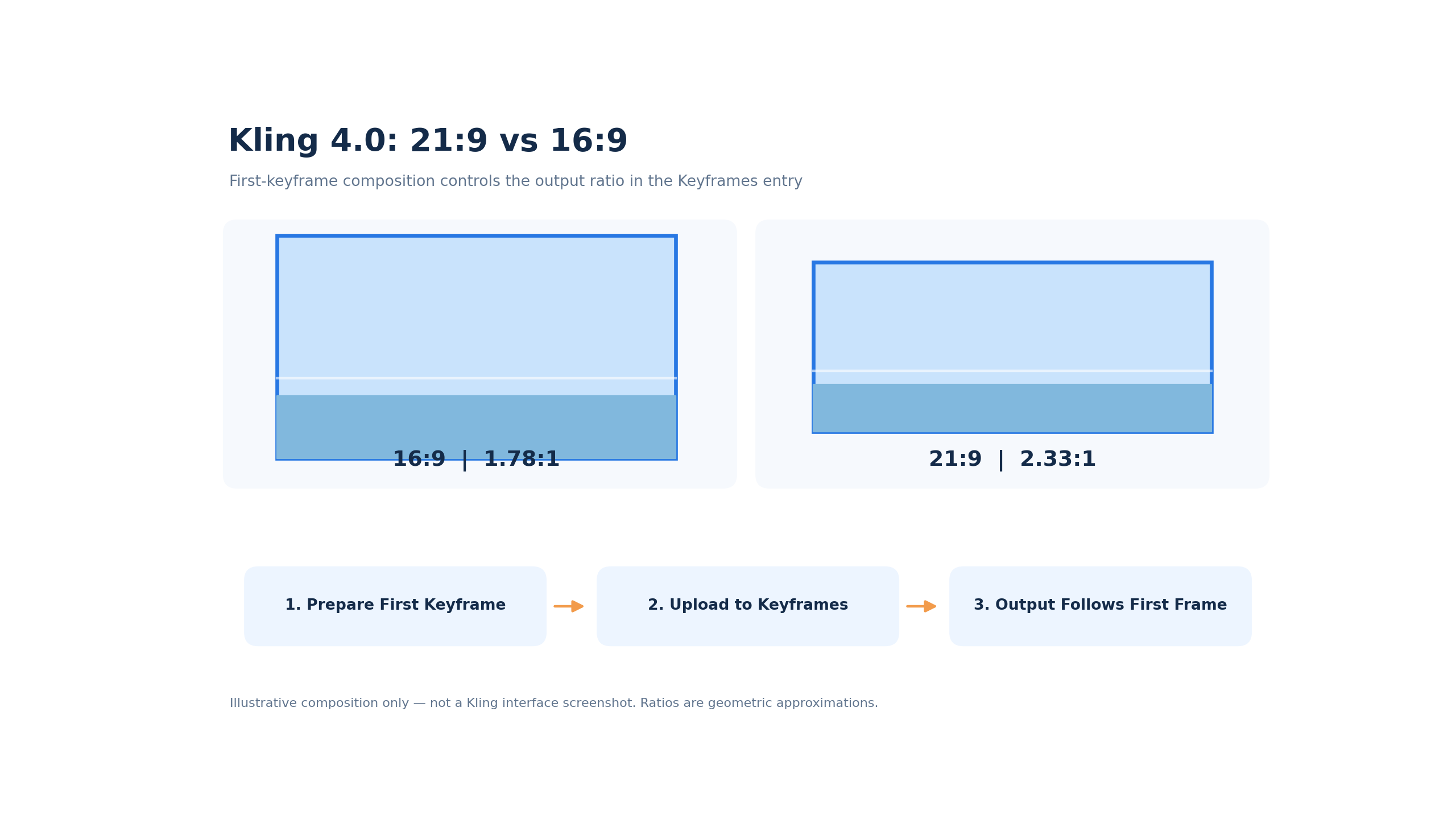
| 16:9 | 1.78:1 | Standard widescreen delivery |
| 21:9 | 2.33:1 | Ultrawide cinematic composition |
| 1:1 | 1:1 | Square social content |
| 9:16 | 0.56:1 | Vertical video |
A 21:9 frame provides more horizontal space relative to its height than 16:9.
That makes it useful for landscape shots, automotive advertising, architecture, and action involving multiple subjects.
However, 21:9 describes shape, not pixel dimensions.
An exact 21:9 frame with a width of 3840 pixels would be approximately 1646 pixels tall. This is a mathematical example, not a confirmed Kling export preset.
How to Select 21:9 in Kling 4.0
In Omni Reference, the official guide lists 21:9, 16:9, 1:1, 9:16, and Auto among the available aspect-ratio options.
In the separate Keyframes entry, the rules are different:
- Without uploaded images, creators can select a supported aspect ratio, including 21:9.
- After images are uploaded, the output aspect ratio follows the first keyframe.
- The Keyframes entry accepts image inputs but does not support additional reference-asset uploads.
This is particularly important for image-to-video workflows.
If your first image has a 16:9 composition, do not assume that adding “21:9 cinematic video” to the prompt will override the image-based ratio behavior.
Prepare the first keyframe in the intended composition before generation.
Native Ultrawide Composition vs Cropping
An ultrawide composition and a cropped widescreen video are not necessarily equivalent.
Cropping removes visual information from the source frame.
For a moving vehicle, this may remove part of the road or the vehicle's travel path. For an ensemble scene, it may cut off characters near the edges.
Planning the shot as ultrawide from the beginning allows the subject placement and camera movement to account for the available frame.
For a commercial video, specify which subjects must remain visible, how the camera should move, and where the main action should end.
Best Uses for 21:9
The strongest applications are those that genuinely benefit from horizontal composition.
Automotive tracking shots can preserve both the vehicle and the road ahead. Architectural scenes can show more of a room's spatial layout. Landscape sequences can establish a wider environmental context.
For multi-character scenes, a wider frame can help preserve spatial relationships during movement.
Use 21:9 because the scene benefits from it—not simply because it looks more cinematic on paper.
Kling 4.0 vs Kling 4.0 Flash: Which Model Should You Choose?
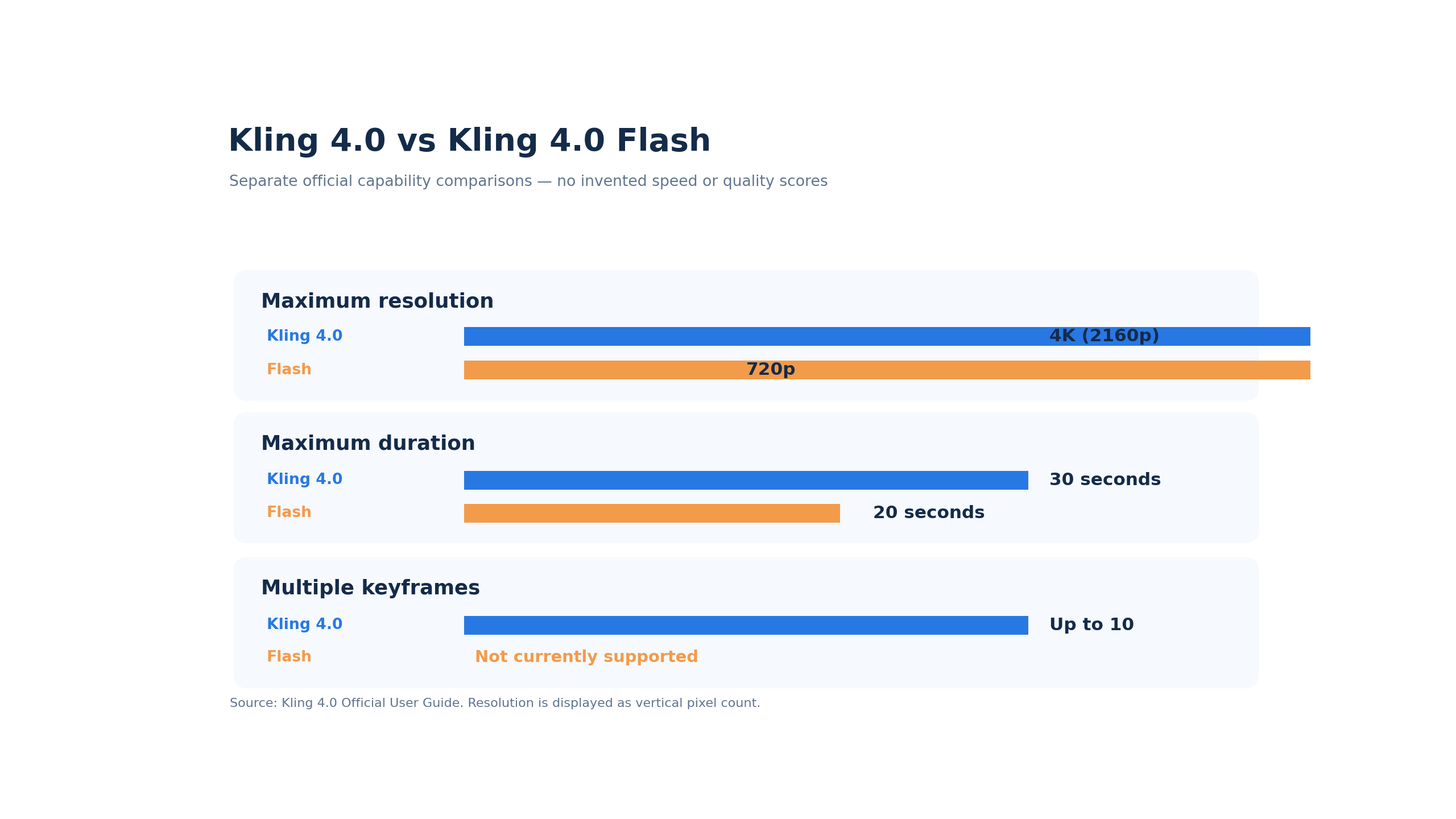
Kling 4.0 is the appropriate choice for projects requiring 4K output, longer generation, or advanced keyframe control. Kling 4.0 Flash prioritizes faster iteration but has lower documented output limits.
| Feature | Kling 4.0 | Kling 4.0 Flash |
|---|---|---|
| Maximum documented resolution | 4K | 720p |
| Maximum generation duration | 30 seconds | 20 seconds |
| First-and-last-frame control | Supported | Not currently supported |
| Multiple keyframes | Up to 10 | Not currently supported |
| Primary use | Controlled cinematic production | Rapid creative iteration |
These limits come from Kling's official guide and may change as the product evolves.
For an ultrawide, high-resolution advertisement, the full model is the more relevant starting point.
For testing a short concept where 720p is sufficient, Flash may be a more practical iteration option. The Kling 4.0 versus Seedance 2.5 comparison provides a related model-selection perspective.
Do not assume the two versions offer identical settings simply because they share the Kling 4.0 name.
Kling 4.0 Keyframes vs Omni Reference: Which Workflow Is Better?
Choose Keyframes when the exact timing of visual moments matters. Choose Omni Reference when you need to combine references for appearance, motion, camera behavior, or voice.
The official guide presents these as separate workspace entry points. See also the Kling prompting guide for related creative guidance.
Importantly, Omni Reference also supports text-to-video and keyframe-related generation. However, the capabilities of the two separate entry points cannot be combined within one task.
Kling 4.0 Workflow Comparison
| Capability | Keyframes Entry | Omni Reference Entry |
|---|---|---|
| Primary purpose | Control visual states along the timeline | Combine and direct reference assets |
| Image uploads | Up to 10 | Up to 10 |
| Video reference uploads | Not supported | Supported |
| Voice references | Not supported | Supported |
| Multiple reference types | Not supported | Supported |
| Timeline keyframe control | Main strength | Different workflow and controls |
| Aspect ratio after image upload | Follows first keyframe | Uses documented mode controls |
| Generation duration | 3–30 seconds | 3–30 seconds |
How to Use Keyframes for a 30-Second Video
The Keyframes entry supports up to 10 uploaded images.
Each image can define an important moment in the scene, such as the opening composition, a character entrance, a product transformation, or the closing shot.
A planned 30-second advertisement might use this structure:
| Time | Visual Direction | Purpose |
|---|---|---|
| 0–5s | Establishing shot | Introduce location and subject |
| 5–12s | Subject begins moving | Establish action |
| 12–20s | Continuous tracking movement | Develop visual progression |
| 20–26s | Product or subject reveal | Deliver the main message |
| 26–30s | Stable final composition | Complete the narrative |
This is an illustrative storyboard, not a recorded test result.
The advantage of Keyframes is the ability to define visual milestones instead of leaving every major transition to prompt interpretation.
Official Kling Example: Raw Iron to Finished Blade
Kling's official user guide demonstrates a first-and-last-frame transformation using raw iron as the opening reference and a finished blade as the closing reference.
The example requests a 15-second forging sequence.
It illustrates a useful production principle: define the beginning and ending states before describing the transformation between them.
This approach is relevant to manufacturing videos, product reveals, and visual before-and-after sequences.
The same official guide also provides a continuous lateral tracking-shot example that specifies no cuts or camera-angle changes.
That demonstrates how explicit camera constraints can communicate a more precise creative objective than a generic instruction such as “make it cinematic.”
Kling 4.0 Omni Reference Limits
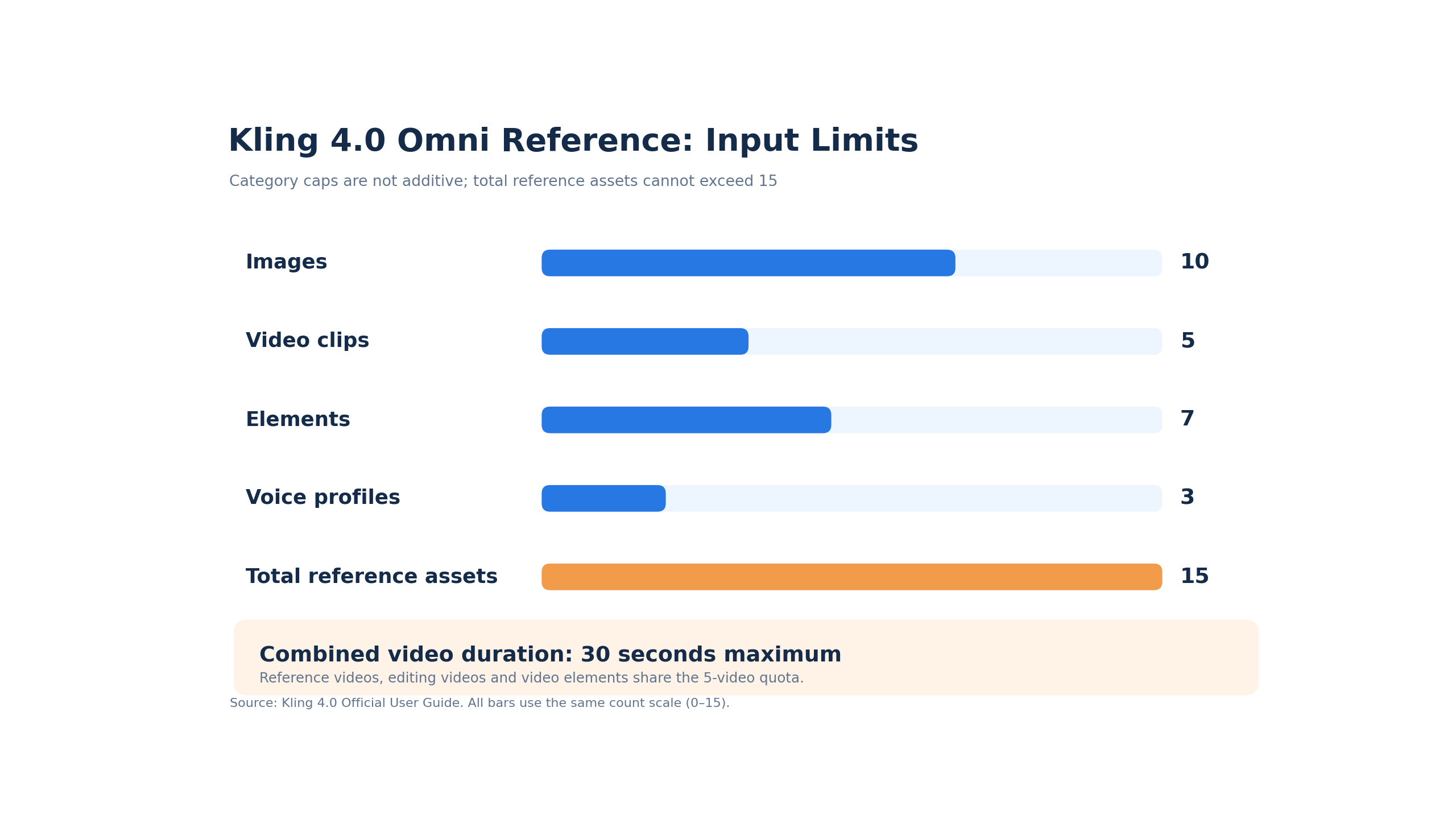
Omni Reference supports several reference categories, subject to individual and combined limits.
| Reference Type | Official Limit |
|---|---|
| Images | Up to 10 |
| Videos | Up to 5 |
| Combined video duration | Up to 30 seconds |
| Elements | Up to 7 |
| Video elements | Up to 3 within the element limit |
| Voice profiles | Up to 3 |
| Total reference assets | Up to 15 |
The limits are not additive. A task cannot use every category at its maximum simultaneously if doing so exceeds the total reference limit.
Additionally, reference videos, videos used for editing, and video elements share a maximum quota of five clips and 30 seconds of combined video duration.
This is an important constraint when planning a reference-heavy project.
How to Make Omni Reference More Predictable
The official guide recommends assigning explicit roles to reference assets.
For example, one image might define the environment, another might define the main character, and a video might define the camera movement.
Simply attaching assets without explaining their roles leaves more decisions to the model.
A clearer approach specifies:
- Which asset controls appearance.
- Which asset controls composition.
- Which video supplies motion or camera pacing.
- Which details should remain unchanged.
- What should happen at each stage of the sequence.
The guide also recommends concrete visual descriptions over vague phrases such as “premium look.”
Instead of relying on broad adjectives, describe lighting direction, materials, camera position, movement, and visible surface details.
Official Kling Example: Reference-Based Object Replacement
The official user guide illustrates how a reference video can guide the movement and camera structure of a scene while a different image supplies the replacement object.
The example uses an office chair in place of a bicycle while preserving important elements of the original action sequence.
The key lesson is not the unusual object choice. It is the separation between what changes and what must remain consistent.
For commercial production, this principle can help creators describe product replacements, character changes, or environment edits with greater precision.
When performing video editing rather than reference-based generation, Kling's guide specifically instructs users to identify the video as an editing target and state which elements should remain unchanged.
How to Verify Kling 4.0 4K, HDR, and 21:9 Exports
A Kling 4.0 export should be accepted only after its actual file properties and visual content meet the production brief. A selected setting or attractive preview is not sufficient evidence on its own.
Step 1: Define the Required Deliverable
Specify the target resolution, aspect ratio, duration, and playback environment.
If the project requires HDR, account for the current Coming Soon status rather than assuming it can be delivered.
Step 2: Choose the Correct Model and Entry Point
Use full Kling 4.0 for high-resolution or advanced keyframe requirements.
Choose Keyframes for timeline-controlled visual states or Omni Reference for reference-driven generation.
Check the selected mode's actual available settings.
Step 3: Prepare References Correctly
For Keyframes, match the first image to the intended output composition.
For Omni Reference, identify the role of each asset and stay within the shared upload limits.
Step 4: Inspect the Original File
| Requirement | Verification Method |
|---|---|
| Resolution | Inspect actual width and height |
| Aspect ratio | Calculate width divided by height |
| Duration | Inspect file duration |
| HDR | Inspect transfer function, bit depth, and metadata when available |
| Visual continuity | Review the complete sequence |
| Reference consistency | Compare output with supplied source assets |
For a requested 21:9 output, calculate the actual width-to-height ratio rather than relying only on the filename or visual appearance.
For a 4K output, inspect both the pixel dimensions and the useful visual detail.
Step 5: Review the Video at Full Length
Watch the complete sequence for inconsistent object geometry, changing subject appearance, unnatural movement, or abrupt camera transitions.
These issues may be less obvious in short previews.
Step 6: Validate in the Final Editing Environment
Open the file in the software or playback system intended for delivery.
Confirm that the composition, technical properties, and visual quality meet the project's requirements.
The most useful production rule is simple: verify the exported asset, not just the model's advertised capability.
Best Kling 4.0 4K and 21:9 Cinematic Prompts
Kling's official prompting guidance favors specific, descriptive instructions over abstract adjectives and excessive negative constraints.
A useful prompt explains the subject, environment, action, camera path, lighting, timing, and intended ending.
The following prompts are ready-to-adapt production templates.
Prompt 1: 21:9 Automotive Commercial
A silver performance coupe travels along a coastal highway at sunset. The road curves gently above the ocean, with low cliffs on the inland side and a wide horizon extending across the background. Use a 21:9 ultrawide composition. Begin with a low tracking camera beside the front quarter of the vehicle. During the first five seconds, keep the car centered slightly left while the road ahead remains visible. From five to twelve seconds, the camera moves gradually toward a wider side profile as the car follows the curve. Warm sunlight produces controlled reflections across the body panels. Maintain consistent wheel rotation, vehicle proportions, road geometry, and camera direction. Finish with the car moving toward the distant coastline in one continuous, stable shot.
Best for: Automotive advertising and panoramic tracking shots.
Key setting: Choose a compatible ultrawide mode, or prepare the first keyframe in the intended composition.
Prompt 2: Neon Night Cinematography
A pedestrian walks along a rain-soaked street at night, surrounded by small shops, illuminated signs, parked bicycles, and passing cars. The camera begins at eye level and moves forward slowly behind the pedestrian. Red and blue signage reflects across the pavement, while warm interior lights illuminate the shop windows. Preserve readable details in darker storefronts and natural transitions around bright signs. Keep the street layout, pedestrian appearance, and reflections consistent as the camera advances. End with the pedestrian stopping beneath a covered entrance and turning toward the camera.
Best for: High-contrast visual storytelling.
Key setting: This prompt requests a cinematic lighting style, not HDR encoding.
Prompt 3: High-Detail Mountain Landscape
An aerial camera glides over a mountain valley at sunrise. A narrow river winds through dense evergreen forest, with layers of distant ridges fading into morning mist. Begin with a broad elevated view showing the valley's full shape. Gradually lower the camera toward the river while maintaining a smooth forward path. Early sunlight illuminates the upper mountain slopes, while the forest floor remains softly shaded. Preserve consistent terrain geometry, natural atmospheric depth, stable tree textures, and coherent water movement. End with a wide view of the river turning around a rocky bend.
Best for: Travel films and landscape sequences.
Key setting: Select 4K where available and inspect the original export for meaningful detail.
Prompt 4: Ultrawide Action Sequence
A coordinated action scene takes place in a spacious industrial courtyard at dusk. Three characters move across the courtyard while the camera tracks laterally from left to right. Begin with a wide shot establishing the positions of all three characters and the surrounding buildings. The central character runs toward a parked vehicle as the other two move along separate visible paths. Keep each character's clothing, appearance, and screen position consistent. The camera maintains the same movement direction throughout the sequence, preserving clear spatial relationships. End with all three characters visible in a wide composition beside the vehicle.
Best for: Group action and horizontal camera movement.
Key setting: Use 21:9 to preserve more horizontal action space when the selected mode supports it.
Prompt 5: Product Reveal With Keyframes
A stainless-steel wristwatch rests on a dark stone surface inside a minimal studio. The opening frame shows the entire watch from a three-quarter angle, with soft side lighting outlining the case and bracelet. The camera moves slowly closer as a narrow light reflection travels across the polished metal. At the middle of the sequence, the camera reaches a close view of the watch face, preserving the shape and arrangement of its visible components. The camera then moves slightly upward and settles into a clean final hero composition. Maintain consistent product geometry, natural reflections, and stable lighting throughout.
Best for: Product advertising and first-and-last-frame control.
Key setting: Prepare the opening and closing images before setting the transition.
Kling 4.0 API Availability and AI Video Production Costs
Kling 4.0's official developer availability should be distinguished from availability through third-party platforms. An announced model capability does not guarantee that every integration exposes the same resolutions, reference controls, or export options.
Before using an API for production, confirm the model version, supported input types, resolution choices, aspect-ratio parameters, task lifecycle, and current pricing.
What Should Developers Verify?
| API Requirement | Why It Matters |
|---|---|
| Model identifier | Ensures the intended version is selected |
| Resolution parameter | Confirms the output quality available |
| Aspect-ratio parameter | Determines whether ultrawide output is supported |
| Duration control | Prevents unsupported shot lengths |
| Reference handling | Defines accepted image and video inputs |
| HDR support | Confirms whether HDR export is actually enabled |
| Task retrieval | Supports asynchronous video generation |
| Pricing unit | Enables realistic cost estimates |
For HDR-dependent projects, the technical specification should remain a gating requirement.
LinkModel Seedance 2.5 Pricing: Up to 53% Lower Than Displayed fal Rates
For teams evaluating currently supported video-generation models, LinkModel provides a concrete alternative for cost-conscious production.
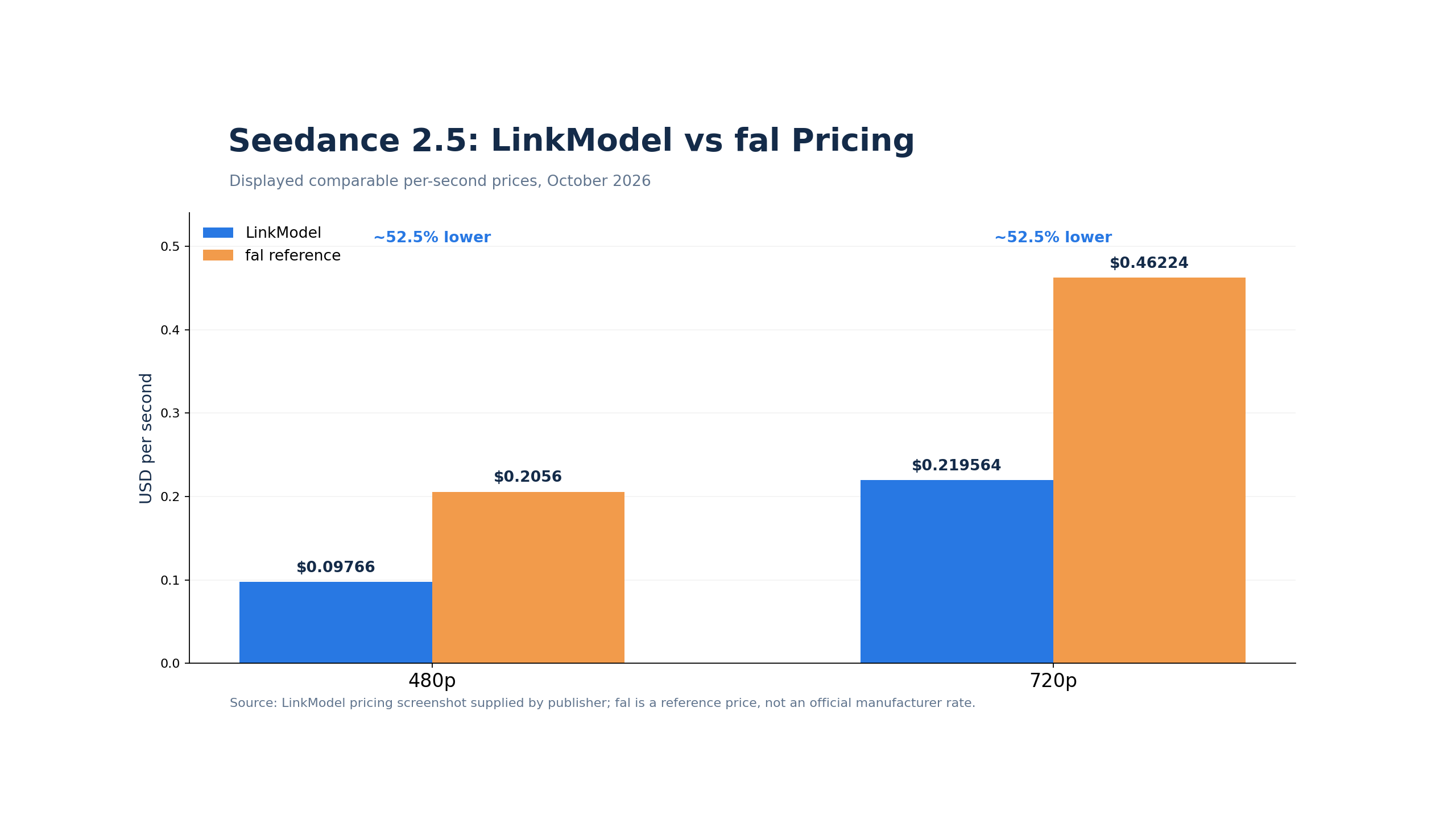
Its displayed Seedance 2.5 prices compare as follows:
| Resolution | LinkModel | fal Reference | Approximate Savings |
|---|---|---|---|
| 480p | $0.09766/sec | $0.2056/sec | 53% |
| 720p | $0.219564/sec | $0.46224/sec | 53% |
The comparison reflects the displayed corresponding output specifications. It does not represent a universal discount across every model or configuration.
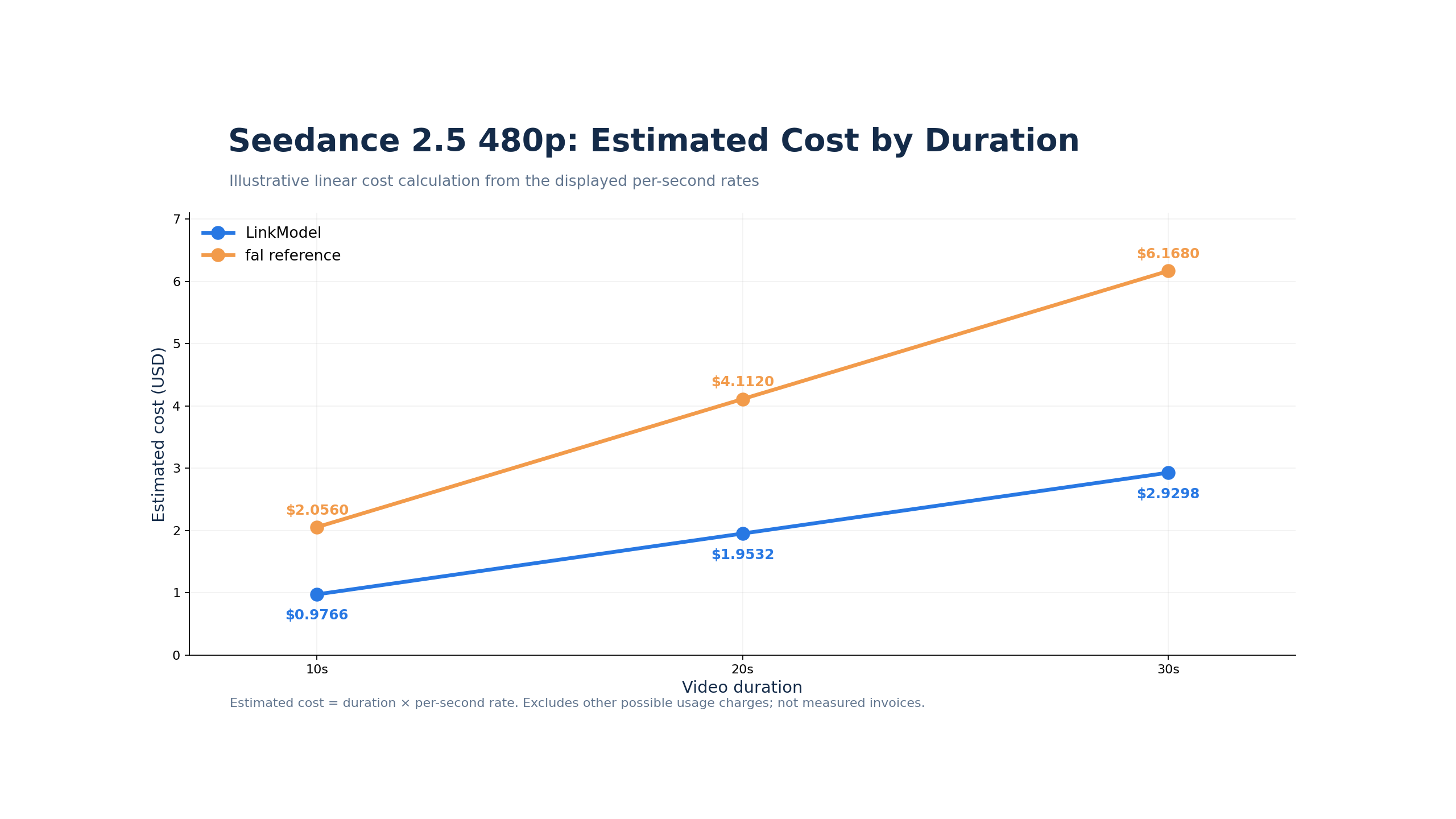
For a 10-second 480p video, the listed rates imply:
| Provider | Estimated Cost |
|---|---|
| LinkModel | $0.9766 |
| fal reference | $2.0560 |
| Estimated difference | $1.0794 |
For a 10-second 720p video:
| Provider | Estimated Cost |
|---|---|
| LinkModel | $2.19564 |
| fal reference | $4.62240 |
| Estimated difference | $2.42676 |
These are rate-based illustrations, not guarantees of the final invoice for every task.
How Token-Based Video Pricing Affects Cost
The displayed Seedance 2.5 pricing also distinguishes configurations with and without video input.
| Output Token Configuration | LinkModel | fal Reference |
|---|---|---|
| Without video input | $10.165 per 1M tokens | $21.40 |
| With video input | $6.08 per 1M tokens | $12.84 |
Although the listed output-token rate is lower in the video-input category, a lower output rate does not automatically mean a lower total task cost.
Total usage and any applicable input charges still matter.
Compare equivalent tasks with the same resolution, duration, input configuration, and billing unit.
Use LinkModel Image Models to Prepare Video References
Video production often begins with image preparation.
A creator may need a character sheet, product reference, opening frame, closing frame, or storyboard before generating motion.
Nano Banana 2.1 is available through LinkModel at a stated 25% discount relative to Google Standard pricing, making it relevant to the image-preparation stage.
A practical image-to-video workflow is:
1. Create a visual concept and reference images.
2. Prepare the opening composition for the intended aspect ratio.
3. Choose the video model that supports the required production settings.
4. Generate and inspect the sequence.
5. Verify the exported file before delivery.
For Kling 4.0, the generated reference images can be prepared independently and then used through Kling's supported creation workflow.
This does not imply that Kling 4.0 itself is available through LinkModel.
Why LinkModel Makes Multi-Model Production More Flexible
LinkModel's model catalog offers a unified platform for supported language, image, and video models, with model-specific pricing and usage-based billing.
| Advantage | Value for Creators and Developers |
|---|---|
| Model-specific discounts | Lower rates on selected models |
| Unified API | Simplifies supported multi-model integration |
| Image and video model coverage | Supports multiple stages of content production |
| Playground | Helps explore model outputs and prompts |
| Pay-as-you-go | Aligns spending with usage |
| $0 minimum spend | No minimum purchase requirement |
| $0 monthly platform fee | No recurring platform subscription fee |
| Centralized billing | Easier management of supported model usage |
For teams experimenting with multiple creative workflows, this combination can make it easier to compare model capabilities without maintaining a separate platform subscription for each stage.
Explore LinkModel to compare supported image and video models, evaluate their pricing, and build a workflow around your actual production needs.
Frequently Asked Questions
Does Kling 4.0 support 4K?
Yes. The full Kling 4.0 model lists 4K among its supported output resolutions. Availability depends on the selected creation mode. Kling 4.0 Flash has a documented maximum of 720p.
Is Kling 4.0 HDR available now?
No. As of October 26, 2026, the official guide marks 10-bit HDR for 1080p and 4K as Coming Soon. A cinematic-looking SDR video is not proof of HDR support.
Can Kling 4.0 generate 21:9 without cropping?
21:9 is an official aspect-ratio option. In the Keyframes entry, uploading images makes the output ratio follow the first keyframe. Prepare the first image for the intended ultrawide composition and verify the exported dimensions.
Can Kling 4.0 combine 4K, HDR, and 21:9?
Not as a currently confirmed combination. HDR is still Coming Soon, and the public specifications do not establish an available three-way output preset. Verify 4K and 21:9 compatibility within the selected workflow.
Is Kling 4.0 4K HDR available through API?
Kling 4.0 has an evolving developer rollout, but API feature availability depends on the specific integration. Do not assume that 4K, HDR, and 21:9 are all exposed together. Check current API documentation and confirm the exported file's properties.
Conclusion
Kling 4.0 is a promising option for cinematic video production with documented 4K output, 21:9 ultrawide framing, up to 30-second generation, advanced keyframe control, and extensive multimodal references—but 10-bit HDR remains Coming Soon. The best production decision is to select the correct model and creation mode, plan the composition before generation, and verify the original export against the delivery requirements. For creators working across image and video models, LinkModel offers a more flexible way to manage supported AI media workflows, including Seedance 2.5 pricing approximately 53% below the displayed fal reference rates, Nano Banana 2.1 pricing 25% below Google Standard, unified API access, pay-as-you-go billing, $0 minimum spend, and $0 monthly platform fee.