To create a Kling 4.0 image-to-video clip, upload a source image, select Keyframes or Omni Reference, describe the subject's movement and camera behavior, choose your output settings, and generate the video. Use Keyframes when you need specific visual moments on a timeline. Choose Omni Reference when you need to guide appearance, motion, or scene details with multiple assets.
The challenge is getting the movement you actually intended. A vague Kling prompt can produce an almost-static image, an unexpected camera zoom, or changes to a character's face or product packaging. The most reliable starting point is one clear image, one primary action, and an explicit camera instruction—then add complexity only when the scene requires it.
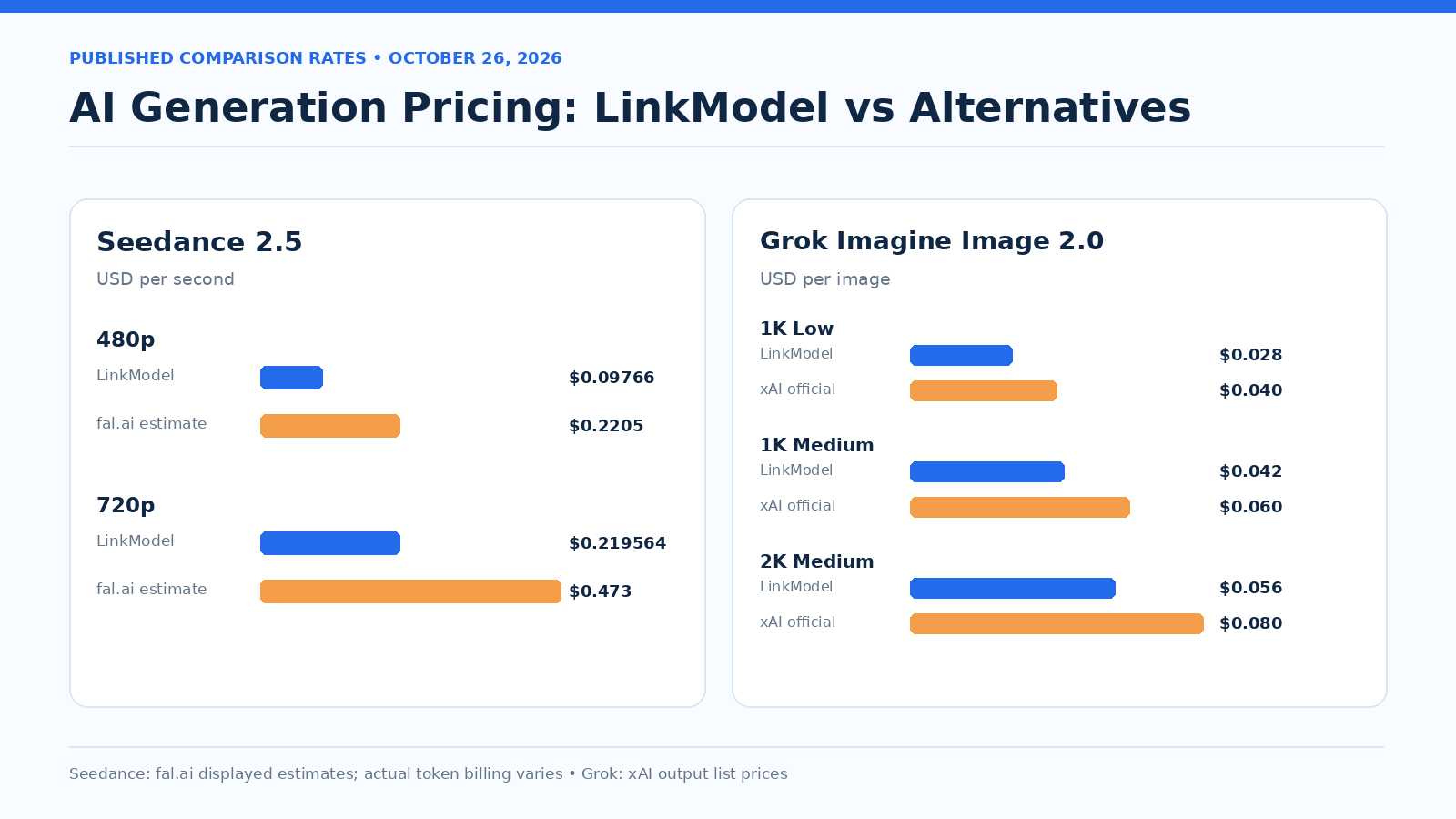
For affordable AI image and video production beyond a single model, LinkModel offers Seedance 2.5 from $0.09766/second for 480p video, and Grok Imagine Image 2.0 from $0.028/image, 30% below xAI's official 1K Low price. Its unified API, Playground, pay-as-you-go billing, no minimum spend, and no monthly platform fee help creators explore supported models without unnecessary fixed costs.
What Is Kling 4.0 Image-to-Video?
Kling 4.0 Image-to-Video animates existing images into video clips using motion prompts, visual keyframes, and supported reference assets. Instead of generating every detail from text, you begin with an image that establishes the subject and composition.
The main task is to tell the model what should change over time.
For example, a portrait already shows a person's face, clothing, and background. Your prompt should concentrate on whether the person smiles, turns, walks, or interacts with an object—and whether the camera stays still or moves.
Kling's official image-to-video guidance emphasizes the relationship between subject and movement. Kling 4.0 extends that approach with more advanced timeline and reference controls.
Kling 4.0 Image-to-Video Specifications
| Feature | Kling 4.0 Specification | What It Means |
|---|---|---|
| Image-to-video | Supported | Animate existing images |
| First and last frames | Supported | Define opening and closing visuals |
| Multiple keyframes | Up to 10 | Plan visual milestones |
| Duration | 3–30 seconds | Create short or extended clips |
| Resolution | 720p, 1080p, 4K | Choose output detail |
| Aspect ratios | 21:9, 16:9, 1:1, 9:16, Auto | Support common publishing formats |
| Omni Reference | Supported | Guide scenes with multiple assets |
| Reference images | Up to 10 | Guide appearance and composition |
| Reference videos | Up to 5, totaling 30 seconds | Guide motion and shot structure |
| Reference elements | Up to 7, including up to 3 video elements | Reuse defined visual elements |
| Combined reference assets | Up to 15 | Mix supported asset types |
| Prompt length | Up to 8,000 tokens | Describe complex sequences |
| Audio | Two-channel stereo | Generate audiovisual content |
These are published model capabilities, not guarantees that every creation mode or API integration exposes every setting.
The official release guide describes 10-bit HDR as coming soon. Check the current creation interface before planning a project that depends on HDR delivery.
For detailed specifications, see the official Kling 4.0 user guide.
Kling 4.0 vs Kling 4.0 Flash
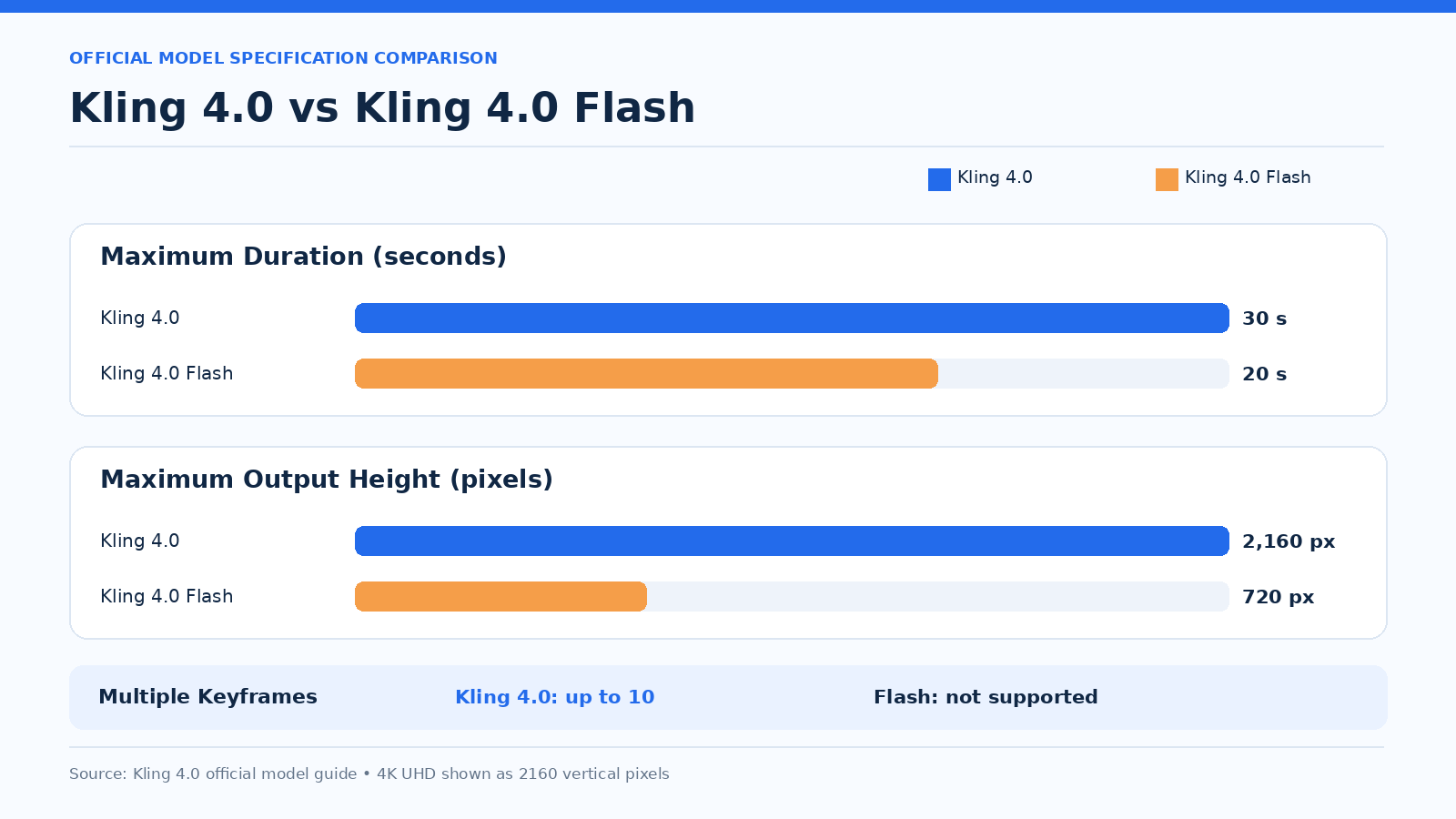
| Feature | Kling 4.0 | Kling 4.0 Flash |
|---|---|---|
| Maximum duration | 30 seconds | 20 seconds |
| Maximum resolution | 4K | 720p |
| First and last frames | Supported | Not currently supported |
| Multiple keyframes | Up to 10 | Not currently supported |
| Recommended use | Controlled scenes and detailed outputs | Faster, simpler iterations |
Choose Kling 4.0 Flash for a short animation that does not require advanced keyframe control. Choose the full model when you need longer clips, higher resolution, or precise visual transitions.
Kling 4.0 Omni Reference vs Keyframes: Which Should You Use?
Use Keyframes to control when specific visuals appear. Use Omni Reference to control what visual or motion references influence the scene.
The difference matters because Kling 4.0 provides separate creation entry points with different capabilities.
| Your Goal | Choose | Why |
|---|---|---|
| Animate one portrait | Keyframes | A single starting image is enough |
| Move from one product composition to another | Keyframes | Define the beginning and ending |
| Specify a visual change at 5 seconds | Keyframes | Position a timeline milestone |
| Combine a face, outfit, and room | Omni Reference | Assign different roles to assets |
| Follow motion from a reference clip | Omni Reference | Guide action with video |
| Build a character scene from several references | Omni Reference | Coordinate multiple assets |
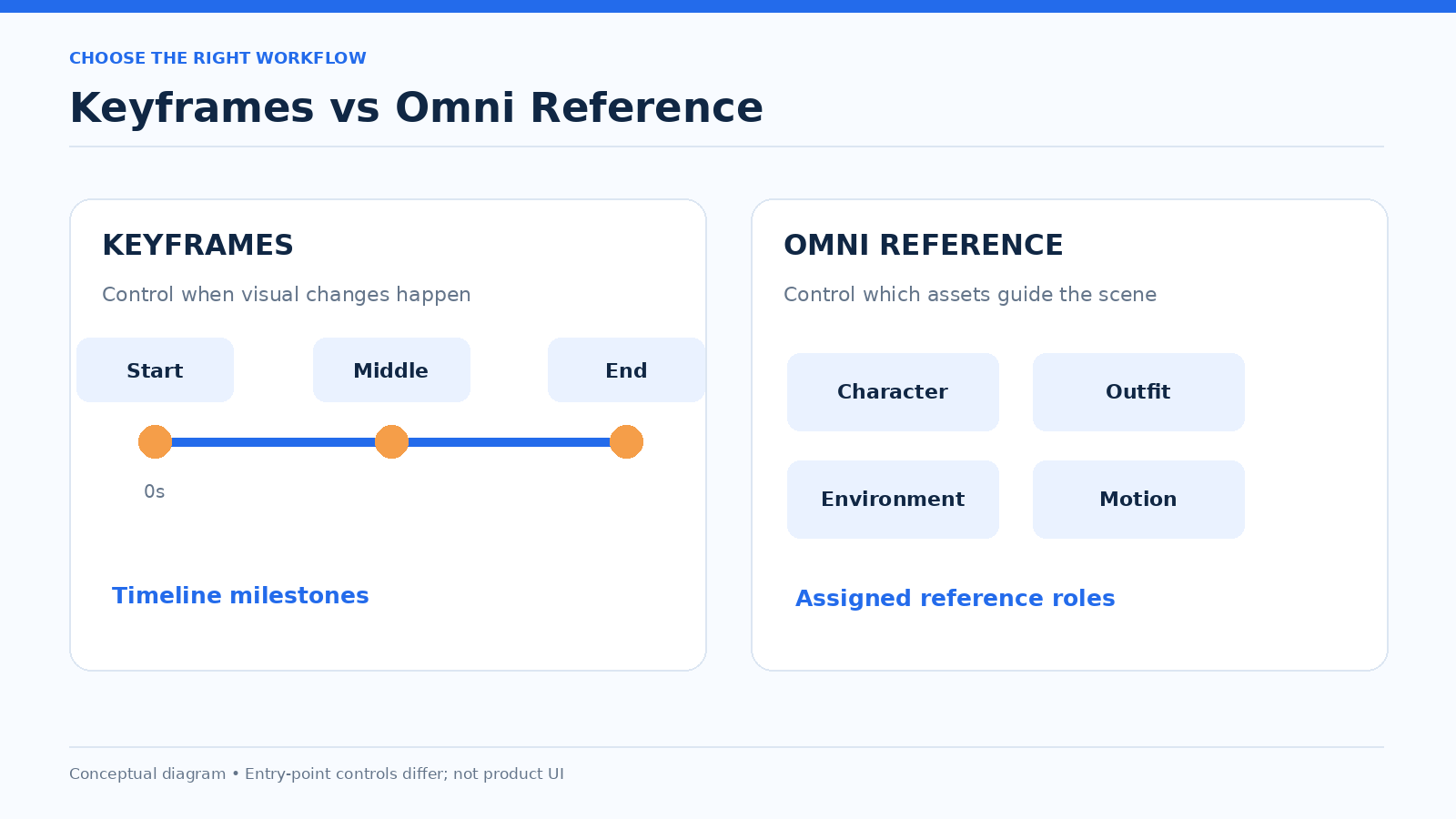
When Keyframes Are the Better Choice
Keyframes are ideal when the visual destination matters.
Suppose you have two photographs of the same product: a wide shot and a close-up. You can use them as opening and ending frames, then describe the transition.
Prompt:
"Use @Image1 as the first frame and @Image2 as the last frame. The camera slowly approaches the skincare bottle, transitioning from the wide studio composition to the close-up. Soft reflections move across the glass. The bottle remains upright throughout the continuous shot."
Use intermediate keyframes when the transition requires another important visual state.
Do not add multiple keyframes merely because the model supports them. For a simple smile or tail movement, one starting image is often sufficient.
When Omni Reference Is the Better Choice
Omni Reference is useful when the model needs to follow several different assets.
For example:
| Reference | Assigned Role |
|---|---|
| @Image1 | Face and hairstyle |
| @Image2 | Outfit and accessories |
| @Image3 | Room and lighting |
| @Video1 | Walking rhythm |
Prompt:
"@Image1 defines the character's face and hairstyle. @Image2 defines the outfit and accessories. @Image3 establishes the room and lighting. The character walks toward the window with the relaxed movement shown in @Video1, pauses, and looks outside. The camera follows at a steady medium distance."
Every reference should have a purpose. Otherwise, the model may infer relationships that you did not intend.
Can You Combine Omni Reference and Keyframes?
Not as two fully combined creation entry points in a single task.
Omni Reference is the default entry point and also offers Keyframe-to-Video generation. However, the separate Keyframes entry point has its own image-only upload and timeline controls.
The official guide explicitly distinguishes these workflows.
Choose your entry point based on the control you need most:
- Precise visual milestones: Keyframes.
- Multiple image, video, or voice references: Omni Reference.
- Simple image animation: Begin with a single-image workflow rather than uploading unnecessary assets.
Omni Reference Upload Limits
| Input | Limit |
|---|---|
| Images | 10 |
| Videos | 5 |
| Total reference-video duration | 30 seconds |
| Elements | 7 |
| Video elements | 3 within the element limit |
| Voice profiles | 3 |
| Combined reference assets | 15 |
The limits overlap. Reference videos, video-editing inputs, and video elements share the overall video quota.
For most creative projects, a small set of well-defined assets is easier to manage than the maximum allowable upload count.
How to Use Kling 4.0 Image-to-Video Step by Step
The following six-step workflow covers both simple image animation and more controlled productions.
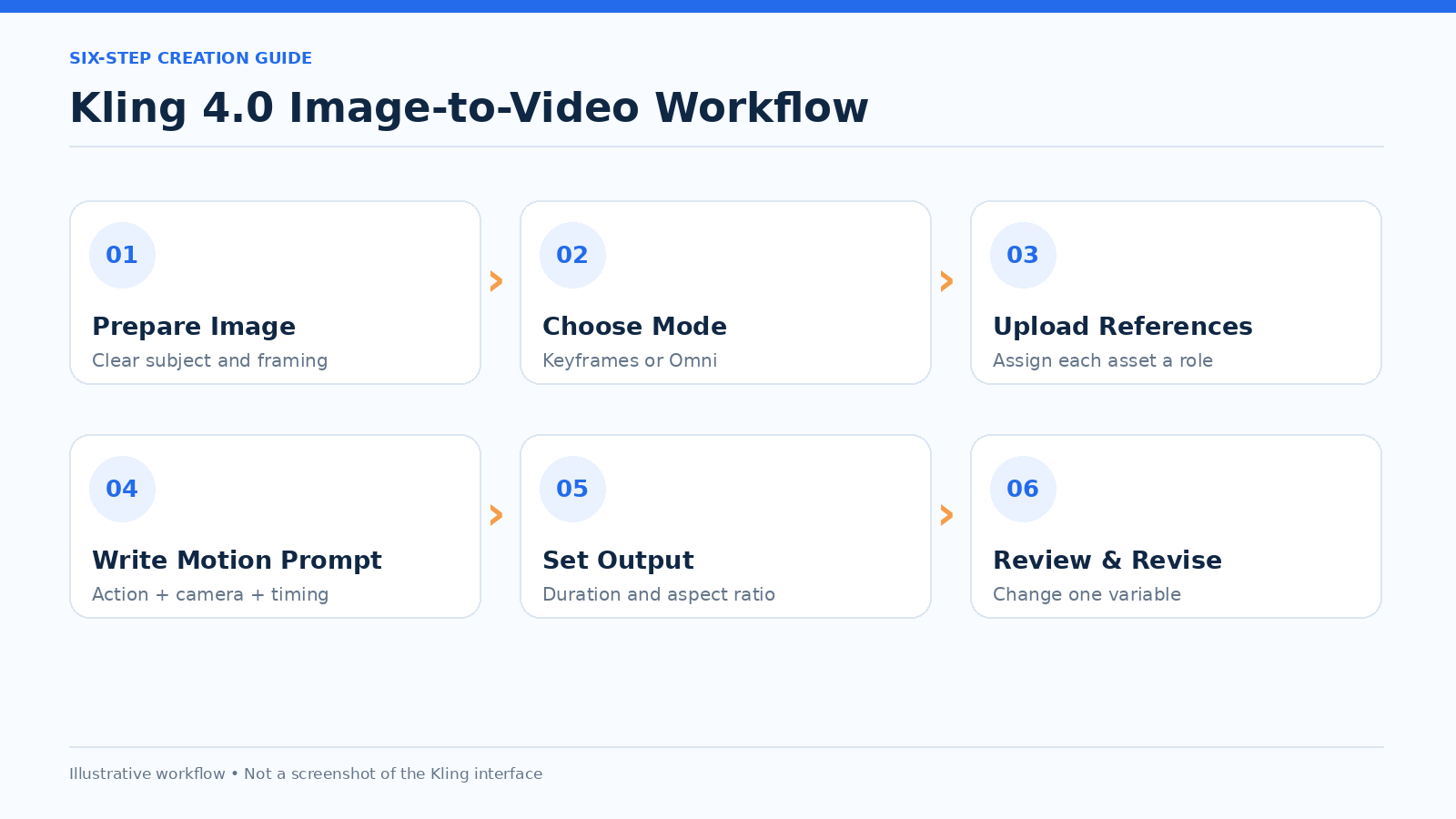
Step 1: Prepare Your Source Image
Choose an image that already resembles the intended opening composition.
A useful source image should have:
- A recognizable main subject.
- Enough space for the requested movement.
- Lighting that supports the scene.
- A background without unnecessary distractions.
- Accurate product or character details where consistency matters.
For example, a tightly cropped product image may be unsuitable for a wide camera orbit because the model must infer unseen surfaces.
Rule: The more of the subject the video needs to reveal, the more visual information you should provide.
Step 2: Choose the Model and Creation Mode
Open the Kling creation workspace and select the intended model and workflow.
For your first attempt, use this decision guide:
| Starting Material | Recommended Setup |
|---|---|
| One portrait image | Keyframes, first frame |
| Two images showing a planned transition | Keyframes, first and last frames |
| Several images representing timeline milestones | Keyframes, multiple frames |
| Separate character and environment references | Omni Reference |
| Images plus a motion-reference video | Omni Reference |
Avoid starting with the most complex setup unless the project requires it.
Step 3: Upload Images and Check Their Roles
In Keyframes, place each image at the intended timeline position.
In Omni Reference, upload the assets and use their displayed reference identifiers in the prompt.
For example:
"@Image1 defines the character. @Image2 defines the background."
Do not assume that @Image1 always means the first frame. Its role depends on the chosen workflow and the instruction you provide.
Confirm the upload order and asset labels before generating.
Step 4: Write a Motion-First Prompt
A practical image-to-video prompt follows this structure:
Subject + Observable Action + Camera Behavior + Environmental Motion + Timing
For example:
"A woman standing beside a window slowly turns toward the camera and smiles. The curtains sway gently in a light breeze. The camera remains stationary in a medium shot. The movement unfolds naturally over five seconds."
Each sentence answers a different production question.
| Prompt Component | Question Answered |
|---|---|
| Subject | Who or what moves? |
| Action | What physically happens? |
| Camera | Does the viewpoint move? |
| Environment | What changes in the background? |
| Timing | How quickly does the action unfold? |
Avoid relying only on phrases such as "cinematic," "premium," or "make it realistic."
Describe what the viewer should actually see.
Step 5: Set Duration, Resolution, and Aspect Ratio
The full Kling 4.0 model supports 3–30 seconds, with duration adjustable in one-second increments in the documented creation modes.
For a first attempt, choose a duration that matches the action rather than automatically selecting 30 seconds.
| Scene | Suggested Starting Duration |
|---|---|
| Portrait smile | 4–5 seconds |
| Cat turning its head | 4–5 seconds |
| Product push-in | 5–8 seconds |
| Character walking | 6–10 seconds |
| Multi-stage product showcase | 10–15 seconds |
| Longer cinematic sequence | 15–30 seconds |
These are editorial starting suggestions, not official presets or guaranteed optimal durations.
Choose the aspect ratio for the intended platform. In the Keyframes workflow, the output composition follows the first uploaded keyframe, so prepare that image carefully.
Step 6: Generate, Review, and Revise One Variable
Generate the clip and review the full duration.
Check five things:
| Check | Question |
|---|---|
| Subject | Does the character or product stay recognizable? |
| Motion | Does the intended action actually happen? |
| Camera | Does the framing follow the instruction? |
| Continuity | Are transitions visually coherent? |
| Details | Are important objects, text, and labels preserved? |
If the result is unsatisfactory, change one major variable at a time.
For example, if the subject moves correctly but the camera zooms unexpectedly, adjust the camera instruction before rewriting the entire prompt.
This makes the next iteration more informative.
How to Use Start, End, and Multiple Keyframes
Kling 4.0 Keyframes can define the first frame, last frame, or intermediate visual milestones.
The official guide supports up to 10 image inputs, with each image subject to the documented file-size and aspect-ratio requirements.
Use One Starting Frame for Simple Motion
A single frame works when the ending pose does not need to match a specific image.
Example:
"Use @Image1 as the first frame. The orange cat turns its head toward the window, flicks its tail once, and settles back into a relaxed sitting position. Warm afternoon light remains consistent across the room."
This is appropriate for a small, continuous action.
Use First and Last Frames for Defined Transitions
Two frames are useful when the video must end in a particular composition.
Example:
"Use @Image1 as the first frame and @Image2 as the last frame. The camera gradually moves from a wide view of the product to a close-up. Reflections move across the bottle while its shape and orientation remain consistent."
The source images should be compatible enough to support a believable transition.
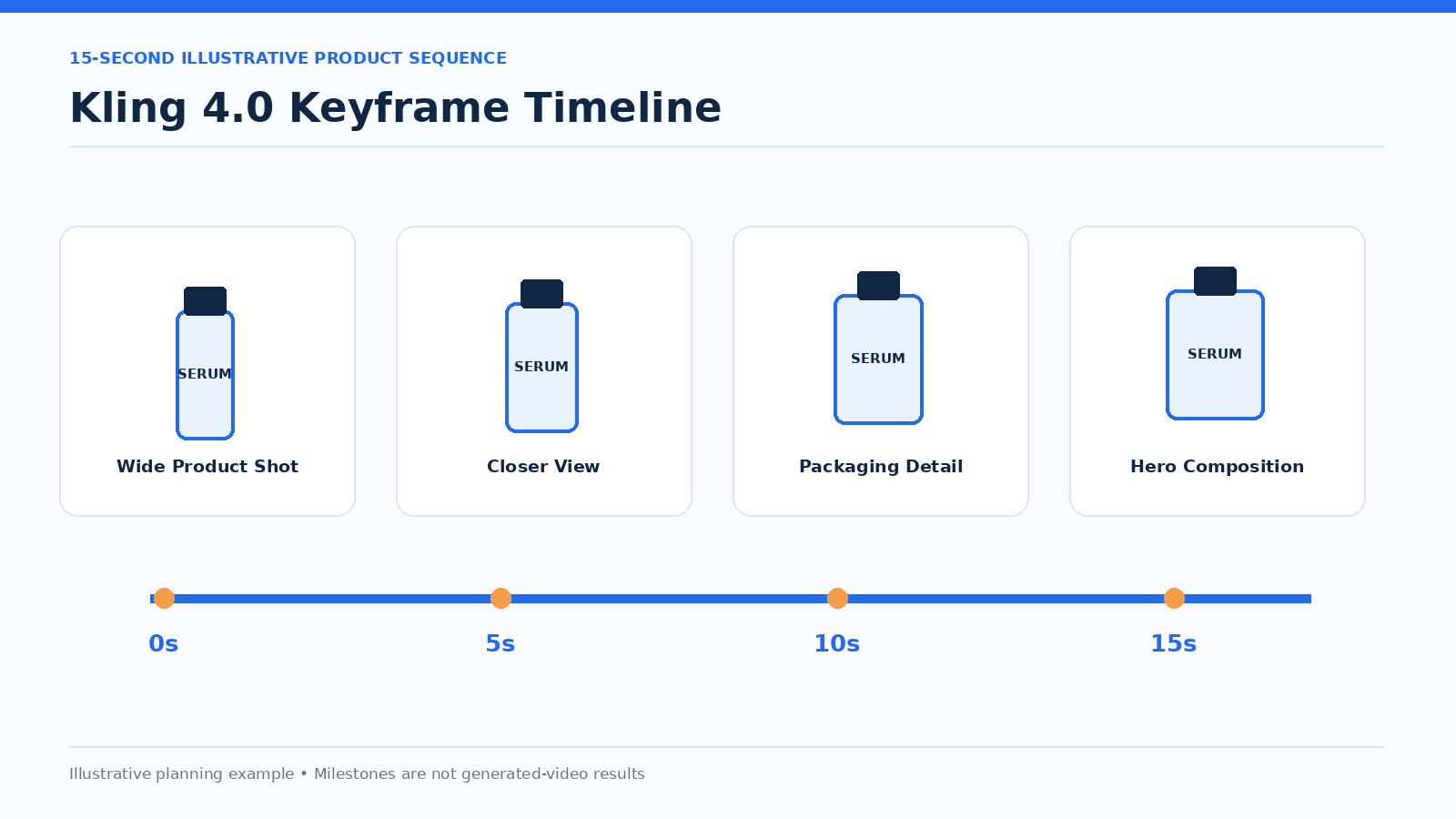
Use Multiple Keyframes for Planned Visual Milestones
Consider a 15-second product sequence.
| Time | Keyframe Purpose |
|---|---|
| 0 seconds | Establish the product |
| 5 seconds | Move closer |
| 10 seconds | Emphasize packaging details |
| 15 seconds | Finish with the hero composition |
The timeline tells the model when important visual states should occur.
The prompt describes how the subject and camera should move between those states.
When Should You Avoid Multiple Keyframes?
Avoid them when the scene has only one simple action and no required intermediate composition.
A portrait smile, a blinking character, or a small camera push-in usually does not need several separate visual milestones.
Extra keyframes are most useful when they resolve a specific problem: a required pose, scene change, camera composition, or transition.
Five Kling 4.0 Image-to-Video Prompt Examples
The following prompts are illustrative, copy-ready templates based on the documented workflow, not claims of independently tested outputs.
Each example includes a recommended mode, starting settings, prompt, and a practical revision strategy.
Example 1: Natural Portrait Animation
Goal: Animate a portrait without changing the subject's identity.
| Setting | Starting Recommendation |
|---|---|
| Mode | Keyframes |
| Input | One clear portrait |
| Duration | 5 seconds |
| Camera | Fixed medium shot |
| Aspect ratio | Match the portrait image |
Prompt:
"Use @Image1 as the first frame. The woman slowly turns her head slightly toward the window, then forms a gentle smile. Her hair moves softly in the breeze. Her shoulders remain relaxed, and the camera holds a steady medium shot. Natural daylight continues to illuminate her face."
Why this prompt is useful: It describes a limited head movement, one expression change, and a fixed camera.
If the face changes: Reduce the turning angle and keep the face visible for more of the clip.
If almost nothing moves: Make the sequence more explicit: "She turns her head, then smiles."
Best for: Portraits, profile videos, and lifestyle content.
Example 2: Skincare Product Advertisement
Goal: Create a clean product reveal without unnecessary object transformation.
| Setting | Starting Recommendation |
|---|---|
| Mode | Keyframes |
| Input | One product image |
| Duration | 6 seconds |
| Camera | Slow push-in |
| Aspect ratio | 9:16 for a vertical ad |
Prompt:
"Use @Image1 as the first frame. A skincare bottle stands upright on a smooth studio surface. The camera slowly pushes toward the bottle in one continuous movement. A soft band of light travels across the glass, revealing its curved edges. The bottle remains centered and upright as the background stays softly illuminated."
Why this prompt is useful: The bottle stays stationary while the camera and reflections create movement.
If the label changes: Reduce movement complexity, check the source image, and preserve exact typography in post-production when necessary.
If the bottle changes shape: Replace a dramatic orbit with a straightforward push-in.
Best for: E-commerce videos, beauty promotions, and product presentations.
Example 3: Fixed-Camera Cat Animation
Goal: Make the animal move without turning the entire image into a zoom effect.
| Setting | Starting Recommendation |
|---|---|
| Mode | Keyframes |
| Input | One cat image |
| Duration | 5 seconds |
| Camera | Stationary |
| Aspect ratio | Match the source composition |
Prompt:
"Use @Image1 as the first frame. The orange cat sits beside the window, slowly turns its head toward the viewer, twitches both ears, and flicks its tail once. The cat then returns to a relaxed sitting position. The camera remains fixed in the original medium-wide composition."
Why this prompt is useful: The subject performs clear actions while the camera instruction preserves the framing.
If the camera zooms: Move the camera requirement to the beginning of the prompt and simplify environmental motion.
If the cat barely moves: Prioritize the head turn and remove the secondary ear or tail action.
Best for: Pet videos, illustrated characters, and short social clips.
Example 4: Cinematic Forest Tracking Shot
Goal: Coordinate walking movement with a smooth following camera.
| Setting | Starting Recommendation |
|---|---|
| Mode | Keyframes |
| Input | One forest scene with a visible traveler |
| Duration | 8 seconds |
| Camera | Tracking from behind |
| Aspect ratio | 16:9 |
Prompt:
"Use @Image1 as the first frame. The traveler begins walking slowly along the misty forest path. The camera follows from behind at a steady distance, moving smoothly between the trees. Thin fog drifts across the path, and the traveler's coat moves naturally with each step. Soft morning light filters through the branches throughout the continuous shot."
Why this prompt is useful: Subject movement, camera movement, and environmental motion all support the same direction of travel.
If the walking looks unnatural: Shorten the action, reduce camera complexity, or use a more suitable starting pose.
If the scene changes unexpectedly: Emphasize one continuous tracking shot and remove unrelated narrative instructions.
Best for: Travel videos, atmospheric storytelling, and cinematic content.
Example 5: Multi-Reference Fashion Character
Goal: Preserve a character's identity and clothing while guiding movement with separate assets.
| Setting | Starting Recommendation |
|---|---|
| Mode | Omni Reference |
| Inputs | Three images and one optional motion video |
| Duration | 8–10 seconds |
| Camera | Smooth medium tracking shot |
| Aspect ratio | 9:16 |
Reference Plan:
| Asset | Role |
|---|---|
| @Image1 | Face and hairstyle |
| @Image2 | Outfit and accessories |
| @Image3 | Room and lighting |
| @Video1 | Walking rhythm, if supplied |
Prompt with a Motion Reference:
"@Image1 defines the character's face and hairstyle. @Image2 defines the outfit and accessories. @Image3 establishes the room layout, furniture, and lighting. Use @Video1 to guide the relaxed walking rhythm. The character walks toward the window, pauses beside the curtains, and turns toward the camera. The camera follows smoothly at a medium distance."
Prompt Without a Motion Reference:
"@Image1 defines the character's face and hairstyle. @Image2 defines the outfit and accessories. @Image3 establishes the room layout, furniture, and lighting. The character takes three relaxed steps toward the window, pauses beside the curtains, and slowly turns toward the camera. The camera follows smoothly at a medium distance."
Why these prompts are useful: Each asset has a defined purpose, and the second version works without a reference video.
If the outfit changes: Simplify the scene and make the outfit reference role more explicit.
If the character's face changes: Use a clearer face reference and reduce extreme head or camera angles.
Best for: Fashion content, branded characters, and multi-reference storytelling.
Advanced Kling 4.0 Image-to-Video Techniques
Once a basic animation works, use more advanced controls only when they solve a specific creative requirement.
Keep Characters and Products Consistent
Start by identifying what must remain recognizable.
| Subject | Important Details |
|---|---|
| Portrait | Face, hairstyle, clothing |
| Fashion model | Identity, outfit, accessories |
| Product | Shape, packaging, logo |
| Animated character | Silhouette, colors, defining features |
| Interior | Layout, furniture, lighting |
For Keyframes, choose images that preserve these details across the timeline.
For Omni Reference, assign appearance and environment roles to specific assets.
Consistency is easier to direct when you identify the details that matter instead of repeating a general instruction such as "keep everything consistent."
Control Camera Movement Precisely
| Camera Instruction | Intended Effect | Suitable Scene |
|---|---|---|
| Fixed shot | No camera movement | Portrait or animal |
| Push-in | Move closer | Product detail |
| Pull-out | Reveal more of the scene | Environment reveal |
| Pan | Rotate viewpoint horizontally | Room or landscape |
| Tracking | Follow a moving subject | Walking character |
| Orbit | Move around a subject | Product showcase |
For example:
"The camera moves slowly clockwise around the stationary product, maintaining a medium-close distance."
An orbit can expose surfaces not visible in the source image. Use suitable references when unseen details must remain accurate.
Plan Multi-Shot Sequences Carefully
A longer clip may need more than one visual beat.
For a 12-second fashion concept:
| Time | Shot | Purpose |
|---|---|---|
| 0–4 seconds | Wide shot | Establish character and setting |
| 4–8 seconds | Medium tracking shot | Show movement and clothing |
| 8–12 seconds | Detail shot | Highlight accessories |
Describe the intended sequence clearly, but verify that the selected creation mode supports the controls you need.
For highly precise edits, generating separate shots and assembling them afterward may provide more editorial control.
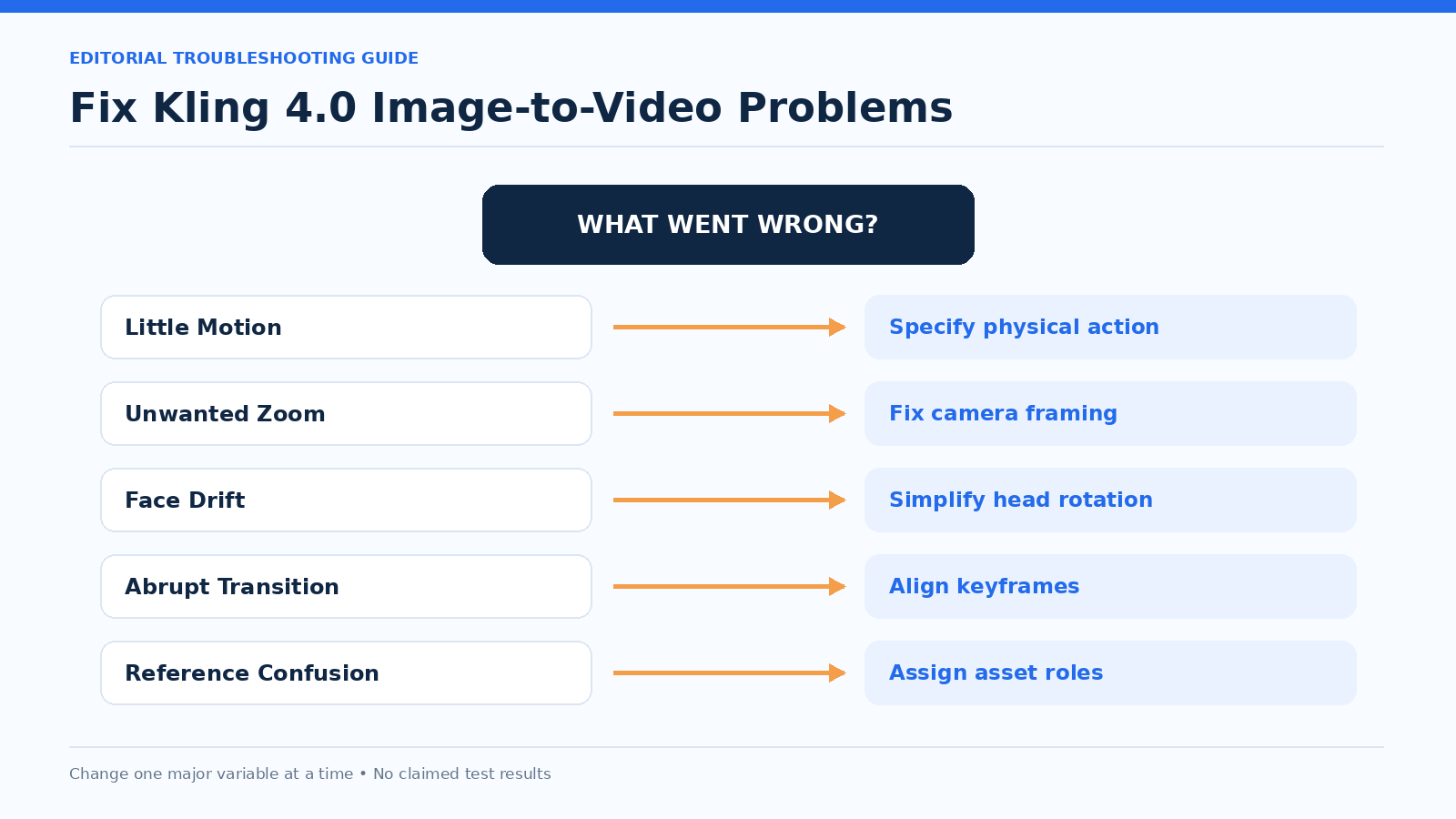
Kling 4.0 Image-to-Video Problems and Fixes
The fastest way to troubleshoot a Kling 4.0 video is to identify whether the problem comes from the image, the motion prompt, the camera instruction, or the selected creation mode.
| Problem | First Thing to Check | Recommended Fix |
|---|---|---|
| Almost no movement | Action description | Add an observable physical action |
| Unwanted zoom | Camera instruction | Specify fixed framing |
| Face drift | Pose complexity and source image | Reduce head rotation |
| Product distortion | Unseen surfaces and camera movement | Use a simpler viewpoint |
| Abrupt transition | Keyframe compatibility | Align frames or add a milestone |
| Reference confusion | Asset assignments | Define each reference's role |
| Unnatural walking | Starting pose and action complexity | Shorten the sequence |
| Unstable brand text | Fine packaging details | Check source and plan post-production |
Should You Fix the Source Image or the Prompt First?
Use this simple diagnostic:
| What You Observe | What to Fix First |
|---|---|
| Important details are missing from the original image | Source image |
| The subject is visible but barely moves | Motion prompt |
| The action is correct but the camera moves incorrectly | Camera instruction |
| The final frame is visually incompatible with the first | Keyframe images |
| Multiple references seem to conflict | Reference roles |
| Tiny logo or text changes during movement | Source/detail requirements and post-production |
Do not rewrite everything at once. Identify the most likely cause and change that component first.
How to Fix an Almost-Static Video
Weak prompt:
"The woman looks happy in a cinematic scene."
Improved prompt:
"The woman raises her eyebrows slightly, smiles, and turns her head toward the camera. The camera remains stationary."
The improved version replaces an abstract description with observable movement.
How to Reduce Face Drift
Use a clear portrait with recognizable features.
Begin with a small head movement instead of a full turn away from the camera.
If identity consistency is essential, use compatible visual references and avoid contradictory appearance instructions.
How to Stop Unwanted Zoom
Separate the subject's action from the camera behavior.
Improved prompt:
"The cat slowly turns its head and flicks its tail once. The camera remains fixed in the original medium-wide composition."
If the camera still moves unexpectedly, simplify the prompt further before adding new instructions.
How to Fix Keyframe Transitions
Compare the images for differences in lighting, perspective, subject geometry, and background layout.
A transition between two incompatible images may require the model to invent a large visual transformation.
Use an intermediate keyframe only when it clarifies an important stage.
How to Protect Product Accuracy
Check labels, logos, packaging, proportions, and colors throughout the generated clip.
Although Kling 4.0's official materials describe improved text and logo rendering, commercial accuracy still requires human review.
For critical typography, consider finalizing exact text in a video editor rather than repeatedly generating the entire clip.
Kling 4.0 Image-to-Video API, Settings, and Cost Optimization
Before using Kling 4.0 through an API, verify the exact model version, endpoint availability, supported settings, and billing rules. Features listed in the official creative workspace are not automatically available through every third-party integration.
Kling 4.0 API Checklist
| Requirement | What to Verify |
|---|---|
| Model | Exact version and identifier |
| Image input | Supported formats and size limits |
| Keyframes | Available first, last, and intermediate frame controls |
| Omni Reference | Supported asset types |
| Duration | Allowed generation lengths |
| Resolution | Available output quality |
| Aspect ratio | Supported formats |
| Audio | Available generation and reference options |
| Tasks | Submission and result retrieval |
| Pricing | Exact charges for the chosen configuration |
Consult the official Kling API documentation for endpoint-specific details.
How to Avoid Wasting Video Generation Budget
The most effective cost-control strategy is to reduce unnecessary generations. For a related workflow, see the Seedance 2.5 API guide.
Use a staged workflow:
1. Validate the scene: Start with one source image and one clear action.
2. Check the camera: Confirm that framing and movement match the intended result.
3. Improve consistency: Add references or keyframes only when necessary.
4. Increase complexity: Move to longer scenes or more detailed shots after the basic concept is clear.
5. Finalize delivery: Choose the resolution and duration needed by the publishing platform.
For planning, use:
Estimated production cost = cost per generation × number of generations
If a provider charges by generated video duration, calculate the cost using the provider's actual billing formula.
Do not assume that every video model charges a fixed price per second or that a longer clip costs exactly proportionally more.
LinkModel Pricing for Related AI Image and Video Workflows
For creators producing videos and the source images that support them, LinkModel provides a unified API and competitive pricing for supported multimodal models.
| Model and Tier | LinkModel Price | Comparison | Approximate Savings |
|---|---|---|---|
| Seedance 2.5, 480p | $0.09766/sec | fal.ai displayed estimate: $0.2205/sec | 56% |
| Seedance 2.5, 720p | $0.219564/sec | fal.ai displayed estimate: $0.4730/sec | 54% |
| Grok Imagine Image 2.0, 1K Low | $0.028/image | xAI official: $0.040/image | 30% |
| Grok Imagine Image 2.0, 1K Medium | $0.042/image | xAI official: $0.060/image | 30% |
| Grok Imagine Image 2.0, 2K Medium | $0.056/image | xAI official: $0.080/image | 30% |
Pricing note (October 26, 2026): fal.ai's published per-second figures are approximate estimates, and its actual Seedance 2.5 billing depends on output dimensions, frame rate, duration, and token usage. The percentage comparisons above use those displayed estimates, not a guaranteed identical-specification final bill. The Grok Imagine Image 2.0 comparisons use xAI's official listed output prices for matching resolution and quality tiers.
For a simple image-generation pricing example, 100 Grok Imagine Image 2.0 images at 1K Low cost $2.80 at LinkModel's listed rate versus $4.00 at xAI's official output rate, excluding any additional applicable input charges.
LinkModel also offers pay-as-you-go billing, no minimum spend, no monthly platform fee, Playground testing, and access to supported models through one API.
Frequently Asked Questions
How do I turn an image into a video with Kling 4.0?
Upload a clear source image, choose Keyframes or Omni Reference, describe the subject's movement and camera behavior, select duration and output settings, and generate the clip.
How many keyframes can Kling 4.0 use?
Up to 10 keyframes. Use intermediate frames when specific visual states must appear at planned points on the timeline.
Should I use Omni Reference or Keyframes?
Use Keyframes for precise timeline milestones and Omni Reference for combining appearance, scene, motion, or voice references. Their separate entry-point controls cannot be freely combined.
How can I stop face drift or unwanted camera zoom?
Start with a clear image, simplify the action, and specify the camera behavior. If the problem continues, change the source image or one prompt component at a time.
Does Kling 4.0 support 4K video?
Yes. The full model lists 4K output support, although available settings can depend on the selected workflow and integration. Kling 4.0 Flash is limited to 720p in the official launch guide.
Conclusion
The key to better Kling 4.0 image-to-video results is matching the workflow to the creative goal: use Keyframes for planned visual milestones, Omni Reference for clearly assigned reference assets, and specific prompts that separate subject motion from camera movement. Start with a simple clip, review the full result, and adjust one variable at a time. The five prompt templates above provide practical starting points for portraits, product ads, animal animation, cinematic tracking, and multi-reference characters. For related image and video production, LinkModel offers competitively priced supported models through a unified API with flexible pay-as-you-go billing.