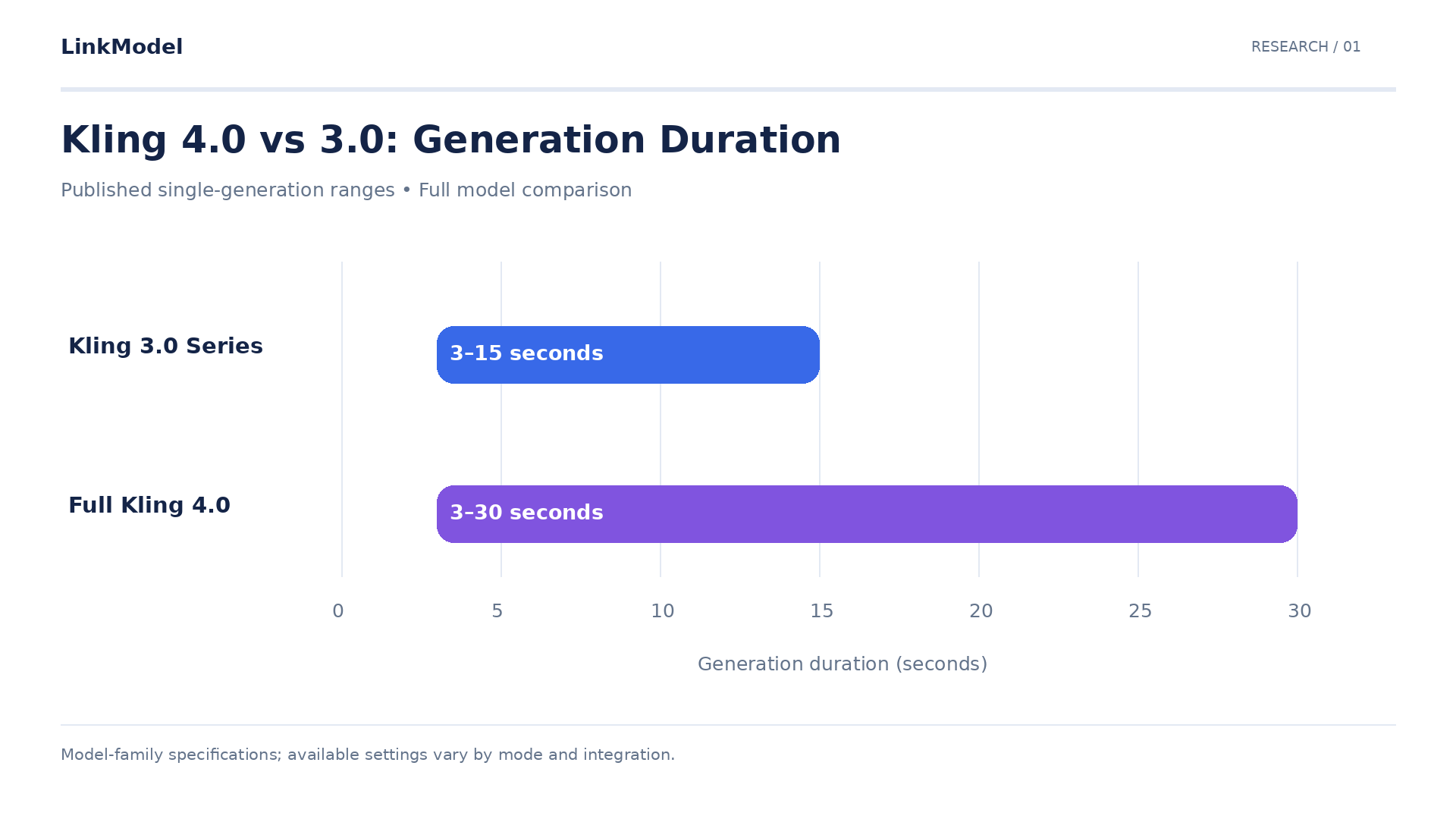
Kling 4.0 vs 3.0 comes down to how much control your scene needs. Kling 4.0 expands the published generation window from 15 to 30 seconds and adds up to 10 keyframes; both generations support 4K. Consider upgrading for longer, carefully staged sequences. Keep Kling 3.0 when it already delivers your required shot.
More footage only helps when the action works. An aircraft must maintain its direction, a pianist’s hands must remain convincing, and a letter must survive the handoff. The three video cases below connect those practical checks to the upgrade decision, helping you identify useful Kling 4.0 controls before spending on repeated generations.
For your broader production workflow, LinkModel combines available video, image, and language models with unified access and billing, pay-as-you-go pricing, no minimum spend, and no monthly platform fee. Explore discounts of up to 30% on selected models, compare available models in Playground, and put your budget toward outputs that earn a place in your final edit.

Kling 4.0 vs 3.0: Key Differences at a Glance
The main upgrade concerns how much you can specify within a generation. Use the following published capabilities to identify whether a version change addresses a limitation in your current workflow.
| Capability | Kling 3.0 series | Full Kling 4.0 |
|---|---|---|
| Single-generation duration | 3–15 seconds | 3–30 seconds |
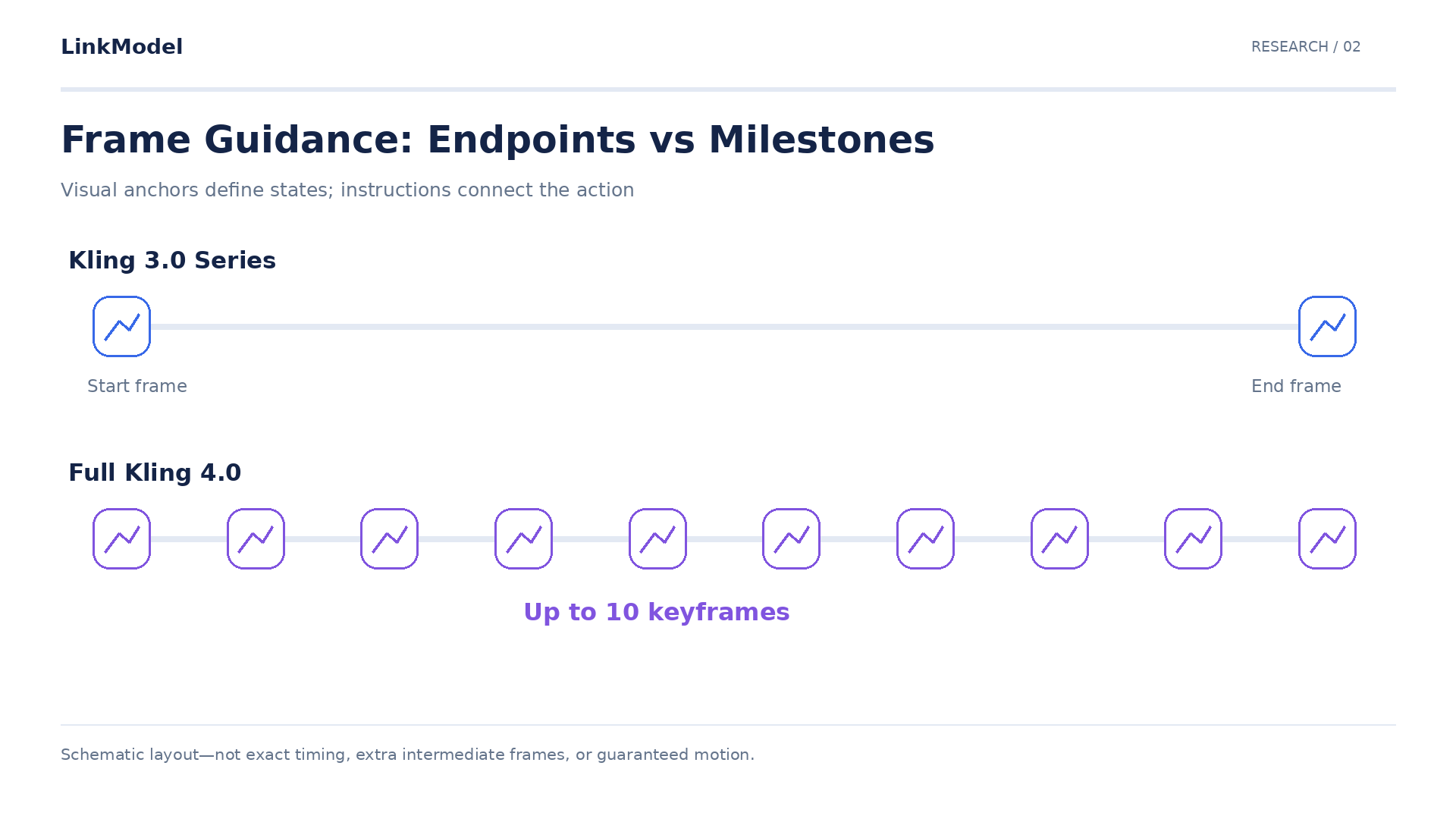
| Frame guidance | Start and end frames | Adds up to 10 keyframes |
| Published resolutions | 720p, 1080p, 4K | 720p, 1080p, 4K |
| Reference combinations | Up to seven images or subjects without video | Up to 15 combined reference inputs |
| Video references | One video up to 15 seconds, plus up to four images or subjects | Up to five videos totaling 30 seconds, within the shared input budget |
| Published audio format | Single-channel native audio | Two-channel stereo |
| Video editing | Includes 3.0 Omni workflows | Expanded targeted multimodal editing |
Model specifications and platform controls are different things. Check the exact model, mode, supported resolution, reference inputs, and timeline controls in your workspace. A family-level feature may not be exposed by every integration.
For example, a workflow that only exposes basic image-to-video controls cannot be evaluated as though it offers every reference and editing option. Record the configuration alongside the output before comparing results.
Duration and Keyframes: When the Extra Control Matters
Additional time is valuable when it allows an event to finish. Intermediate visual anchors are valuable when a sequence must pass through specific compositions.
A product demonstration makes the distinction clear. Showing a product on a table is one requirement; showing a person picking it up, using it, and returning it correctly is a more demanding sequence.
Plan the Event Before Choosing the Duration
Start by identifying the action’s beginning, contact point, consequence, and ending. Then assign enough time for each stage to remain understandable.
The following is a suggested storyboard for a longer product sequence:
| Planned interval | Creative purpose | Acceptance requirement |
|---|---|---|
| 0–5 seconds | Establish the person and product | Product begins in the correct position |
| 5–12 seconds | Pick up and present the product | Hands maintain plausible contact |
| 12–22 seconds | Demonstrate one function | The intended action visibly completes |
| 22–30 seconds | Return to the final composition | Product remains correct and unobstructed |
These timings are planning choices. Adapt them to the action rather than stretching every brief to the maximum duration.
A compact product reveal may only need a single movement. A complete demonstration may need several stages. Decide which event the viewer must understand before choosing how much footage to generate.
Use Keyframes for Essential Visual Milestones
Reserve visual anchors for moments that would otherwise be ambiguous: the product entering the frame, the completion of an interaction, or a required closing composition.
An image of a closed package and an image of an open package define two states. The instructions still need to explain whether the person opens it by lifting a lid, tearing a seal, or sliding out a tray.
Keyframes guide visual states; the brief must explain the action connecting them.
Avoid adding anchors simply to fill the available slots. Conflicting camera angles, product designs, or hand positions can make the intended transition less clear.
Distinguish a Continuous Take From a Multi-Shot Sequence
Kling 3.0 already supports multi-shot storytelling and native audio. A sequence containing several shots is therefore not exclusive to 4.0.
The production question is whether a cut helps communicate the event.
A manufacturing montage can use cuts to compress time. A product handoff may need uninterrupted contact. Specify that distinction in the brief, then inspect the output for unintended angle changes, hidden object substitutions, and actions that end before completion.
Kling 4.0 vs 3.0 Case Studies: Action, Hands, and Object Continuity
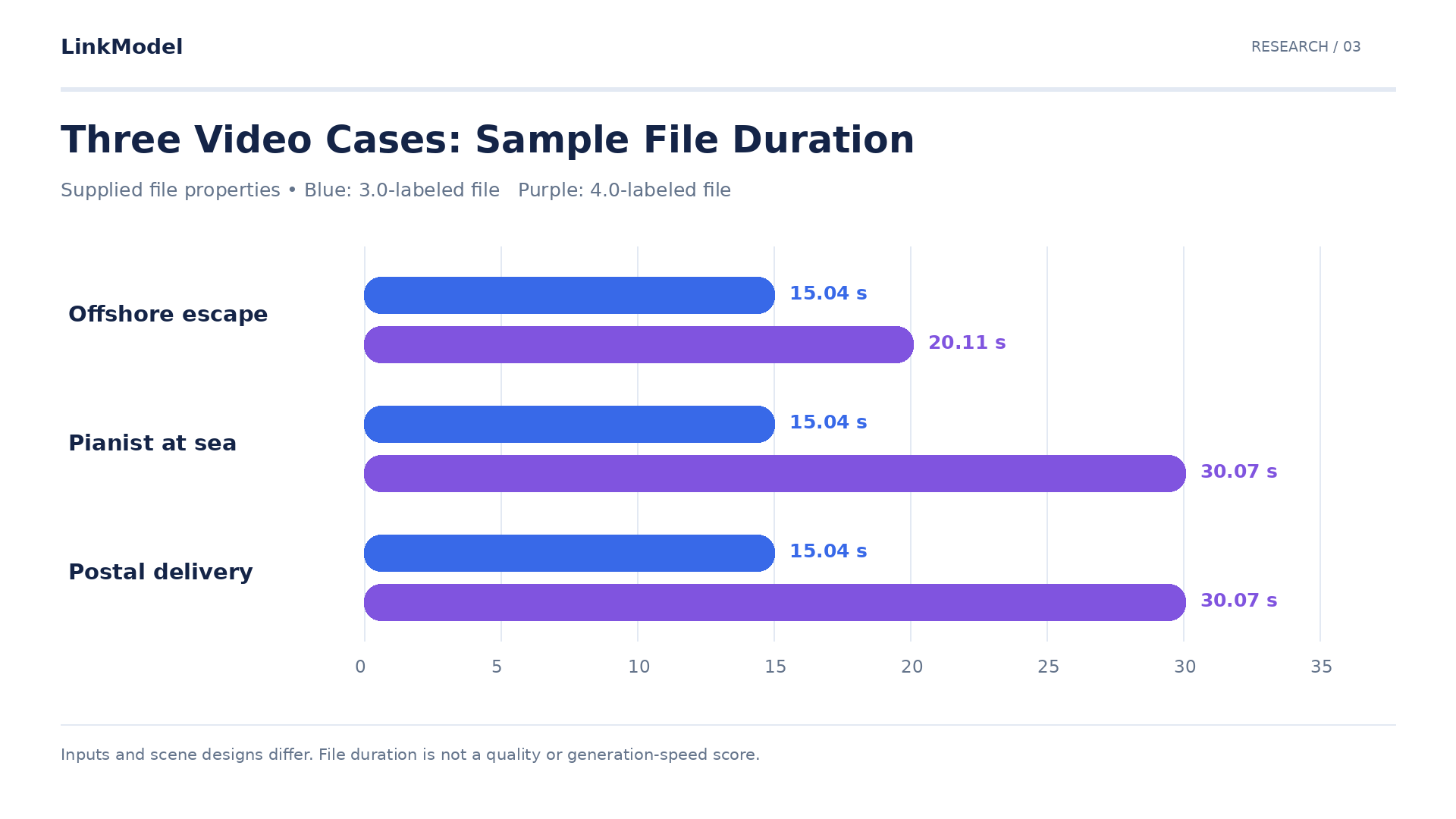
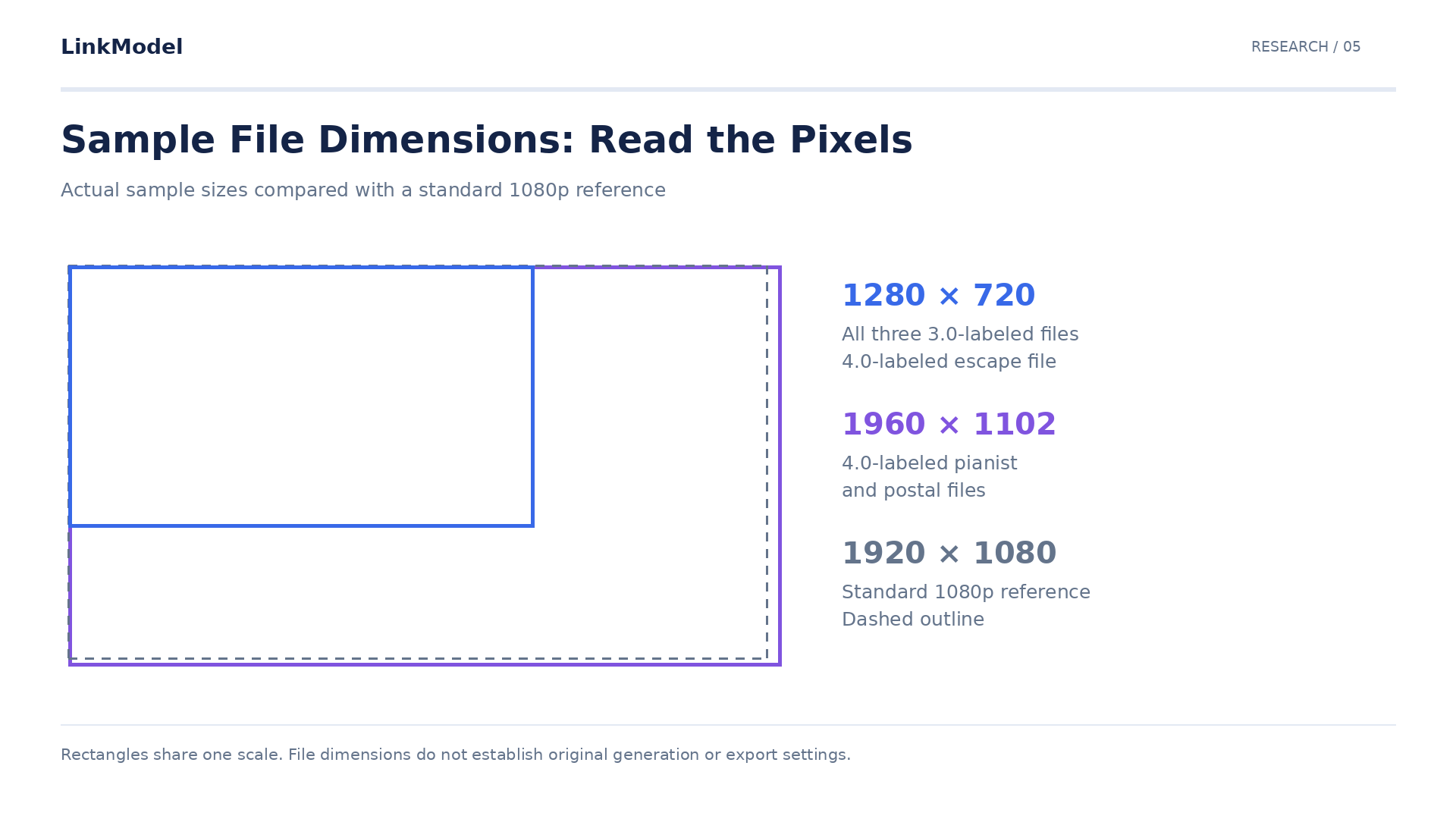
Our research examined three publicly supplied sample pairs covering an escape, a musical performance, and an animated delivery. The sample files were labeled by version and had the following properties:
| Scene | 4.0-labeled sample file | 3.0-labeled sample file |
|---|---|---|
| Offshore escape | 20.11 seconds; 1280 × 720 | 15.04 seconds; 1280 × 720 |
| Pianist at sea | 30.07 seconds; 1960 × 1102 | 15.04 seconds; 1280 × 720 |
| Animated postal delivery | 30.07 seconds; 1960 × 1102 | 15.04 seconds; 1280 × 720 |
The pairs differ in duration, framing, and some scene designs. They help identify what to inspect in each type of shot, rather than establish an overall quality ranking. File duration also should not be confused with an original generation setting.
Action Case: Offshore Escape and Aircraft Continuity
The longer escape sample includes an offshore platform, an aircraft, and a distant fireball. The shorter sample uses a closer aircraft-departure composition.
For this type of brief, the important question is whether the escape remains readable. Track the aircraft’s shape, position, and direction through the scene. Check whether smoke or foreground movement conceals an unexplained change.
A useful action review follows a simple sequence:
- Establish where the subject is.
- Identify the danger or trigger.
- Follow the departure.
- Confirm that the ending follows logically from the action.
More spectacle does not necessarily create a clearer escape. A closer composition may communicate a departure efficiently; a wider sequence may offer more environmental context. Choose according to what the audience needs to understand.
Detail Case: A Pianist in a Storm
The pianist samples combine precise hand movement with a large environment. The longer version uses darker storm staging; the shorter version presents a lighter deck composition.
That combination calls for separate review passes. First inspect the vessel, horizon, lighting, and camera movement. Then inspect hands, wrists, posture, and keyboard contact.
For a close-up, examine how fingers approach and leave the keys. For a wider composition, decide how much hand detail the final edit actually requires. A dramatic environment may work as an establishing shot while still being unsuitable for a sustained performance close-up.
Accept the scene at the level of detail the audience will see. Do not assume that an effective wide shot will remain convincing when cropped tightly.
Interaction Case: An Animated Postal Delivery
Both delivery samples reach an ending with the recipient holding the letter, while using different doorway compositions.
The ending answers only part of the brief. To evaluate the exchange, follow the envelope through approach, contact, release, and withdrawal.
| Interaction stage | What to verify |
|---|---|
| Approach | One identifiable envelope moves toward the recipient |
| Contact | Hands and envelope meet in a plausible position |
| Transfer | Ownership changes visibly |
| Release | The sender lets go without duplication |
| Ending | The recipient retains the same envelope |
This method transfers directly to commercial footage: passing a phone, handing over a cosmetic bottle, opening a parcel, or placing an item into a shopping bag.
A correct final pose is useful; a clear transfer is what completes the action.
Reference Limits and Character Consistency
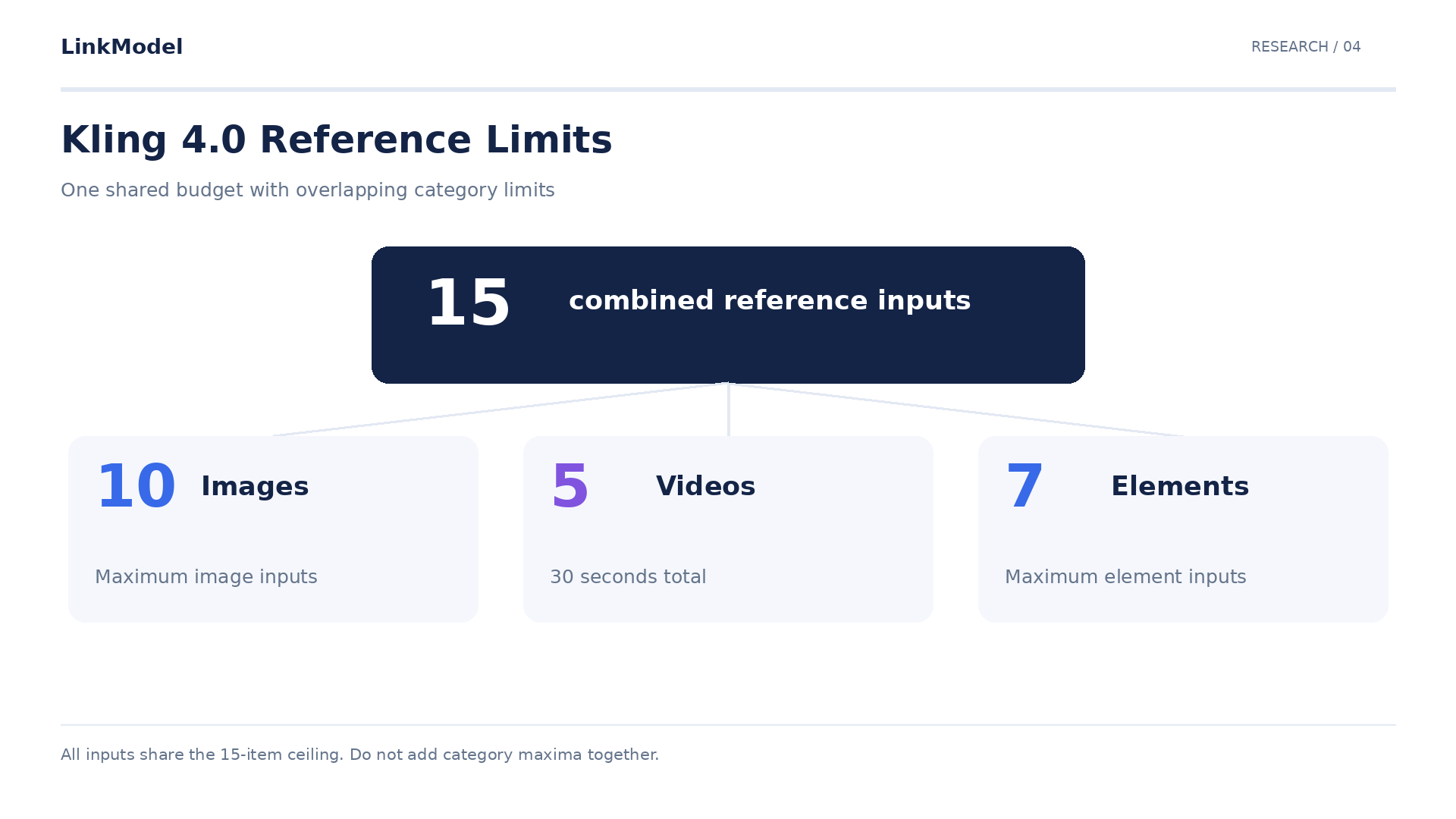
Kling 4.0’s guide lists 15 combined reference inputs, with sublimits including 10 images, five videos totaling 30 seconds, and seven elements. These are overlapping constraints within a shared budget.
The production benefit comes from assigning each asset a clear responsibility.
| Reference role | What it should establish | Common conflict |
|---|---|---|
| Character | Face, hairstyle, costume | Different ages or outfits |
| Product | Shape, proportions, label placement | Multiple product revisions |
| Environment | Layout and lighting context | Incompatible spatial arrangements |
| Movement | Action or camera behavior | Motion that contradicts the framing |
| Composition | A required visual state | An ending the preceding action cannot reach |
Build the smallest coherent reference set first. Add an asset when it resolves a specific ambiguity.
For product work, establish which reference governs packaging. For recurring characters, identify the appearance details that must survive a turn, a cut, or an occlusion.
Preserve Identity Before Increasing Action Complexity
Our review of user questions highlights a recurring production concern: a character looks correct initially but becomes harder to recognize after movement or a framing change.
A practical response is to isolate the requirements. Establish identity in a representative composition, introduce one essential action, and inspect the appearance after the action.
If the person turns, picks up a product, changes expression, and crosses a crowded environment simultaneously, diagnosing a failed result becomes harder. Add complexity once the essential identity and interaction requirements hold.
Kling 3.0 Omni already documents element references and voice-related controls, so existing reference-led workflows deserve evaluation before replacement.
Choose Between Keyframes and Omni Reference
The 4.0 guide distinguishes the dedicated Keyframes entry point from Omni Reference and states that their capabilities cannot be combined within a single generation task.
Choose around the dominant requirement. When specific compositions must occur along the timeline, inspect the keyframe workflow. When appearance, movement, and source assets drive the scene, inspect the reference workflow.
Confirm the supported combination before preparing the entire asset package. This avoids building a storyboard around controls that are unavailable in the selected entry point.
4K, HDR, Audio, and Delivery Quality
Resolution, color format, motion quality, and speech accuracy answer different questions. Evaluate each against the delivery brief.
For example, 1960 × 1102 is not standard 1920 × 1080. The dimensions of a supplied sample describe that file, without establishing its original generation or export process.
Review 4K Footage at the Required Detail Level
Inspect product lettering, facial features, moving edges, hand contact, and appearance after cuts. A high-resolution frame can still contain a brief-breaking mistake.
For packaging footage, review the label during movement as well as at rest. For an actor holding a product, review the contact area and the product silhouette. For a wider action scene, prioritize subject direction and spatial continuity.
Match the inspection to the deliverable. A background flaw and an incorrect hero product do not carry the same production consequence.
Confirm HDR Before Planning the Color Workflow
The official 4.0 guide marks 10-bit HDR as coming soon in its overview, despite also listing HDR in its specification table. Confirm the available export option before committing to an HDR-dependent delivery.
For high-contrast material, inspect bright windows, reflective packaging, neon lighting, and dark clothing in the actual editing environment. The practical question is whether the file preserves the information your grade requires.
Test Dialogue, Voice Identity, and Lip Sync Separately
Our review of user questions repeatedly returns to speaker identity, unwanted music, voice continuity, and mouth movement.
Use a short script and keep the character, language, and framing consistent. Review the spoken words, which person delivers them, and synchronization after a shot change.
For multilingual work, Kling’s published comparison lists Portuguese, German, French, and Hindi among the additions in 4.0. Test the language and pronunciation your audience needs, especially brand names and product terminology.
Simplify the visual action while evaluating dialogue. For AI video with audio, assess music-led movement against the track separately. An audio format alone cannot establish a convincing performance.
Video Editing: Can You Fix a Shot Without Rebuilding It?
A nearly usable clip can be more revealing than a fresh generation. It lets you evaluate whether a model can correct a specific problem while preserving the work that already meets the brief.
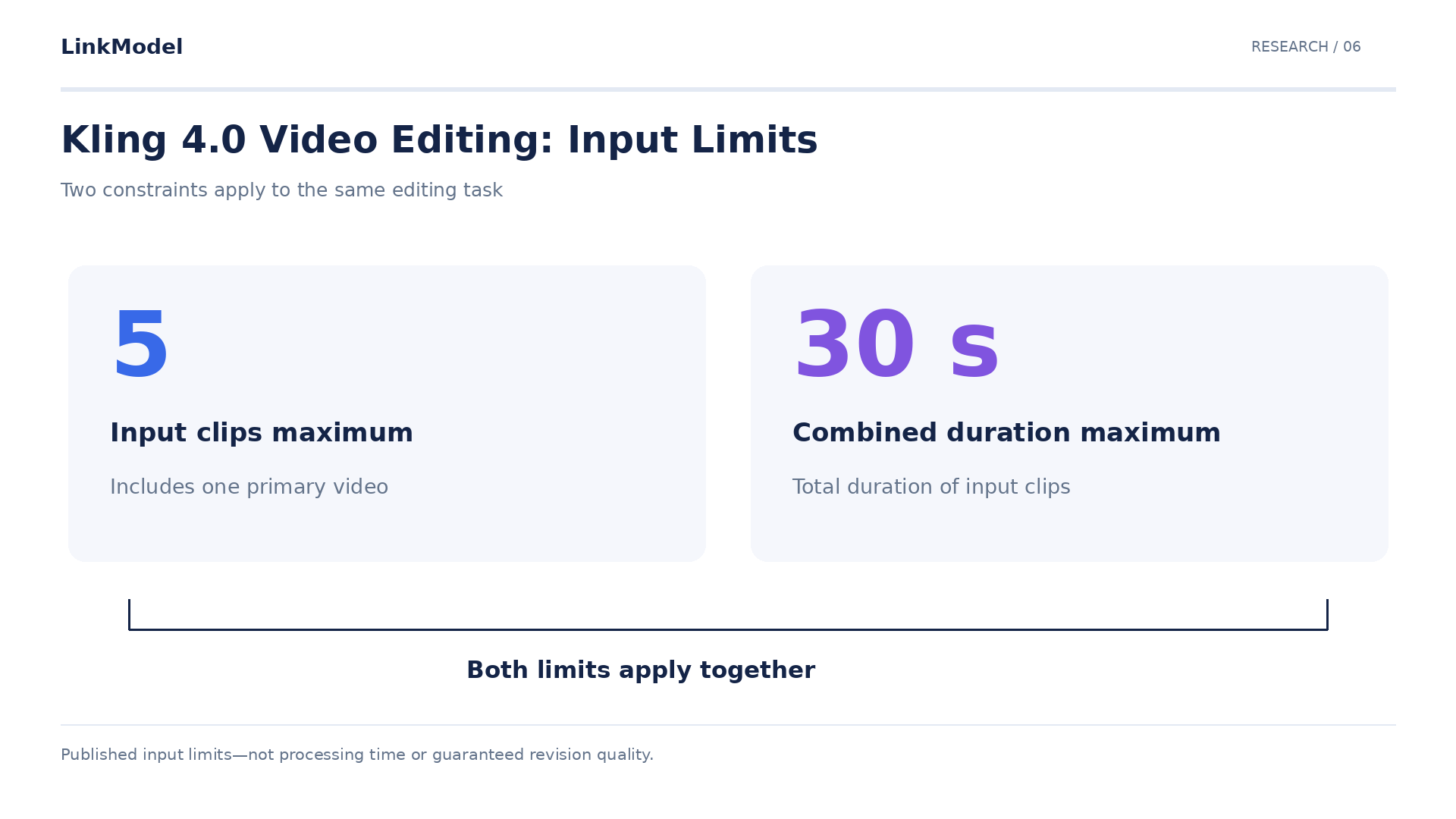
Kling 4.0’s guide documents targeted changes to subjects, backgrounds, movement, camera direction, and style. It lists editing inputs of up to five clips, including one primary video, with a combined duration of no more than 30 seconds.
Change One Requirement and Inspect What Survives
Start with a single correction, such as replacing the background while preserving the actor and product.
Evaluate the result against two questions:
Did the requested change happen? The replacement should match the new brief.
Did the essential details survive? The actor, product geometry, interaction, timing, and framing should remain suitable for delivery.
If the background improves but the product changes shape, the revision still creates production work. Keep that correction in the attempt history.
Use Revision Tests to Assess Upgrade Value
Choose a problem that recurs in your actual workflow. A frequently rejected background, an expression that needs changing, or a camera move that needs adjustment makes a useful test.
Compare the total effort needed to obtain an accepted result. Include additional revisions and manual cleanup.
An upgrade becomes valuable when it reduces a recurring production burden. That is a more useful decision criterion than the attractiveness of a selected first output.
Pricing and Speed: Compare the Cost of Accepted Footage
A version name is insufficient for a reliable budget. Duration, resolution, audio, references, and task type all need to be attached to the estimate.
Kling’s 3.0 cost guide discusses configuration choices including Omni, native audio, and multi-shot workflows, reinforcing the need to compare specific setups.
Calculate Generation Cost per Accepted Clip
Use:
Generation cost per accepted clip = total generation charges ÷ accepted clips
Track review and editing time separately.
| Record | Why it matters |
|---|---|
| Exact model and mode | Identifies the configuration |
| Duration, resolution, and audio | Establishes output requirements |
| Prompt and references | Makes the setup reproducible |
| All attempts | Includes rejected results |
| Queue and processing time | Separates different sources of delay |
| Review and editing time | Captures work after generation |
| Accepted deliverables | Connects spending to usable footage |
A cheaper request can become expensive after retries. A higher-priced request can be worthwhile if it reduces correction work. The attempt history determines which applies.
For available alternatives, consult the LinkModel pricing page alongside the video model catalog, then attach the selected configuration to your estimate.
Measure Turnaround Against a Representative Brief
Choose a task you regularly produce. For example, have a person lift one product, turn it toward the camera, and return it to the table.
Set acceptance criteria before generating: the product keeps its shape, the label stays in place, the hands maintain contact, and the ending leaves the product visible.
Measure the time until accepted footage is ready, including review and correction. Then run a separate brief that uses the newer controls.
The first comparison measures replacement value; the second measures added capability.
Kling 4.0 vs 3.0: Which Version Should You Choose?
Kling 4.0 is worth evaluating when its additional controls solve a requirement your current setup cannot meet efficiently. An established 3.0 workflow remains useful when it consistently passes review.
| Your production need | Recommended next step |
|---|---|
| Existing short clips reliably meet the brief | Retain 3.0 as the baseline |
| An event needs more time to complete | Evaluate the longer workflow |
| Intermediate compositions are essential | Test keyframe control |
| Several reference assets must work together | Evaluate the expanded input setup |
| One part of usable footage needs correction | Compare targeted revision results |
| Dialogue determines usability | Run a dedicated speech comparison |
| Budget or turnaround dominates | Measure accepted footage and total effort |
For campaign work, prepare the character and product references first. Review one representative shot before producing the full sequence or its variations.
If the brief permits other candidates, Seedance 2.5 and MiniMax H3 are also listed in LinkModel’s catalog. Compare available models against the same creative requirements and check current model-specific access before starting.
Frequently Asked Questions
Is Kling 4.0 better than Kling 3.0?
Kling 4.0 provides more timing and reference controls. It is worth evaluating when those controls address your brief. For established short-video workflows, compare accepted results and correction work before replacing 3.0.
Do both versions support 4K, and is HDR available?
Both families list 4K output, although individual modes and integrations can differ. The 4.0 guide marks HDR as coming soon in its overview, so confirm the export option before promising HDR delivery.
Are Kling 4.0 Flash, full 4.0, and 3.0 Omni interchangeable?
No. Keep the exact model and mode attached to each comparison. Do not assume that an input or control available in one workflow is available in another. If a familiar reference fails after changing platforms, check supported inputs and account restrictions before rebuilding the asset.
Does Kling 4.0 fix lip-sync errors and unwanted cuts?
A version change should not be treated as a guaranteed fix. Test the required dialogue directly and inspect continuous-action shots for unexpected transitions. When joining clips, compare pose, movement direction, lighting, and object position at the seam.
Is Kling 4.0 cheaper or faster than 3.0?
Compare the same requirements and include retries. Total charges and elapsed production time for accepted clips provide a more useful answer than a headline rate or one successful output.
Conclusion
Upgrading to Kling 4.0 is worth considering when longer scenes, intermediate visual anchors, richer references, or targeted revisions solve a specific production problem. Keep Kling 3.0 when your existing setup already meets the brief. The escape, pianist, and delivery cases show how to make that decision concrete: follow the event, inspect the focal interaction, and verify continuity through the ending. Choose the workflow that delivers footage you can use with an acceptable amount of generation, review, and editing.