You can access GPT Image 2.6 API with one API key through LinkModel, using the same credential for both GPT Image 2.6 Flare and Sunburst. Create a key, select your model, send a request to the LinkModel image generation endpoint, and retrieve the finished image using the returned task ID. There is no need to manage a separate key for each model.
Getting an API key, however, does not guarantee a successful image request. An incorrect endpoint, unsupported parameter, or mismatched response handler can prevent your application from retrieving an image. LinkModel uses an asynchronous image generation workflow, so understanding task creation and result polling is especially important when integrating GPT Image 2.6 into an existing application.
LinkModel simplifies this process with a unified API key, consolidated billing, and 35% lower GPT Image 2.6 token rates through November 30, 2026, alongside $0 minimum spend and $0 monthly platform fee. New users automatically receive $1 in free Credits upon registration, without adding a payment card or making a deposit. These credits do not expire, apply to all models currently available on LinkModel, and cannot be claimed repeatedly by existing users. You can begin with a small image generation request before committing to a larger workload.
What You Need to Access GPT Image 2.6 API
GPT Image 2.6 is OpenAI's image generation and editing model family, released on November 4, 2026. Developers can choose between two models with different workflow priorities.
| Model | API Model ID | Recommended Use |
|---|---|---|
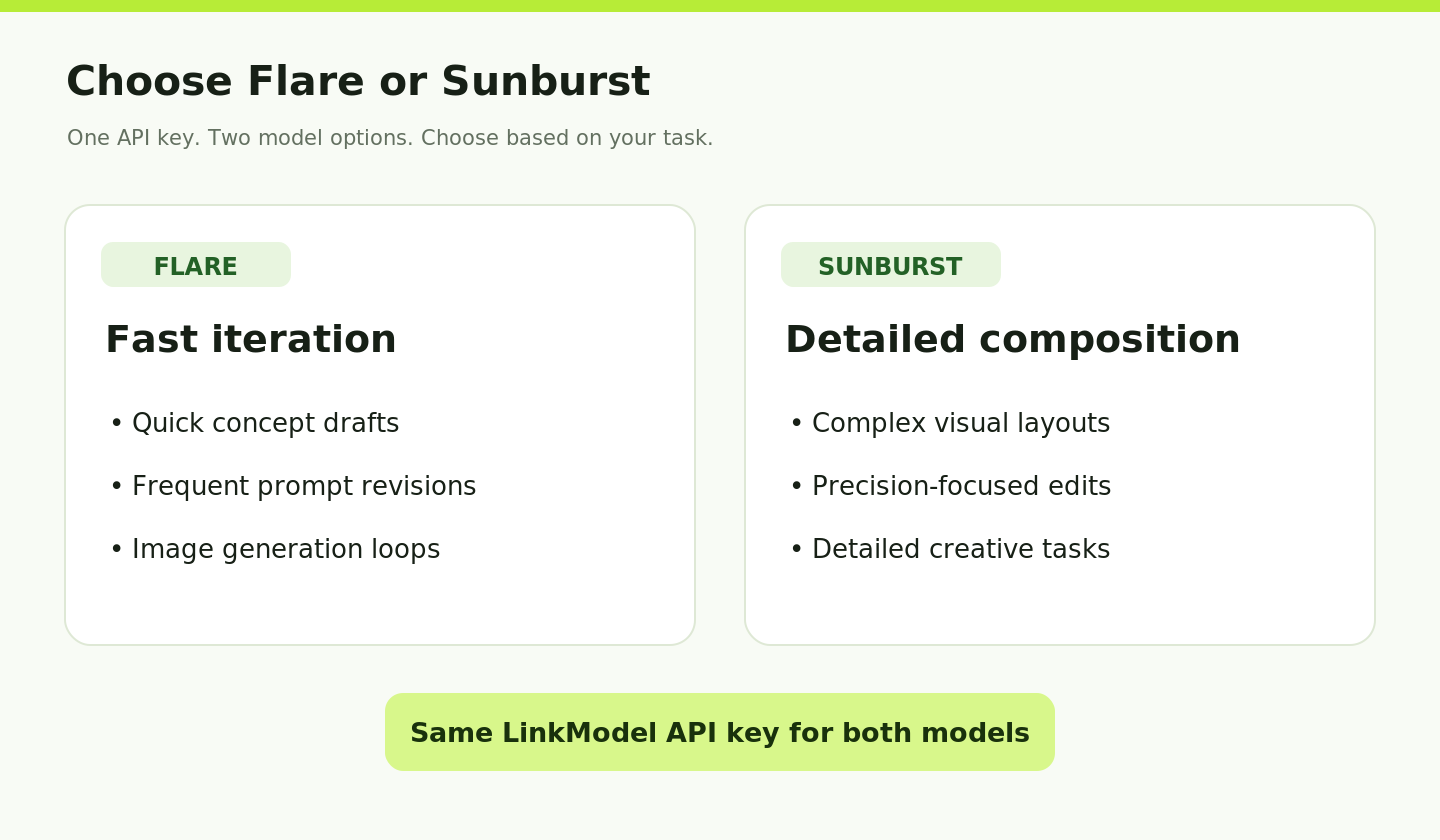
| GPT Image 2.6 Flare | gpt-image-2.6-flare | Fast image generation, creative iteration, and frequent revisions |
| GPT Image 2.6 Sunburst | gpt-image-2.6-sunburst | Detailed compositions, complex layouts, and precision-focused editing |
Both models support text-to-image generation and image editing. Their documented capabilities also include complexity controls, markup-guided editing, SVG-related workflows, and animated GIF generation.
Requirements Before Your First Request
You need a LinkModel account, an active API key, available API credits, and an environment capable of making HTTPS requests.
You do not need separate API keys for Flare and Sunburst. The model is selected through the model field in your request.
For the Python example below, install the requests library:
pip install requestsStore your API key in an environment variable rather than embedding it directly in production code.
LinkModel API vs OpenAI Official API
The model IDs are the same, but the request and response workflows differ.
| Component | OpenAI Official API | LinkModel API |
|---|---|---|
| API credential | OpenAI API key | LinkModel API key |
| Base URL | https://api.openai.com/v1 | https://api.linkmodel.ai/v1 |
| Image generation | /images/generations | /images/generations |
| Initial result | Image data in the response | Task information including task_id |
| Image retrieval | Decode returned image data | Query the task and retrieve its output URL |
An integration that expects OpenAI's data[0].b64_json response cannot assume LinkModel will return that same structure.
This distinction matters when adapting SDK examples, image-generation scripts, or third-party interfaces. A unified API key simplifies authentication across supported models, but it does not make every provider's request parameters and response formats identical.
How to Access GPT Image 2.6 With One API Key
The LinkModel setup process uses one account and one authentication credential across supported models.
Step 1: Create Your LinkModel API Key
Visit LinkModel and create an account or sign in.
Open Get API Key from the navigation bar and use the account dashboard to create your key.
Copy the key and save it securely. Treat it as a secret: do not publish it in a repository, screenshot, blog post, or client-side application.
Step 2: Choose Flare or Sunburst
Open the model pages and select your starting model:
For an initial integration, Flare is the practical starting point if your priority is prompt iteration and quick visual drafts. Choose Sunburst when your images require more demanding composition or editing precision.
You can use either model with the same LinkModel credential. Changing models does not require creating another key.
Step 3: Configure the Endpoint and Authentication
Use the following settings:
| Setting | Value |
|---|---|
| Base URL | https://api.linkmodel.ai/v1 |
| Generation endpoint | POST /images/generations |
| Authentication header | Authorization: Bearer YOUR_API_KEY |
| Content type | application/json |
| Example model | gpt-image-2.6-flare |
For a Windows PowerShell session, set the environment variable using:
$env:LINKMODEL_API_KEY = "YOUR_API_KEY"For macOS or Linux:
export LINKMODEL_API_KEY="YOUR_API_KEY"Replace YOUR_API_KEY with the key created in your LinkModel account.
These examples configure the key for the current terminal session. Use a suitable secret-management method when deploying a production application.
Step 4: Verify Your Model Settings
Before adding advanced parameters, check that you are using the correct model ID and that your application supports LinkModel's task-based response workflow.
LinkModel also provides a public model catalog endpoint:
GET https://api.linkmodel.ai/v1/modelsThe model catalog can help verify available IDs. For supported input fields, output formats, and limits, consult the selected model's API reference.
A model appearing in the catalog does not necessarily mean every possible parameter combination is supported. Always match your request to the specific model schema.
Make Your First GPT Image 2.6 API Request
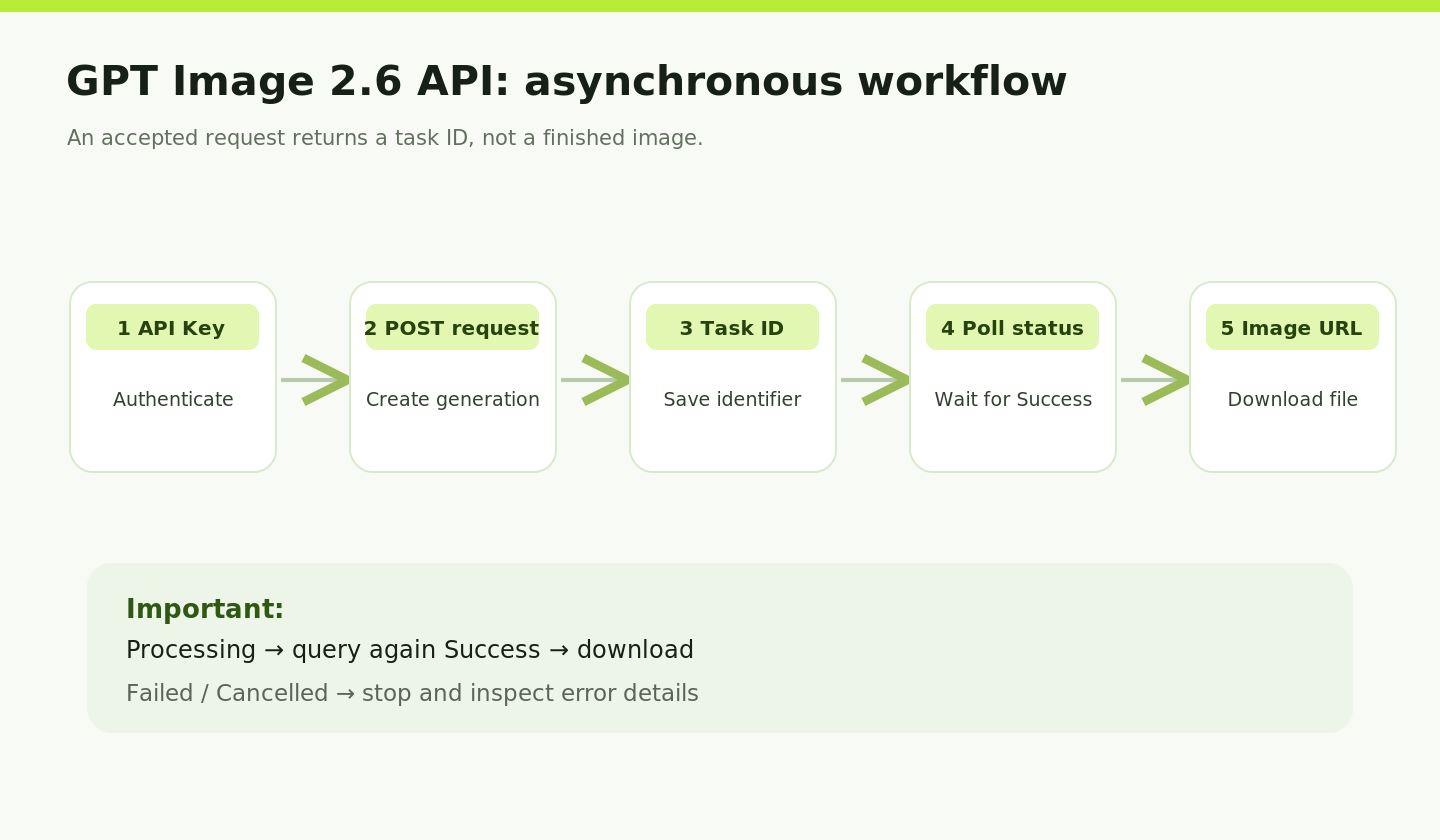
A complete LinkModel image-generation workflow has three important operations: submit a generation task, check its status, and download the resulting image.
The following Python examples use LinkModel's documented request fields and asynchronous task structure.
Step 1: Submit an Image Generation Request
This Python example sends a simple product photography prompt to GPT Image 2.6 Flare.
import os
import requests

api_key = os.environ["LINKMODEL_API_KEY"]
base_url = "https://api.linkmodel.ai/v1"

headers = {
    "Authorization": f"Bearer {api_key}",
    "Content-Type": "application/json",
}

payload = {
    "model": "gpt-image-2.6-flare",
    "prompt": (
        "A professional product photograph of a white "
        "ceramic coffee mug on a wooden table, "
        "soft natural lighting, clean background"
    ),
    "size": "1024x1024",
    "quality": "low",
    "complexity": "low",
    "output_format": "png",
    "max_images": 1,
}

response = requests.post(
    f"{base_url}/images/generations",
    headers=headers,
    json=payload,
    timeout=120,
)

response.raise_for_status()
result = response.json()

if result.get("code") != 0:
    raise RuntimeError(result)

task_id = result["data"]["task_id"]
print("Task ID:", task_id)
The request uses LinkModel's documented image-generation parameters: model selects GPT Image 2.6 Flare, prompt describes the image, size sets its dimensions, and max_images requests one output.
The quality and complexity settings are independent controls, while output_format specifies PNG.
For your first request, keep these values simple so that authentication and task creation are easier to troubleshoot.
Step 2: Understand the Task Response
A successful task-creation response follows the LinkModel task structure and contains fields such as:
{
  "code": 0,
  "data": {
    "task_id": "aurora_abc123",
    "status": "Processing"
  },
  "msg": "success"
}
This illustrative response shows how LinkModel identifies an accepted generation task. The task_id is used to retrieve its status and eventual output; task creation does not mean the image has finished generating.
Save the returned task_id because it identifies the generation task you need to query.
The task-creation endpoint uses a msg field, while the task-query endpoint uses message in its response envelope. When debugging an integration, account for this distinction rather than assuming both endpoints return identical response objects.
Step 3: Check Image Generation Status
Use the task ID with the corresponding GET endpoint:
GET https://api.linkmodel.ai/v1/images/generations/{task_id}Image generation is asynchronous. After submitting the request, your application must wait until the task reaches a completed state before attempting to download the output.
The following polling example checks the task every five seconds, stops on success or failure, and limits the number of attempts.
import time

poll_interval = 5
max_attempts = 60
task = None

for attempt in range(max_attempts):
    time.sleep(poll_interval)

    status_response = requests.get(
        f"{base_url}/images/generations/{task_id}",
        headers={
            "Authorization": f"Bearer {api_key}"
        },
        timeout=30,
    )

    status_response.raise_for_status()
    status_result = status_response.json()

    if status_result.get("code") != 0:
        raise RuntimeError(status_result)

    task = status_result["data"]
    status = task.get("status", "").lower()

    print(f"Attempt {attempt + 1}: {status}")

    if status == "success":
        break

    if status in ("failed", "cancelled"):
        raise RuntimeError(
            f"Image generation ended: {task}"
        )

else:
    raise TimeoutError(
        "Task did not finish within the polling limit."
    )
This example performs at most 60 polling attempts. The five-second delay adds up to approximately five minutes, excluding the time spent making network requests.
The code converts the returned status to lowercase before comparing it, allowing it to handle capitalization differences such as Processing and processing.
LinkModel's documentation also provides a recommended polling schedule: wait approximately 10 seconds before the first query, poll more frequently during the first minute, then reduce the frequency for longer-running tasks. Its documented polling window extends to 15 minutes.
For production systems, use that adaptive schedule or another bounded polling strategy that respects the service's limits.
Stop polling when the task reaches Success, Failed, or Cancelled. Continuing to query a completed task adds unnecessary requests and does not change its result.
Step 4: Retrieve and Save the Generated Image
Once the task status is Success, retrieve the image URL from output_images.
from pathlib import Path

if (
    task
    and task.get("status", "").lower() == "success"
    and task.get("output_images")
):
    image_url = task["output_images"][0]

    image_response = requests.get(
        image_url,
        timeout=60,
    )
    image_response.raise_for_status()

    Path("gpt-image-2-6-output.png").write_bytes(
        image_response.content
    )

    print("Image saved successfully.")

else:
    raise RuntimeError(
        "No completed image output is available."
    )
This checks both the task status and the presence of an output URL before attempting to download the image.
If the task reports success but the output list is empty, inspect the returned task details instead of attempting to access a nonexistent image URL.
Generated output URLs may be dynamically signed, so save the image file instead of relying on the URL as permanent storage.
The key integration lesson: a single API key gives you model access, but successful image generation still requires the correct request schema, task polling, and response-handling workflow.
Optional: Adjust the Model and Output Settings
After your first successful PNG request, you can explore other supported settings.
| Parameter | Purpose | Example |
|---|---|---|
model | Choose the image model | gpt-image-2.6-sunburst |
quality | Control rendering quality | medium |
complexity | Control planning effort | low |
size | Set image dimensions | 1024x1024 |
output_format | Select a supported format | png |
max_images | Request multiple outputs | 1 |
LinkModel's documentation supports up to 10 requested output images for the general generation field, although specialized output formats may impose additional limits.
The quality field accepts multiple levels, including low, medium, and high. The complexity field supports low, medium, and high, independently of image quality.
For more advanced capabilities, explore our GPT Image 2.6 GIF API guide, SVG output guide, and complete GPT Image 2.6 API guide for animation, vector graphics, markup-guided editing, and other supported workflows.
GPT Image 2.6 API Pricing: OpenAI vs LinkModel
GPT Image 2.6 is billed according to token usage rather than a universal fixed amount per image.
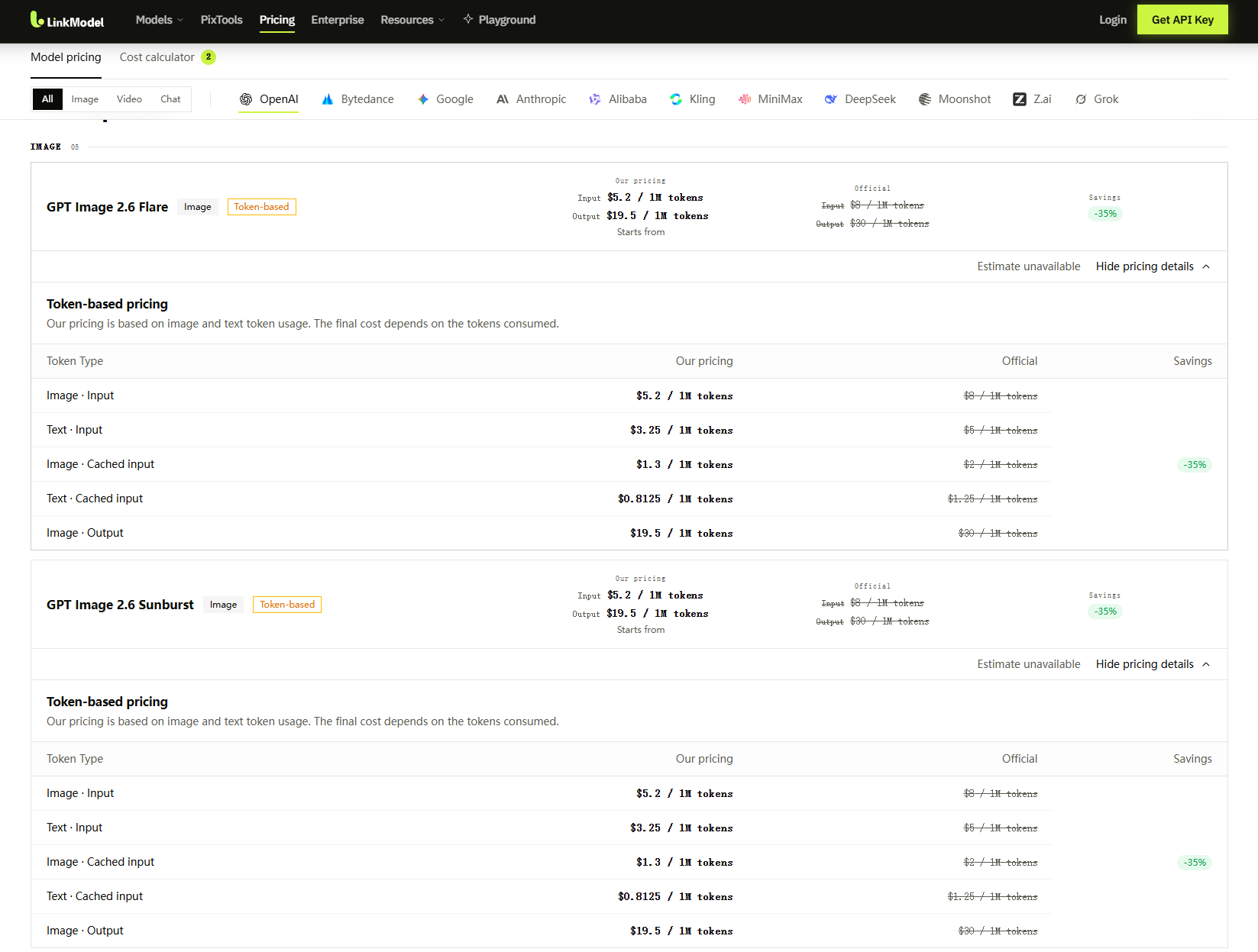
Both Flare and Sunburst have the same published standard token rates. Through November 30, 2026, LinkModel offers 35% lower pricing across the five corresponding billing categories.
Official vs LinkModel Token Prices
All prices below are in USD per 1 million tokens.
| Billing Category | OpenAI Official | LinkModel | Savings |
|---|---|---|---|
| Image input | $8.00 | $5.20 | 35% |
| Text input | $5.00 | $3.25 | 35% |
| Cached image input | $2.00 | $1.30 | 35% |
| Cached text input | $1.25 | $0.8125 | 35% |
| Image output | $30.00 | $19.50 | 35% |
Image output tokens deserve particular attention when budgeting image-heavy workloads.
For every million matching image output tokens, LinkModel charges $10.50 less than OpenAI's listed standard rate.
At 10 million image output tokens, the difference becomes $105.
How Much Does One Image Generation Cost?
The total cost depends on the tokens consumed by the request.
For a request without cached input, the calculation is:
Total Cost = (Text Input Tokens × Text Input Rate + Image Input Tokens × Image Input Rate + Image Output Tokens × Output Rate) / 1,000,000
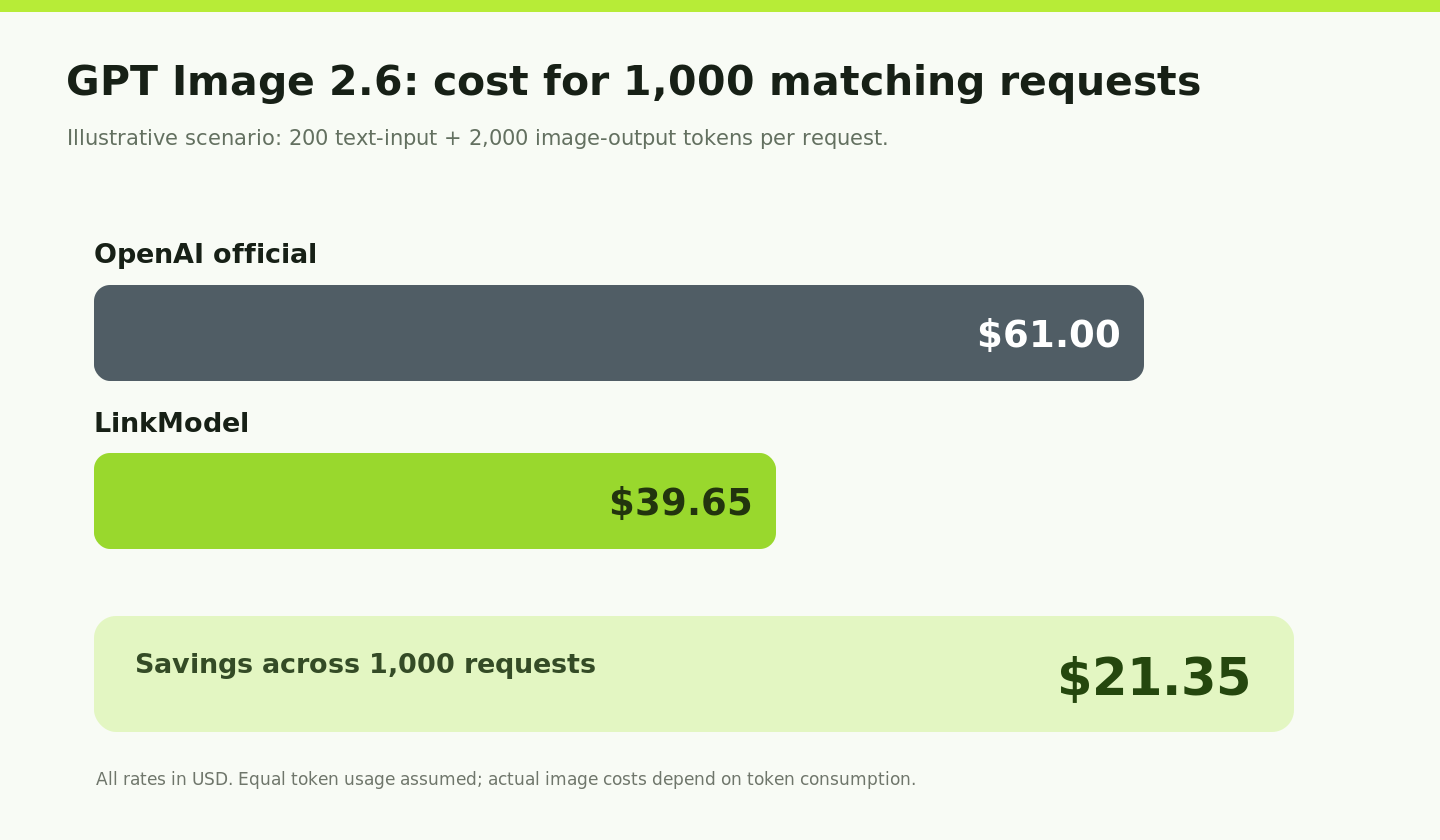
Consider a text-to-image request that uses 200 text input tokens and 2,000 image output tokens.
| Cost Component | OpenAI | LinkModel |
|---|---|---|
| 200 text input tokens | $0.00100 | $0.00065 |
| 2,000 image output tokens | $0.06000 | $0.03900 |
| Total per request | $0.06100 | $0.03965 |
| 1,000 identical requests | $61.00 | $39.65 |
For the same token usage, the estimated savings are $21.35 across 1,000 requests.
The 2,000 output tokens are an illustrative budgeting assumption. Actual consumption varies by image dimensions, quality settings, task complexity, and request inputs.
Why Image Costs Can Be Difficult to Predict
The main source of pricing variation is token consumption, not just the posted price per token.
A high-quality image can consume more output tokens than a simpler draft. Image editing can introduce additional image input tokens. Multiple revisions also increase the total number of billable requests.
Our review of developer discussions found concerns about higher image token usage in GPT Image 2.6 compared with earlier versions, particularly for some low-quality workflows.
For developers, the practical approach is to record the token usage and cost of representative requests before estimating a full production budget.
When measuring costs, keep the model, quality, dimensions, and prompt conditions consistent. After a task completes, check its available usage and cost information in the LinkModel response or account billing records. Record the actual token consumption for each configuration, then use those figures to estimate the cost of larger workloads. This makes budgeting more useful than relying on a single fixed cost-per-image assumption.
Common GPT Image 2.6 API Errors and How to Fix Them
An API key can be valid while the generation workflow still fails. The following table separates common failure points so developers can diagnose the actual problem.
| Error or Symptom | Possible Cause | What to Check |
|---|---|---|
| 401 Unauthorized | Invalid or missing key | Verify Bearer authentication and the LinkModel key |
| 400 Bad Request | Invalid JSON or unsupported parameter | Review the selected model's request schema |
| Model not available | Incorrect model ID or access restriction | Check the model catalog and permissions |
| Insufficient balance | Not enough available credits | Check account balance and usage |
| 429 Too Many Requests | Request or capacity limits | Adjust request frequency and retry policy |
| 500 Server Error | Backend or task-creation failure | Record the request ID and check task state |
| No image returned immediately | Asynchronous generation | Retrieve the task ID and query its status |
API Key Works, but Image Generation Fails
Start by checking the complete endpoint URL.
A chat request and an image generation request are different operations. Sending an image generation payload to /chat/completions is not equivalent to using /images/generations.
Next, verify that the model ID is spelled correctly and that the request contains fields supported by the selected model.
Finally, inspect the response object. LinkModel can return a business-level error code even when the HTTP response itself is successful.
The Request Succeeds, but No Image Appears
First, check whether the response contains a task_id.
If it does, the task may have been accepted and queued rather than completed.
Query the matching image-generation task endpoint and inspect the current status.
When the status becomes Success, read the generated image URLs. If the task reports Failed or Cancelled, inspect the returned error details instead of continuing to poll.
Also check whether your application is incorrectly trying to decode a Base64 image from the initial response. LinkModel's asynchronous image workflow requires a separate task query before downloading the generated asset.
Avoid Duplicate Tasks After a Timeout
A network timeout does not always prove that the server rejected a request.
If the task was created but the response was lost, immediately repeating the POST request may create another billable task.
Before retrying, check available task records and request identifiers when possible. Production applications should track task creation and implement a controlled retry strategy.
This is especially important for high-volume image-generation workflows.
Why Use LinkModel for GPT Image 2.6?
LinkModel is particularly useful when your application needs both GPT Image 2.6 models without managing separate API credentials or billing systems.
You can begin with Flare for iterative image creation, switch to Sunburst for more detailed visual tasks, and manage usage through the same account. With 35% lower token rates through November 30, 2026, this setup also provides a measurable cost advantage for repeated image-generation workloads.
One API Key for Multiple AI Models
With LinkModel, developers can use the same account and API credential to access supported image, text, and video models.
This is useful for applications that combine image generation with other AI operations.
For example, an application may generate image prompts with a text model, create visuals with GPT Image 2.6 Flare, and switch to Sunburst for more demanding image tasks.
The same credential can simplify access management and billing, while each model still retains its applicable endpoint and parameter requirements.
Lower Token Costs Without a Monthly Platform Fee
The 35% GPT Image 2.6 discount makes LinkModel particularly relevant to applications generating images repeatedly.
The difference is measurable: image output tokens cost $19.50 per million through LinkModel instead of $30.00 through OpenAI at the listed rates.
Combined with pay-as-you-go billing, developers can test a small workload and expand usage as needed without committing to a monthly platform subscription.
Start With Playground or the API
Developers can use the LinkModel Playground to explore supported models before integrating them into code.
For application development, follow the model-specific API reference, create a small test request, confirm the task response, and download the output asset.
Once the basic workflow succeeds, expand it to additional prompts, models, and supported image-editing features.
Start with a single successful generation, then scale the workflow using the same API key.
Frequently Asked Questions
Can I use one API key for GPT Image 2.6 Flare and Sunburst?
Yes. LinkModel provides a unified API credential for supported models. Specify gpt-image-2.6-flare or gpt-image-2.6-sunburst in the request's model field.
Do I need separate API credits if I already have ChatGPT Plus?
ChatGPT subscriptions and API billing are separate. To use GPT Image 2.6 through LinkModel, you need a LinkModel account with available API credits. A ChatGPT Plus subscription does not automatically fund a LinkModel API account.
Can I switch between Flare and Sunburst by changing the Model ID?
For the basic text-to-image workflow described here, you can select the other supported model ID while keeping the same LinkModel API credential and generation endpoint. Check model-specific parameters before using advanced editing or output formats.
Can GPT Image 2.6 generate GIF and SVG files through the API?
GPT Image 2.6 includes documented animated GIF and SVG-related generation capabilities. LinkModel's model documentation describes these workflows, but they have distinct format restrictions and parameter requirements. GIF generation uses animation-specific settings, while SVG-related workflows have different input limitations. Consult the dedicated guides before extending a basic PNG integration.
Why does my API key work but image generation fail?
The most common issues to check are an incorrect endpoint, invalid model ID, unsupported request parameters, insufficient credits, and incomplete asynchronous tasks. Confirm the authentication header, inspect the response code, and query the task status before submitting another generation request.
Conclusion
Accessing GPT Image 2.6 API with one key is straightforward once the authentication, endpoint, and task-handling steps are correctly configured. LinkModel lets developers use one API credential for Flare and Sunburst, retrieve generated images through its task-based workflow, and manage supported AI models within a unified account. With 35% lower GPT Image 2.6 token rates through November 30, 2026, it offers a practical starting point for developers who want to test image generation, understand their costs, and build a repeatable API workflow.