To set up the Open WebUI API, install Open WebUI with Docker, configure an OpenAI-compatible provider using its API base URL and API key, and select a supported model ID. You can then test chat completions and integrate Open WebUI with Python or other applications through its API endpoint.
API keys, incorrect base URLs, and missing model IDs are common reasons integrations fail. Even a successful connection does not guarantee that a model supports chat completions or tool calling. Verifying the upstream API first helps you avoid 401 errors, empty model lists, and unnecessary troubleshooting.
For developers who want more AI models at competitive prices, LinkModel offers a unified API with pay-as-you-go pricing and advertised savings of up to 30% on eligible models. Connect supported models to Open WebUI through one API provider, compare costs before deployment, and scale without managing separate integrations.
What the Open WebUI API exposes
Open WebUI documents an OpenAI-compatible chat-completions route for models configured in the instance. A client can call its local endpoint like this:
curl -X POST "http://localhost:3000/api/chat/completions" \
  -H "Authorization: Bearer $OPENWEBUI_API_KEY" \
  -H "Content-Type: application/json" \
  -d '{
    "model": "YOUR_OPENWEBUI_MODEL_ID",
    "messages": [
      {
        "role": "user",
        "content": "Say hello in one sentence."
      }
    ]
  }'
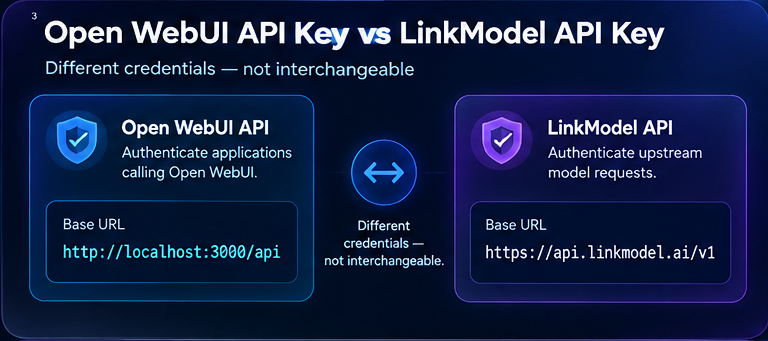
The Open WebUI API key is separate from the upstream LinkModel key. Keep both on the server side. If your application should call LinkModel directly, use LinkModel's API root rather than adding an unnecessary Open WebUI hop.
For media generation, an Open WebUI chat interface is not a replacement for a media task API. Use the n8n workflow templates for AI media for automation patterns, or the LinkModel CLI when the job belongs in a terminal or CI workflow.
Open WebUI API Key vs. LinkModel API Key
Open WebUI and LinkModel use different API keys for different purposes. Mixing them up is a common cause of authentication failures.
| Setting | Open WebUI API | LinkModel API |
|---|---|---|
| Purpose | Authenticate requests to your Open WebUI instance | Authenticate requests to the upstream model provider |
| Base URL | http://localhost:3000/api | https://api.linkmodel.ai/v1 |
| API key | Generated in Open WebUI | Generated in LinkModel |
| Chat endpoint | /chat/completions | /chat/completions |
| Typical use | Calling models through your self-hosted interface | Calling hosted models directly |
Which API should you use? Call Open WebUI when you need its user management, configured model access, or chat interface. Call LinkModel directly when your application only needs model inference without the additional Open WebUI layer.
Keep both API keys private. Never embed them in public frontend code, screenshots, or client-side repositories.
Step 1: Install and Start Open WebUI with Docker
The quickest way to install Open WebUI is with Docker. The official image exposes the web interface on port 3000 and stores application data in a persistent Docker volume.
First, generate a secret key:
openssl rand -hex 32Replace YOUR_GENERATED_SECRET with the generated value, then start Open WebUI:
docker run -d \
  -p 3000:8080 \
  --add-host=host.docker.internal:host-gateway \
  -v open-webui:/app/backend/data \
  -e WEBUI_SECRET_KEY=YOUR_GENERATED_SECRET \
  --name open-webui \
  --restart always \
  ghcr.io/open-webui/open-webui:main
Windows note: The multiline Docker command above uses Bash line continuation. If you're using Windows PowerShell, run the command on a single line or use PowerShell-compatible line continuation instead.
Open http://localhost:3000 in your browser and create your administrator account.
Check that the container is running:
docker ps --filter name=open-webuiThe open-webui volume preserves your application data when the container is recreated. Keep WEBUI_SECRET_KEY consistent across restarts. For production deployments, pin a tested release version instead of relying on the rolling :main image.
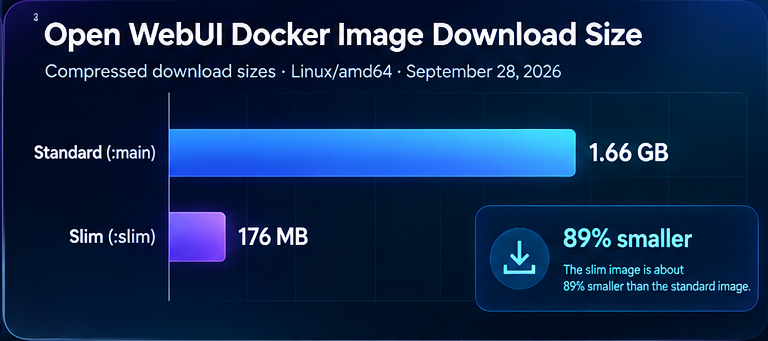
Using hosted AI APIs only? Open WebUI also provides a smaller :slim image. It is useful for basic chat with external model providers, but advanced features such as local embeddings and speech processing may require additional services.
Open WebUI may request /models to discover available models. If your provider does not support compatible model discovery, you may need to enter model IDs manually. The official Open WebUI compatible-provider guide explains the connection settings and discovery behavior.
If your upstream provider requires additional protocol translation or routing, consult the existing LiteLLM Proxy setup guide before adding custom middleware.
Step 2: Configure LinkModel as Your OpenAI-Compatible Provider
In Open WebUI, navigate to the administrator connection settings and add an OpenAI-compatible API connection using the following values:
| Setting | Value |
|---|---|
| API Base URL | https://api.linkmodel.ai/v1 |
| API Key | Your LinkModel API key |
| Provider Type | OpenAI-compatible / Default |
| Model IDs | Supported chat model IDs from LinkModel |
Important: Enter the API root, not the full /chat/completions URL. Open WebUI constructs the request endpoint automatically.
The LinkModel API key authenticates your requests to LinkModel. It is not the same as the API key generated by Open WebUI for external applications.
After saving the connection, select only the chat models your users need. You can explore supported models in the LinkModel model catalog and review their current rates on the LinkModel pricing page.
Cost-control tip: Restrict the model list to a small set of approved models rather than exposing every available option. This makes model selection easier and helps teams avoid unintentionally using higher-cost models for routine tasks.
If a model does not appear automatically, verify its exact API model ID and check the connection's model filter before assuming that the provider is unavailable.
Step 3: Verify Model Discovery and Chat Completions
Before debugging Open WebUI, verify that your upstream LinkModel API connection works independently.
First, store your API key in an environment variable:
export LINKMODEL_API_KEY="YOUR_LINKMODEL_API_KEY"Then request the available model list:
curl -i "https://api.linkmodel.ai/v1/models" \
  -H "Authorization: Bearer $LINKMODEL_API_KEY"
A successful response from the /models endpoint does not guarantee that every returned model supports chat completions or is available to your account.
Next, test a real chat request using a supported model ID:
curl -X POST "https://api.linkmodel.ai/v1/chat/completions" \
  -H "Authorization: Bearer $LINKMODEL_API_KEY" \
  -H "Content-Type: application/json" \
  -d '{
    "model": "YOUR_SUPPORTED_MODEL_ID",
    "messages": [
      {
        "role": "user",
        "content": "Reply with the word ready."
      }
    ]
  }'
The example model ID must be verified against the current LinkModel model catalog before use.
A successful chat response should contain a choices array with a generated assistant message. Check the actual response rather than relying on the HTTP status code alone.
How to interpret the results:
| Test result | What it means | Next action |
|---|---|---|
/models works and chat works | The upstream connection is operational | Configure or test Open WebUI |
/models works but chat fails | The model ID, permissions, or endpoint may be incompatible | Check the exact model and error response |
| Direct chat works but Open WebUI fails | The issue is likely within Open WebUI configuration | Inspect connection settings and logs |
| Both requests fail | The problem may involve the API URL, credentials, or network | Troubleshoot LinkModel access first |
Tip: Test the upstream API before changing Open WebUI settings. This separates provider-side problems from interface configuration issues.
Using the Open WebUI API from Python
Once your LinkModel connection is working, Python applications can call Open WebUI through its OpenAI-compatible endpoint.
Install the OpenAI Python SDK:
pip install openaiCreate an Open WebUI API key in your account settings and store it securely:
export OPENWEBUI_API_KEY="YOUR_OPENWEBUI_API_KEY"Then call a configured chat model:
import os
from openai import OpenAI

client = OpenAI(
    api_key=os.environ["OPENWEBUI_API_KEY"],
    base_url="http://localhost:3000/api",
)

response = client.chat.completions.create(
    model="YOUR_OPENWEBUI_MODEL_ID",
    messages=[
        {
            "role": "user",
            "content": "Summarize this ticket in one sentence.",
        }
    ],
)

print(response.choices[0].message.content)
Replace YOUR_OPENWEBUI_MODEL_ID with the exact model ID displayed by your Open WebUI instance. Depending on the connection configuration, Open WebUI may expose a provider-prefixed or filtered model ID.
Remember: This Python example authenticates with an Open WebUI API key, not your upstream LinkModel key. Open WebUI forwards the inference request through its configured provider connection.
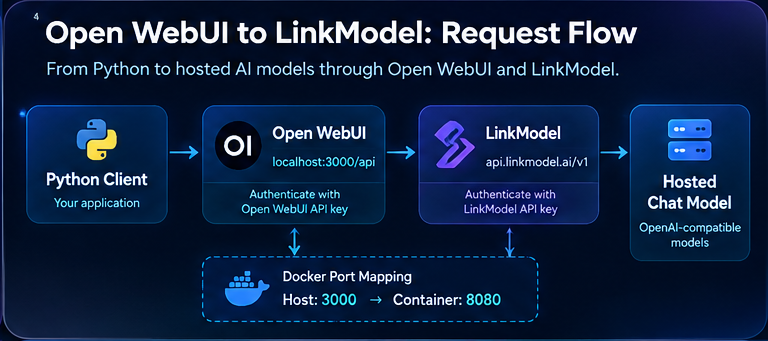
For applications that do not need the Open WebUI layer, you can also call LinkModel directly using the same OpenAI SDK with LinkModel's API base URL and API key.
For alternative integration patterns, see the existing LangChain OpenAI custom-base-URL example and n8n AI chatbot architecture guides.
Tool calling and model compatibility
Open WebUI supports tools and can execute configured tool servers, but compatibility is not universal. A provider may support ordinary chat while returning a non-standard tool-call stream. Start with plain chat, then test one read-only tool and inspect the complete request and response.
For sensitive tools, require approval and enforce authorization in the tool server. The upstream model should never be able to create a refund, delete data, or send an email merely because a prompt asked it to do so.
Troubleshooting the Open WebUI API
Most Open WebUI API connection problems come from incorrect credentials, incompatible model IDs, endpoint configuration, or upstream network issues.
| Problem | Likely cause | Recommended fix |
|---|---|---|
| 401 Unauthorized | Invalid API key or missing authorization header | Check whether you are using the LinkModel key or Open WebUI key |
| 403 Forbidden | Insufficient permissions or model access restrictions | Verify account and model permissions |
| 404 Not Found | Incorrect base URL, endpoint, or model ID | Check the request path and exact model identifier |
| 429 Too Many Requests | Upstream rate limit or quota restriction | Inspect rate limits, retry policy, and account usage |
| No models displayed | Model discovery failure or incorrect allowlist | Verify /models and manually configured model IDs |
| Model appears but fails | Model unavailable or incompatible with the requested operation | Test a direct chat completion |
| Tool calling fails | Unsupported or incompatible tool-call format | Test plain chat before enabling tools |
| Connection timeout | Network, proxy, DNS, or upstream latency issue | Inspect container logs and network connectivity |
Why Does Open WebUI Show No Models?
A missing model list does not always mean that the upstream API is offline. Check whether the provider exposes a compatible /models endpoint, whether the model IDs are correctly configured, and whether Open WebUI is filtering the available models.
How Do I Fix Open WebUI API Authentication Errors?
First identify which API is rejecting the request. Requests to LinkModel require a LinkModel API key, while requests to your Open WebUI instance require an Open WebUI API key.
Troubleshooting tip: Verify the upstream provider independently before debugging Open WebUI. Never disable authentication, expose secret keys, or bypass access controls simply to make a request succeed.
How Much Does Open WebUI Cost with LinkModel?
Open WebUI and the model API have separate cost considerations. Self-hosting Open WebUI does not eliminate upstream inference charges. Your total cost depends on your hosting environment, selected AI model, token usage, and any additional services you enable.
LinkModel provides pay-as-you-go pricing for supported models, allowing developers to compare model costs before connecting them to Open WebUI.
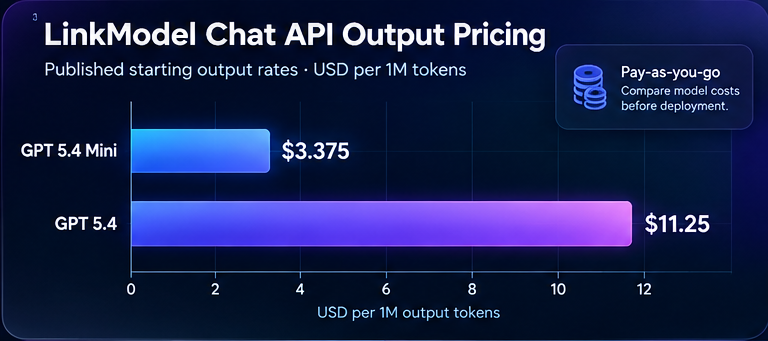
For example, LinkModel currently lists GPT 5.4 Mini starting at $3.375 per 1 million output tokens. This is an output-token starting rate, not the total price of a request. Input tokens, cached tokens, and other applicable billing conditions must also be considered.
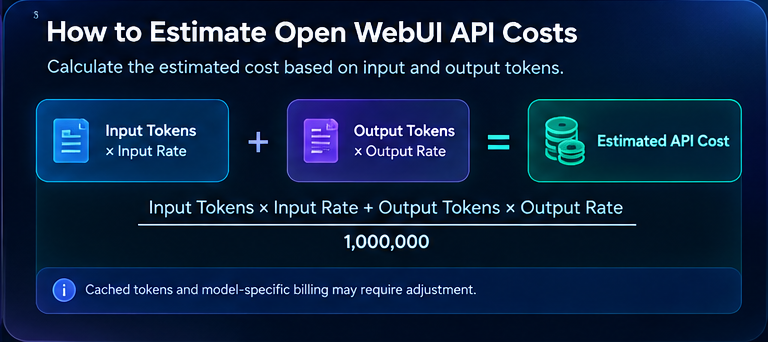
For a typical text request, estimate your inference cost as:
Estimated API cost = (Input tokens × Input rate + Output tokens × Output rate) / 1,000,000
Adjust the calculation for cached tokens and any model-specific billing rules.
Before deploying Open WebUI for a team, compare the current LinkModel API pricing and check the available chat models.
Why use LinkModel with Open WebUI? You can connect supported hosted models through a unified API, evaluate model prices for your workload, and limit the models exposed to users without managing separate provider integrations for each model.
Production checklist
Put Open WebUI behind authentication and TLS, restrict outbound provider access, rotate keys, and avoid using an administrator/master key for ordinary user traffic. Add model allowlists, usage tracking, request timeouts, and a fallback message. Log request IDs and model IDs, but redact prompts and credentials unless you have a documented reason to retain them.
Conclusion: Connect Open WebUI to the Right AI Models
A reliable Open WebUI API setup starts with the correct Docker configuration, API base URL, credentials, and model ID. Verify your upstream connection before testing Python integration or enabling advanced tools, and use the troubleshooting checklist to isolate failures quickly.
For developers who want more flexibility without managing multiple model-provider integrations, LinkModel offers a unified API with pay-as-you-go pricing and access to supported chat models. Compare current model rates, configure your LinkModel API key in Open WebUI, and choose models that match your performance requirements and budget.
For terminal-based workflows, explore the existing LinkModel CLI. For automation involving image and video generation, see the original n8n workflow templates for AI media guide.
Ready to connect your first model? Explore LinkModel Pricing and get started with an API key.