GPT Image 2.6 can generate animated GIFs directly through the image API. Developers can use gpt-image-2.6-sunburst or gpt-image-2.6-flare, set output_format to gif, and control frame count, playback timing, and dimensions. But generating a GIF file is only the beginning. The real challenge is producing a smooth, consistent animation that is ready for a website, game, or marketing campaign.
OpenAI is preparing to combine ChatGPT and Codex usage allowances for Plus, Pro, and Business subscribers in December 2026. The announcement has sparked concerns about usage limits and subscription value, with some users questioning whether they should continue paying. For developers generating GIFs repeatedly, the debate raises a practical question: is a subscription the right way to manage creative workloads, or would predictable, usage-based API spending make more sense?
Through November 30, 2026, LinkModel offers GPT Image 2.6 API pricing at 65% of OpenAI's official standard rates, saving 35% across applicable input, output, and cached token charges. With unified API access and billing, $0 minimum spend, and $0 monthly platform fee, teams can manage iterative image workloads without another recurring platform subscription. New users also automatically receive $1 in free Credits upon registration, with no card or recharge required. These credits never expire, work across all currently available LinkModel models, and are a one-time benefit unavailable for repeated claims by existing users.
Can GPT Image 2.6 Generate Animated GIFs?
Yes. GPT Image 2.6 supports native animated GIF output through OpenAI's Images API. Released on November 4, 2026, the update allows developers to request a finished GIF instead of manually assembling individual image frames.
Previously, a common AI animation workflow involved generating a sprite sheet, extracting its frames, arranging them in sequence, and exporting the result using an image editor or script. Native GIF output can remove much of that assembly process.
The feature is particularly useful for short, repeatable animations, including brand mascots, game characters, social media stickers, product highlights, and animated interface elements.
GPT Image 2.6 GIF Generation: ChatGPT vs API
| Feature | ChatGPT | GPT Image 2.6 API |
|---|---|---|
| Generate animated GIFs | Yes | Yes |
| Input method | Natural-language prompts and image uploads | Programmatic requests |
| Frame-count controls | Interface-dependent | frame_count |
| Frame timing | Interface controls and instructions | frame_duration_ms |
| Automated workflows | Interactive workflow | Application integration |
| Billing model | ChatGPT plan and applicable limits | Token-based API billing |
The API is particularly useful when an application needs repeatable settings, automated file handling, or systematic cost tracking.
GIF vs AI Video: Which Should You Use?
Animated GIFs work well for short, silent, looping visuals. They are useful for reactions, status indicators, stickers, and lightweight creative assets.
AI video is a better choice when the task requires longer sequences, camera movement, complex action, narrative continuity, or audio.
For a small character waving, a simple product highlight, or a repeating website animation, GIF generation can be a more direct workflow.
How to Generate Animated GIFs With the GPT Image 2.6 API
Generating a GIF involves selecting a model, sending a request with GIF-specific parameters, decoding the response, and checking the resulting animation.
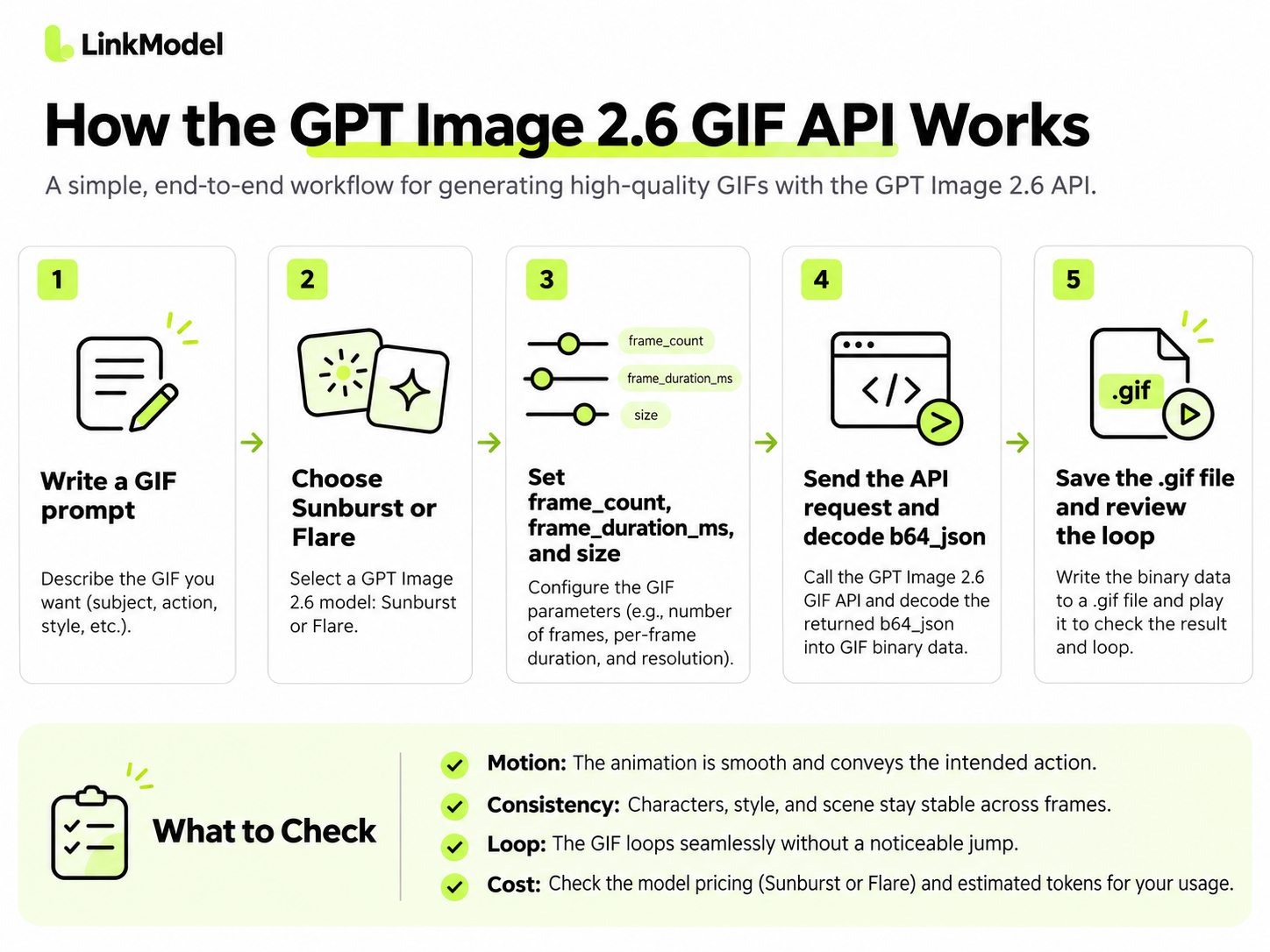
Step 1: Choose Sunburst or Flare
OpenAI provides two GPT Image 2.6 API models:
- gpt-image-2.6-flare: Designed for fast, interactive image generation and iteration.
- gpt-image-2.6-sunburst: Designed for detailed visual work and image editing.
Start with Flare when testing simple motions or exploring several creative directions. Consider Sunburst when character appearance, product details, or visual precision matters more.
Both models support native GIF output.
Step 2: Configure the GIF Request
The official image generation endpoint is:
POST https://api.openai.com/v1/images/generations
A typical GIF request includes the following fields:
| Parameter | Example | Purpose |
|---|---|---|
model | gpt-image-2.6-flare | Selects the image model |
prompt | Robot waving in a seamless loop | Describes the animation |
output_format | gif | Requests GIF output |
frame_count | 9 | Sets the number of frames |
frame_duration_ms | 200 | Sets playback duration per frame |
size | 512x512 | Sets frame dimensions |
quality | medium | Controls rendering quality |
complexity | medium | Controls image-planning complexity |
For your first attempt, use a simple character, one movement, and a fixed camera.
Starter prompt:
Create a seamless looping animated GIF of a small blue robot waving one hand. Fixed camera, consistent character proportions, clean white background. The hand rises, waves gently, and returns to its original position. Keep the lighting and design consistent across every frame. No text or additional objects.
Step 3: Send the Request and Save the GIF
The following Python example demonstrates the documented OpenAI Images API workflow.
import os
import base64
from openai import OpenAI

client = OpenAI(
    api_key=os.environ["OPENAI_API_KEY"]
)

result = client.images.generate(
    model="gpt-image-2.6-flare",
    prompt=(
        "Create a seamless looping animated GIF "
        "of a small blue robot waving one hand. "
        "Fixed camera, consistent proportions, "
        "clean white background. The hand rises, "
        "waves gently, and returns to its initial "
        "position. No text or extra objects."
    ),
    output_format="gif",
    frame_count=9,
    frame_duration_ms=200,
    size="512x512",
    quality="medium",
    complexity="medium"
)

gif_data = base64.b64decode(
    result.data[0].b64_json
)

with open("robot-wave.gif", "wb") as file:
    file.write(gif_data)

print("Saved robot-wave.gif")
This example uses OpenAI's documented API endpoint and Python SDK. It saves the generated animation as a GIF file.
If you already have a still character image, the POST /v1/images/edits endpoint can accept reference images for an animation-guided editing workflow.
Step 4: Verify the Generated File
Open robot-wave.gif in a browser or GIF-compatible viewer.
Check that the animation actually plays, the character remains consistent, and the final frame transitions naturally to the first.
A successful API response confirms that a file was returned. Visual inspection determines whether that file is useful.
For production workflows, preserve the prompt, model name, frame settings, output file, and associated token usage. These records make it easier to compare revisions and estimate future costs.
GPT Image 2.6 GIF API Parameters and Animation Timing
The GIF API exposes controls for animation length, playback speed, and frame dimensions.
| Parameter | Supported values | Default |
|---|---|---|
frame_count | 2–16 | 9 |
frame_duration_ms | 20–2000 ms | 200 ms |
size | auto or supported width × height | auto |
Custom dimensions must use positive values divisible by 16 and fit the model's size and total pixel limits.
How to Calculate GIF Duration
The calculation is straightforward:
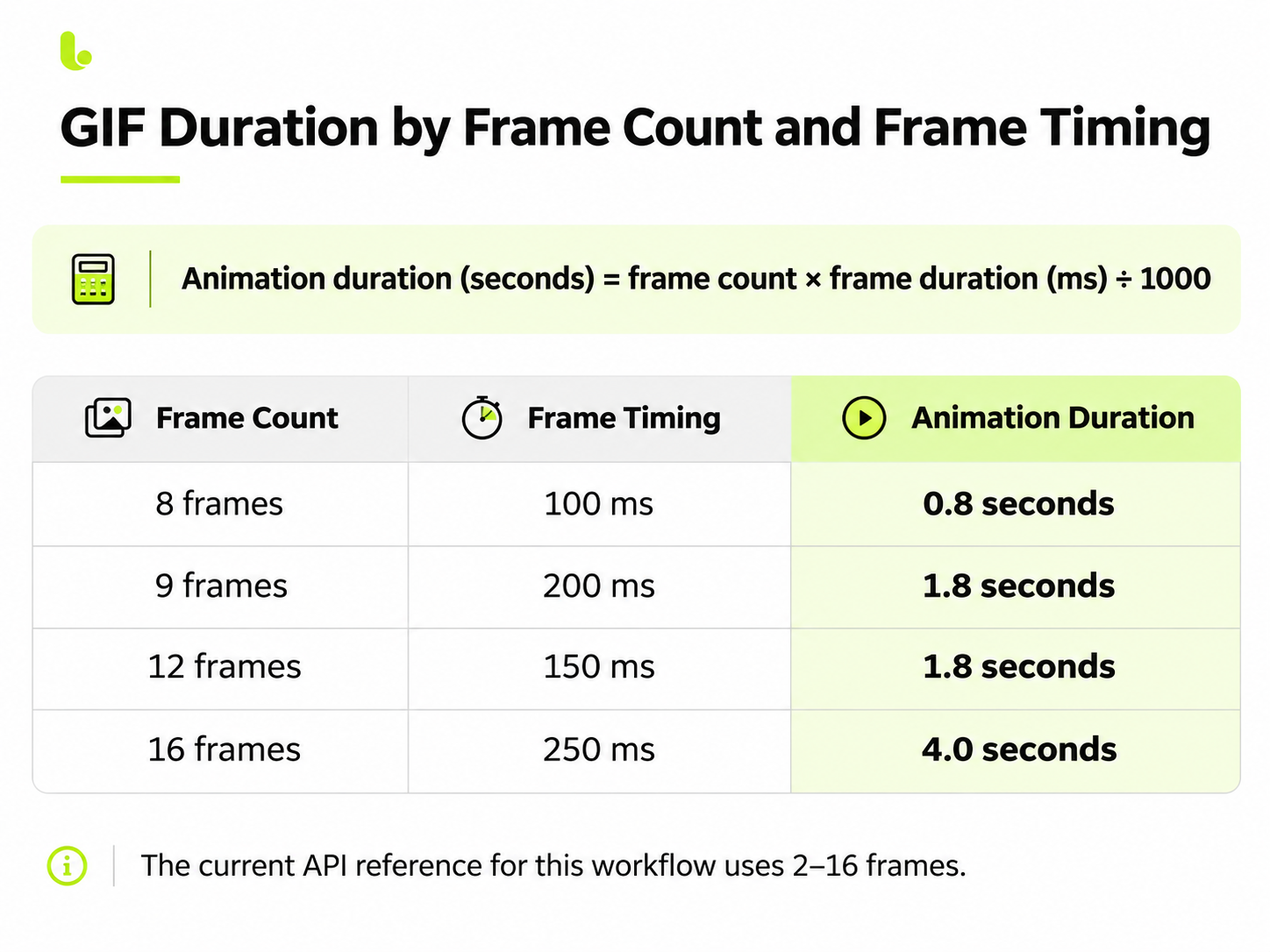
Animation duration (seconds) = frame count × frame duration (ms) ÷ 1000
| Frame count | Duration per frame | Total duration |
|---|---|---|
| 8 | 100 ms | 0.8 seconds |
| 9 | 200 ms | 1.8 seconds |
| 12 | 150 ms | 1.8 seconds |
| 16 | 250 ms | 4.0 seconds |
A nine-frame animation with a 200-millisecond delay takes 1.8 seconds to complete one playback cycle.
Increasing the number of frames provides more opportunities to represent intermediate movement, but it does not automatically make animation smoother. Good motion planning and stable visual details remain essential.
How to Create a Seamless GIF Loop
A looping prompt should describe three things: the starting pose, the motion sequence, and the return to the initial state.
For example, a waving animation should begin with a neutral pose, raise the character's hand, complete the wave, and return the hand to its original position.
For a product highlight, the lighting effect should finish in the same state in which it began.
Keeping the camera stationary and limiting unnecessary background changes also makes visual consistency easier to maintain.
Quality, Complexity, and Output Limits
GPT Image 2.6 separates image quality from complexity.
quality controls rendering quality, while complexity controls how much planning the model performs before generating the visual.
Both Sunburst and Flare support low, medium, and high complexity settings.
For simpler GIFs, start with medium complexity and adjust only when the scene requires more detailed planning.
GIF generation does not support partial-image streaming, custom output compression, or prompt_rewriter. If a request exceeds the permitted pixel budget, reduce the frame count, image dimensions, or number of requested outputs.
GPT Image 2.6 Sunburst vs Flare: Which Is Better for GIFs?
Both GPT Image 2.6 models support GIF generation, but they serve different creative priorities.
Sunburst emphasizes detailed visual work. Flare emphasizes fast iteration.
| GIF task | Suggested model | Reason |
|---|---|---|
| Simple reaction sticker | Flare | Rapid creative iteration |
| Animated UI concept | Flare | Quick exploration |
| Detailed character animation | Sunburst | Visual-detail requirements |
| Product-focused animation | Sunburst | Greater emphasis on precision |
| Exploring multiple motion ideas | Flare | Iterative workflow |
These are task-based starting recommendations, not a claim that one model wins every animation-quality comparison.
A Practical Two-Stage Workflow
For complex creative projects, one useful approach is to explore the animation concept with Flare, then create a more detailed version using Sunburst.
Keep the same character description, camera instructions, motion sequence, frame count, and duration when comparing outputs.
This makes it easier to identify whether a change comes from the model or from altered instructions.
The most important decision is whether the final animation meets your requirements for motion, appearance, and consistency.
GPT Image 2.6 GIF API Pricing: Save 35% With LinkModel
GPT Image 2.6 API pricing is based on token usage, rather than a universal flat price for every animated GIF.
The total depends on the input and output tokens used by the request. Frame count, dimensions, visual content, and repeated attempts can all matter to the overall workload.
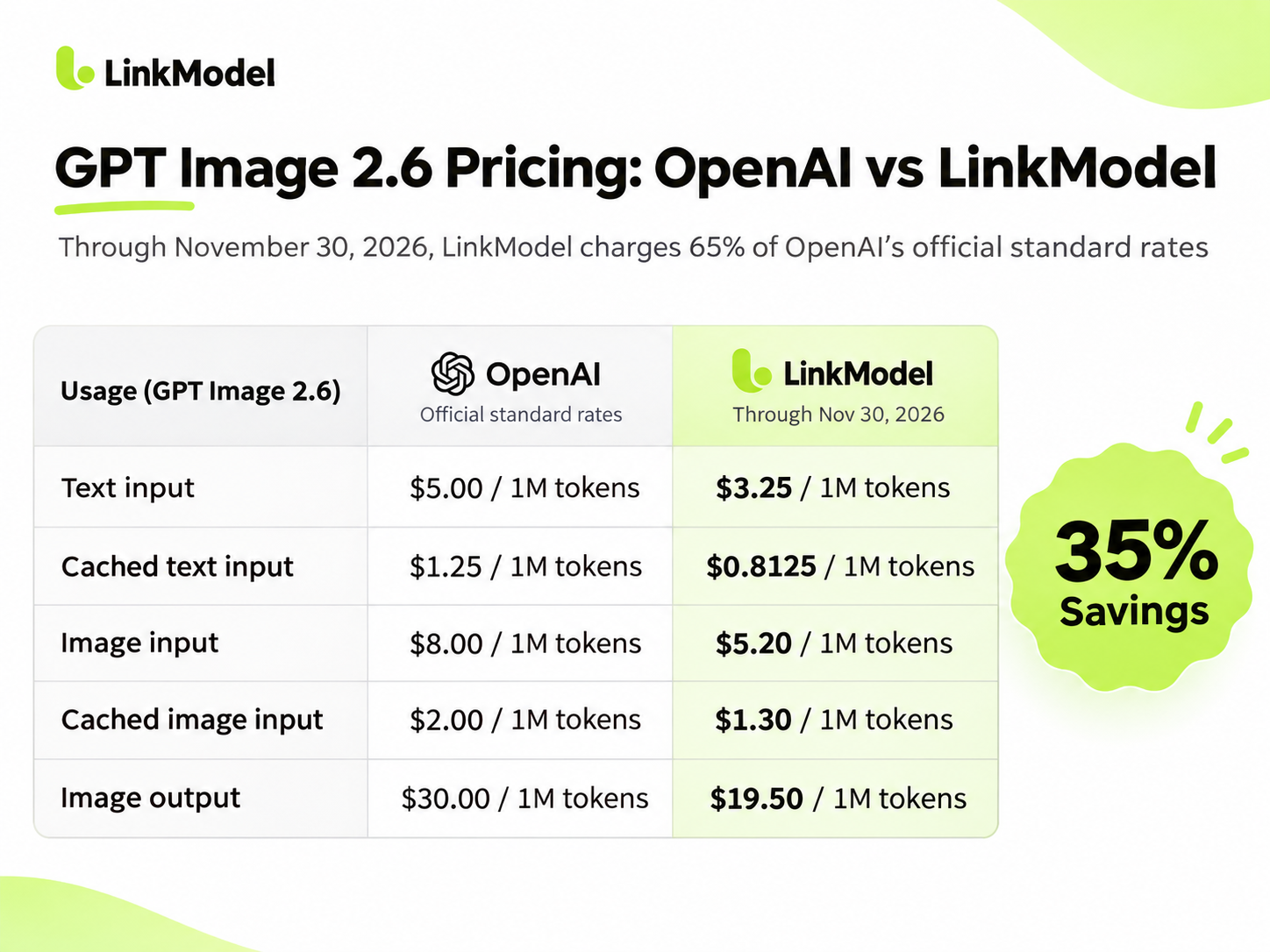
Through November 30, 2026, LinkModel charges 65% of OpenAI's official standard GPT Image 2.6 API rates, saving 35%.
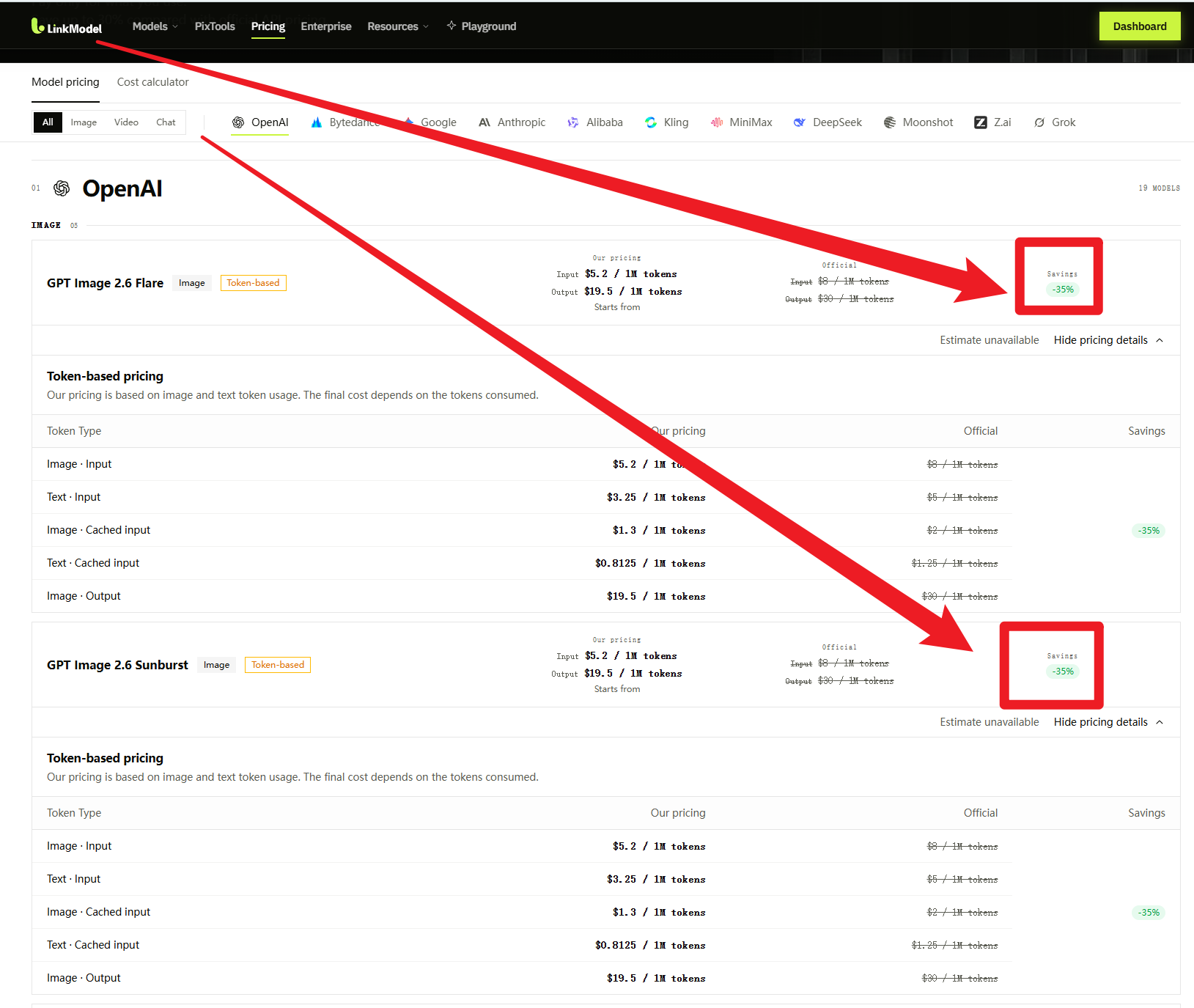
OpenAI vs LinkModel GPT Image 2.6 Pricing
The following rates apply to both GPT Image 2.6 Sunburst and Flare.
| Token category | OpenAI / 1M tokens | LinkModel / 1M tokens |
|---|---|---|
| Text input | $5.00 | $3.25 |
| Cached text input | $1.25 | $0.8125 |
| Image input | $8.00 | $5.20 |
| Cached image input | $2.00 | $1.30 |
| Image output | $30.00 | $19.50 |
This discount applies consistently across the listed token categories.
For developers producing multiple animations, it means the same billable token usage costs 35% less through LinkModel during the promotional period.
GIF API Cost Example
Consider a request using 1,000 text input tokens and 10,000 image output tokens, without image input tokens.
OpenAI official standard pricing
Text input: 1,000 ÷ 1,000,000 × $5.00 = $0.005
Image output: 10,000 ÷ 1,000,000 × $30.00 = $0.30
Total: $0.305
LinkModel pricing
Text input: 1,000 ÷ 1,000,000 × $3.25 = $0.00325
Image output: 10,000 ÷ 1,000,000 × $19.50 = $0.195
Total: $0.19825
Note: The exact GIF cost depends on its actual token usage, which should be collected from the API response.
For 100 requests with the same token usage, the totals become:
| Usage | OpenAI | LinkModel | Savings |
|---|---|---|---|
| 1 request | $0.305 | $0.19825 | $0.10675 |
| 10 requests | $3.05 | $1.9825 | $1.0675 |
| 100 requests | $30.50 | $19.825 | $10.675 |
| 1,000 requests | $305.00 | $198.25 | $106.75 |
The Hidden Cost of GIF Generation: Retries
The cost of a finished animation is not always the cost of the first request.
Some creators have reported inconsistent motion, visual noise, and repeated attempts before obtaining a satisfactory GIF.
A more useful budgeting metric is:
Cost per usable GIF = Total generation spend ÷ Number of usable GIFs
Suppose ten requests cost $0.19825 each and five results meet the production requirements.
Total spend: $1.9825.
Cost per usable GIF: $0.3965.
Now consider a workflow where only two of those ten results are usable. The cost per usable GIF increases to $0.99125.
These scenarios show why motion consistency, prompt quality, and acceptance criteria matter financially.
LinkModel's discounted token rates reduce the model cost of equivalent requests, while a more reliable prompt and review process can help teams avoid unnecessary retries.
For developers managing image generation alongside other AI workloads, LinkModel also provides unified model access and billing, with usage-based spending instead of an additional monthly platform fee.
Best GPT Image 2.6 GIF Prompts, Examples, and Troubleshooting
A useful GIF prompt does more than describe the subject. It specifies which objects move, which details must stay fixed, how the action develops, and how the loop closes.
The following examples cover three practical workflows.
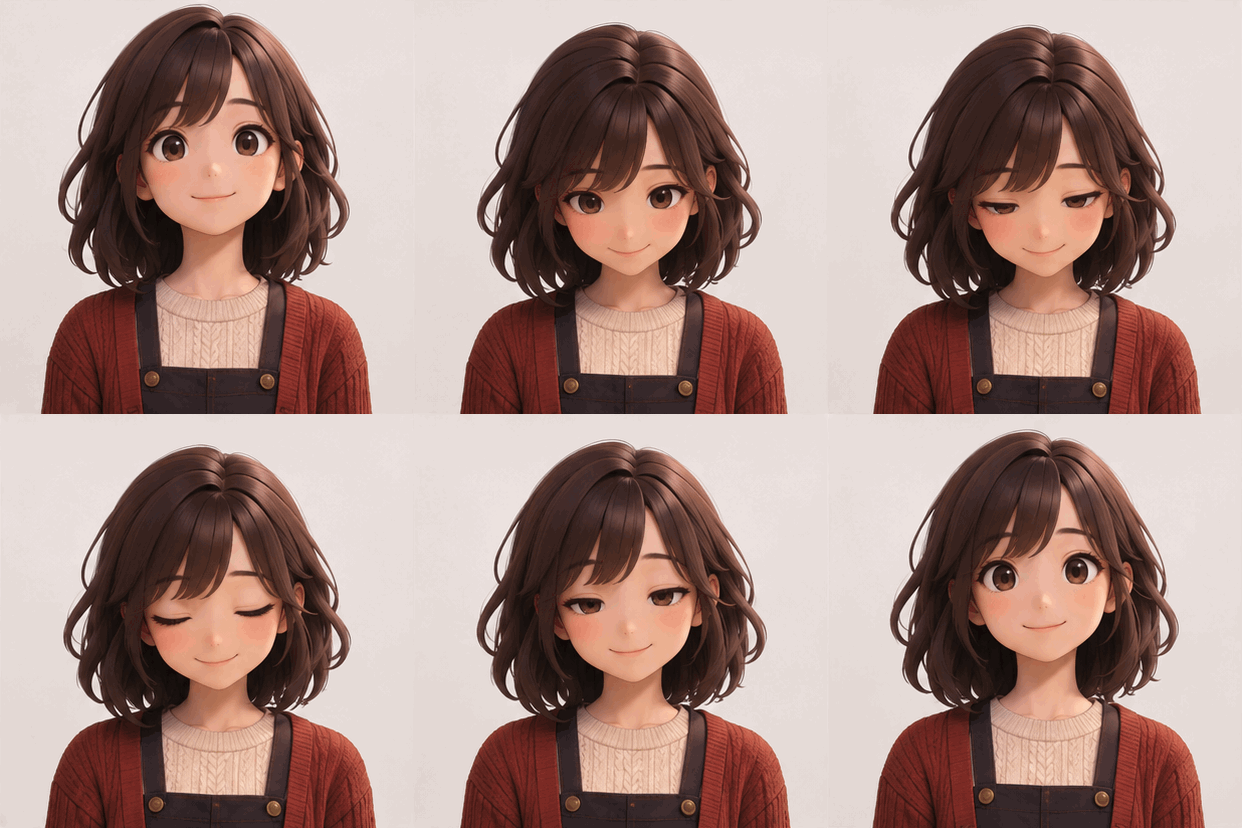
Example 1: Consistent Character Animation
Use case: Animated avatars, game characters, and reaction stickers.
Prompt:
Create a seamless looping GIF of the same illustrated character gently nodding and blinking. Keep the face, hairstyle, outfit, and body proportions identical throughout the animation. The character starts in a neutral pose, lowers the head slightly, closes the eyes briefly, and returns smoothly to the original pose. Fixed camera, no scene transitions, no new objects.
Suggested settings: 9 frames, 200 ms per frame, fixed square dimensions.
This prompt emphasizes a limited motion sequence and explicitly identifies the visual details that should remain unchanged.
In a November 5 Reddit discussion, one creator shared an animated character nodding and blinking and described the showcased result as the third attempt.
The example highlights why creators should review both motion and character consistency rather than treating the first generated GIF as automatically production-ready.
Example 2: Transparent-Background Game Sprite
Use case: 2D game characters, sprite animation, and visual effects.
Prompt:
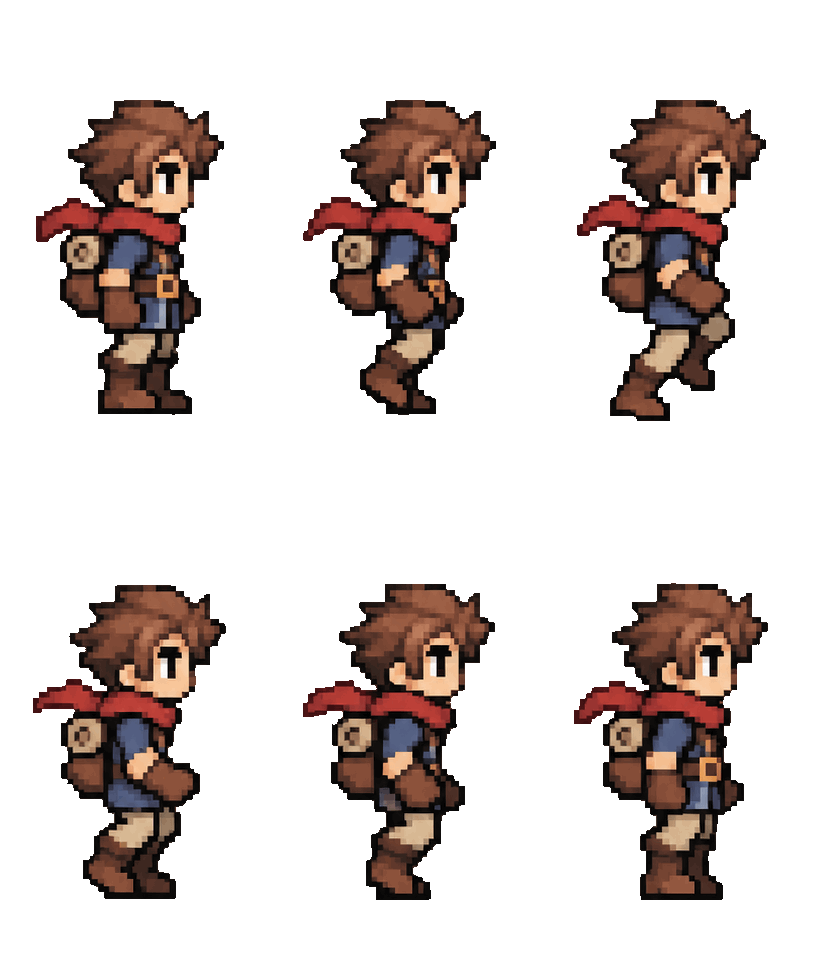
Generate a looping pixel-art animation of a small fantasy adventurer walking in place. Maintain identical character proportions, clothing colors, outline thickness, and pixel-art style across all frames. Keep the character centered and the camera fixed. Use a transparent background where supported. Make the final pose transition naturally back into the first frame. No labels, no borders, no additional characters.
Suggested settings: 12 frames, 150 ms per frame, square dimensions.
A transparent-looking preview does not guarantee the exported file contains the transparency expected by a game engine.
Inspect the GIF against a contrasting background and verify that the final asset works with the intended rendering or sprite-import pipeline.
This matters particularly for character sprites, where inconsistent edges, changes in proportions, and background artifacts can make an animation difficult to reuse.
Example 3: Seamless Product Marketing GIF
Use case: Website banners, social media visuals, and product highlights.
Prompt:
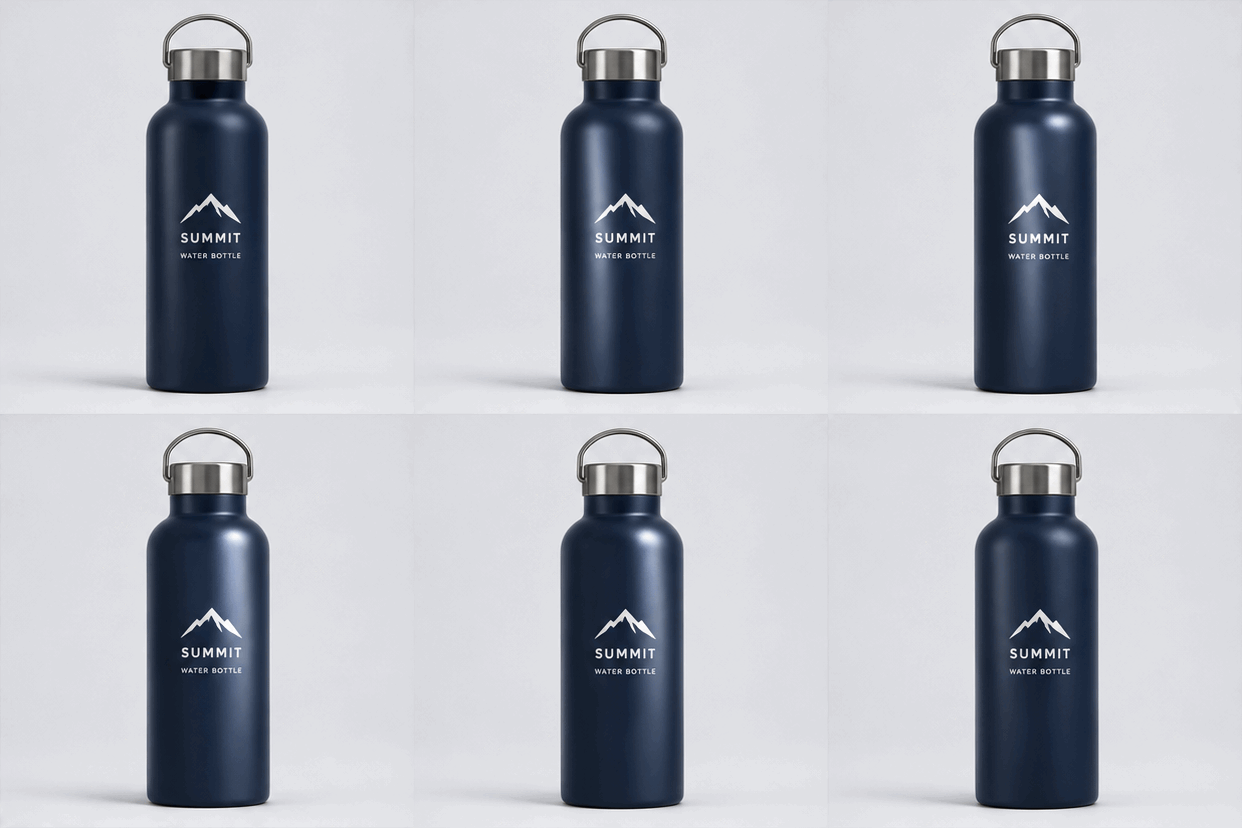
Create a seamless looping product GIF showing a premium reusable water bottle on a clean studio background. The bottle remains fixed in the center while a soft highlight moves gently across its surface. Preserve the exact bottle shape, cap, label placement, and colors throughout the animation. Keep the camera stationary. The final lighting state must match the first frame. No captions or additional objects.
Suggested settings: 9 frames, 200 ms per frame, medium or high quality.
For product content, a restrained lighting animation can be easier to manage than a sequence where the camera, object, and background all move at once.
When exact branding matters, compare the generated result against the source product image and check every frame for drifting labels or altered shapes.
Common GPT Image 2.6 GIF Problems and Fixes
| Problem | Likely issue | Recommended action |
|---|---|---|
| Jerky movement | Large jumps between poses | Reduce motion complexity and describe intermediate actions |
| Character drift | Insufficient identity constraints | Specify fixed appearance, proportions, and camera |
| Visual noise | Excessive detail or GIF color limitations | Simplify textures and inspect the exported file |
| Visible loop jump | Different first and final poses | Explicitly return to the initial state |
| Pixel-budget errors | Too many frames or large dimensions | Reduce frames, dimensions, or output count |
| High retry costs | Repeated unusable results | Track usable outputs and refine prompts systematically |
A Simple GIF Quality Checklist
Before using a generated animation in production, check the resulting file against these five criteria:
1. Motion: The subject performs the intended action without abrupt or implausible jumps.
2. Consistency: Character features, branding, and background details remain stable.
3. Loop: The final state transitions naturally to the beginning.
4. Technical output: Frame count, playback timing, size, and transparency behavior meet the target requirements.
5. Cost: The usable result is worth the total number of generation attempts required.
Start with the simplest version of the animation that satisfies these criteria. Add more detail only after the basic motion works.
Frequently Asked Questions
Can GPT Image 2.6 generate animated GIFs directly?
Yes. Both GPT Image 2.6 Sunburst and Flare support native GIF output through the Images API. Set output_format to gif and provide a prompt describing the desired animation.
How many frames can a GPT Image 2.6 GIF contain?
The current Images API reference supports 2–16 frames, with a default of nine. The frame_count parameter controls the number of frames, while frame_duration_ms controls their playback duration.
Can GPT Image 2.6 create GIFs with transparent backgrounds?
You can request a transparent background in the animation prompt. For game assets, stickers, and website graphics, inspect the returned file to determine whether its transparency behaves as required.
How much does GPT Image 2.6 GIF generation cost?
GPT Image 2.6 API usage is billed by tokens. Through November 30, 2026, LinkModel charges 65% of OpenAI's official standard rates, saving 35% across the applicable text, image, output, and cache token categories.
Is Sunburst or Flare better for animated GIFs?
Flare is designed for fast iteration, while Sunburst focuses on detailed visual work. Start with Flare for simple animations and rapid experiments. Consider Sunburst when character or product details are the main priority.
Conclusion
The GPT Image 2.6 GIF API makes it possible to generate short animated GIFs directly from prompts or reference images, with controls for frame count, playback timing, and dimensions. The most effective workflows go beyond successful generation: they verify motion quality, character consistency, seamless looping, and cost per usable result. Start with a simple animation, inspect the exported file, and refine your prompts before scaling. For teams generating GIFs regularly, LinkModel's 35% discount through November 30, 2026 offers a clear way to reduce the API costs of repeated creative work.
Ready to Generate GIFs at 35% Lower API Rates?
Explore GPT Image 2.6 through LinkModel, compare your token costs, and build a more affordable animation workflow with unified API access and usage-based billing.