GPT Image 2.6 can generate real, editable SVG vector graphics through the API, rather than just PNG images that look like vector artwork. Released on November 4, 2026, GPT Image 2.6 Flare and Sunburst support SVG output containing vector paths, shapes, and colors. This allows developers and designers to create scalable logos, interface icons, and illustrations that can be refined in professional design tools.
The release also comes as OpenAI prepares to combine ChatGPT and Codex usage allowances for Plus, Pro, and Business subscribers in December 2026. The announcement has triggered criticism among some users, including discussions about canceling subscriptions rather than paying for increasingly constrained usage. Although ChatGPT subscription allowances and API billing are separate, the debate highlights a practical concern for developers and design teams: how to control AI generation costs without sacrificing flexibility or output quality.
For teams building SVG generation workflows, LinkModel offers GPT Image 2.6 image-model token rates at 65% of OpenAI's official standard pricing through November 30, 2026, delivering 35% savings on applicable text input, image input, cached input, and image output. LinkModel also offers $0 minimum spend and $0 monthly platform fee. New users automatically receive $1 in free Credits upon registration, without binding a payment card or recharging. The Credits never expire and apply to all models currently available on LinkModel; existing users cannot claim the registration reward repeatedly.
Does GPT Image 2.6 Generate Real SVG Files?
Yes. GPT Image 2.6 Flare and Sunburst support SVG output through the Images API. Developers can set output_format: "svg" and save the returned document as a real SVG file containing vector graphics.
This is an important distinction from earlier AI image workflows, where users frequently generated raster artwork and relied on external tracing tools to create vector files.
Real SVG vs Vector-Style PNG
An image can look like a vector illustration without being a vector file.
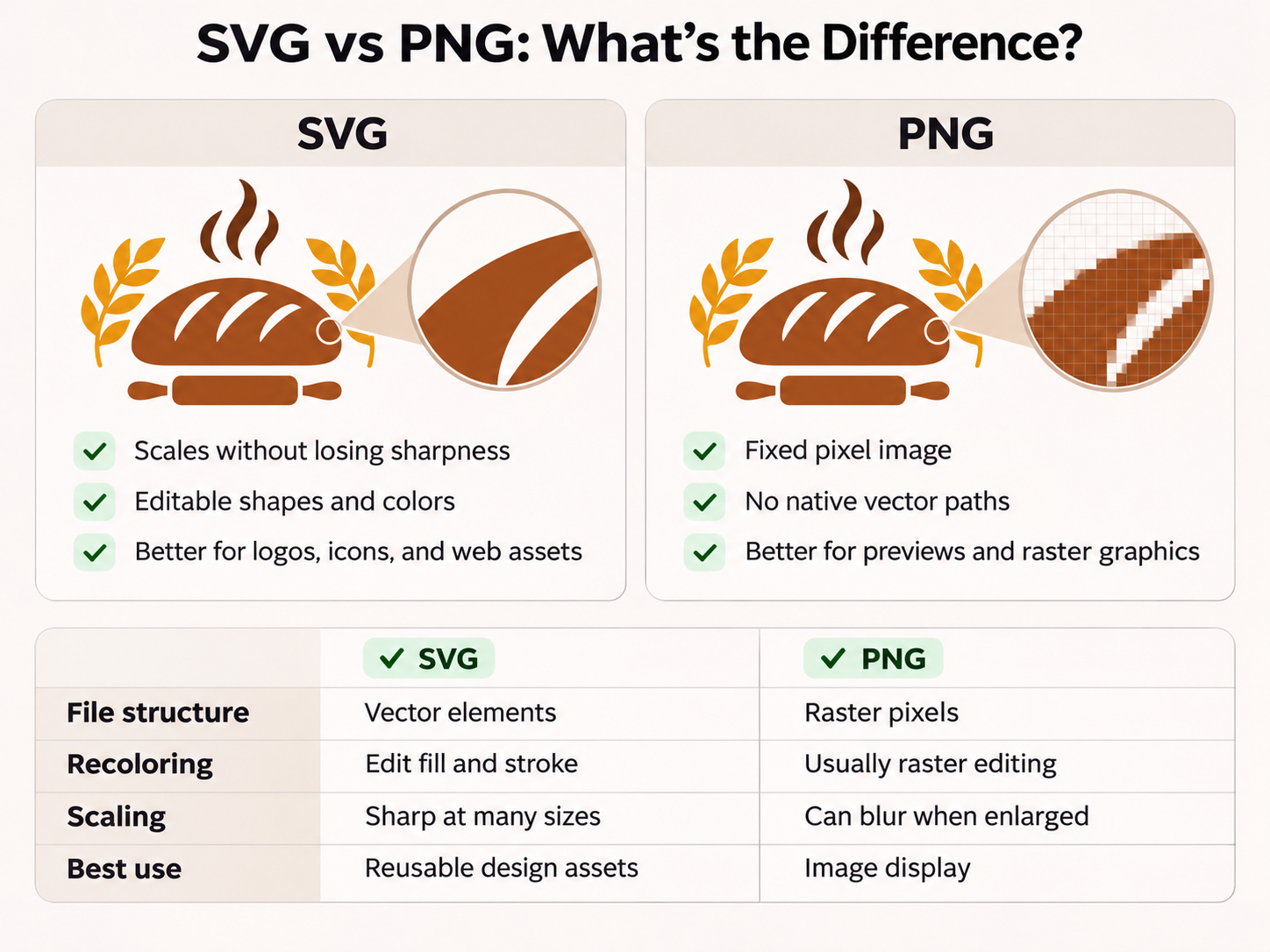
For example, a minimalist logo generated as a PNG may have clean lines and flat colors, but it still contains pixels rather than editable vector paths.
| Feature | GPT Image 2.6 SVG | Vector-Style PNG |
|---|---|---|
| File structure | XML-based vector elements | Raster pixels |
| Scaling | Vector paths render at different sizes | Enlarging may reduce sharpness |
| Recoloring | Edit SVG fill and stroke properties | Usually requires raster editing |
| Shape editing | Modify existing vector geometry | No native vector paths |
| Typical uses | Logos, icons, illustrations, web assets | Image previews, raster graphics |
| Design workflow | Can be imported into vector editors | May require vectorization |
A real SVG is more suitable for applications that require scalable artwork and precise editing.
However, an SVG file is not automatically a perfectly structured design asset. Some elements may be grouped into complex paths, and lettering may be converted into outlines rather than remaining editable text.
How GPT Image 2.6 Creates SVG
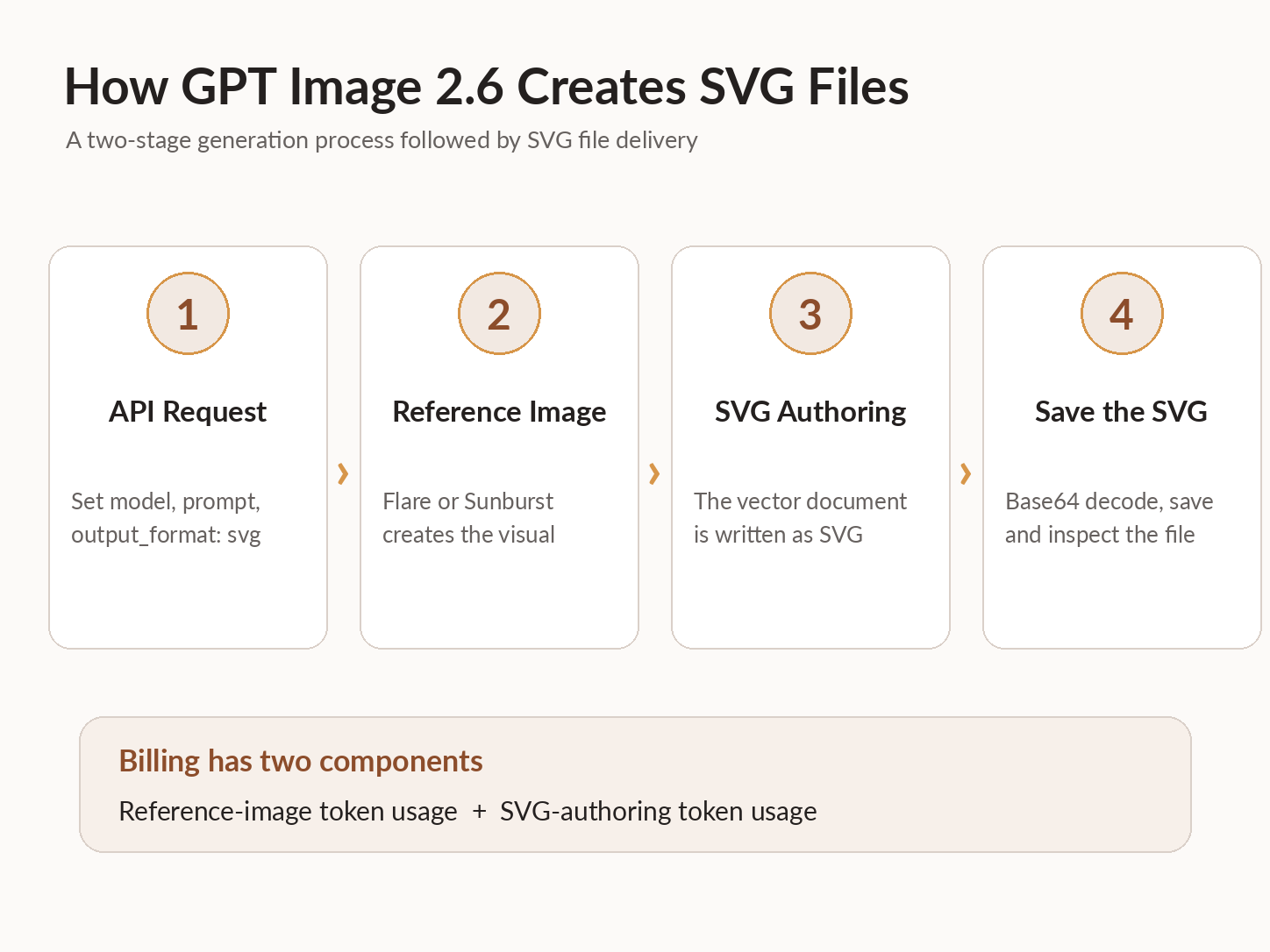
According to OpenAI's documentation, SVG generation uses a two-stage process.
First, the selected GPT Image 2.6 model creates a reference image from the prompt. Then an SVG authoring model generates a vector document based on that reference.
The result is static vector content containing shapes and paths rather than an embedded raster image.
The generated SVG does not support embedded bitmap images, external resources, or scripts.
This workflow creates two practical advantages.
First, developers can request SVG directly rather than building a separate PNG-to-SVG conversion pipeline.
Second, the document can be inspected and edited as vector geometry.
The two-stage process also affects billing because SVG generation involves both reference-image processing and SVG-authoring token consumption.
How to Generate SVG with GPT Image 2.6 API
Generating SVG with GPT Image 2.6 requires three main operations: selecting a supported model, requesting SVG output, and saving the returned Base64-encoded file.
The official SVG generation endpoint is:
POST https://api.openai.com/v1/images/generationsStep 1: Choose GPT Image 2.6 Flare or Sunburst
OpenAI provides two GPT Image 2.6 models with SVG generation support.
| Model | Official Positioning | Suggested Starting Use |
|---|---|---|
gpt-image-2.6-flare | Faster generation and iteration | Logo concepts, simple icons, rapid visual exploration |
gpt-image-2.6-sunburst | More detailed visual generation | Elaborate illustrations, detailed compositions, complex artwork |
Both can generate SVG files.
Flare is a reasonable starting point for simple designs requiring multiple revisions. Sunburst is worth considering when the composition contains more detailed objects or visual relationships.
The choice should ultimately depend on the output quality, editing requirements, processing time, and cost of your particular workload.
Step 2: Configure SVG Generation Parameters
Use the Images API generation endpoint with the following parameters.
| Parameter | Value | Purpose |
|---|---|---|
model | gpt-image-2.6-flare | Select the image model |
prompt | Your vector design description | Define the artwork |
output_format | svg | Request SVG output |
n | 1 | Generate one SVG document |
quality | medium | Control reference-image detail |
complexity | medium | Control composition planning |
background | transparent | Request transparency |
Here is a Python example using the OpenAI Images API:
import os
import json
import base64
import urllib.request

api_key = os.environ["OPENAI_API_KEY"]

payload = {
    "model": "gpt-image-2.6-flare",
    "prompt": (
        "Create a minimalist vector logo of a mountain "
        "and a rising sun. Use three solid colors, "
        "clean geometric shapes, and no gradients."
    ),
    "output_format": "svg",
    "n": 1,
    "quality": "medium",
    "complexity": "medium",
    "background": "transparent"
}

request = urllib.request.Request(
    "https://api.openai.com/v1/images/generations",
    data=json.dumps(payload).encode("utf-8"),
    headers={
        "Authorization": f"Bearer {api_key}",
        "Content-Type": "application/json"
    },
    method="POST"
)

with urllib.request.urlopen(request) as response:
    result = json.load(response)

svg_bytes = base64.b64decode(
    result["data"][0]["b64_json"]
)

with open("mountain-logo.svg", "wb") as file:
    file.write(svg_bytes)

print("Saved: mountain-logo.svg")
Before running this example, configure your OPENAI_API_KEY environment variable and confirm that your account has access to the selected model.
The request returns encoded image data, which the script decodes and saves as an SVG document.
SVG-Specific API Parameters and Restrictions
When generating SVG files, the top-level model parameter selects the image model responsible for creating the reference image. The optional svg object controls the model used to author the vector document.
The svg object supports model and reasoning settings. Model selection requires the appropriate API access; when it is unavailable, omit the entire svg object and use the default authoring configuration.
The complexity parameter controls how much planning Flare or Sunburst performs before rendering the reference image. Supported levels are low, medium, and high, with high used by default.
SVG authoring reasoning is configured separately using svg.reasoning.effort, and the available effort values depend on the selected authoring model.
For most first-time SVG requests, start with output_format: "svg" and n: 1, then adjust quality or complexity only when the design requires it.
SVG output does not support streaming, partial images, prompt_rewriter, or output_compression. Direct SVG output from the image editing endpoint is also unavailable.
Step 3: Download and Inspect the SVG
After generating the image, decode the b64_json field and save it as a file ending in .svg.
Open the file in a browser to check its appearance.
Then import it into a vector design application to inspect its structure.
You should be able to examine individual vector elements and their properties. The exact organization of shapes, text, and groups depends on the generated document.
For SVG output, OpenAI requires n=1. The request also excludes streaming, partial-image output, output_compression, and prompt_rewriter.
The current image editing endpoint does not directly output SVG files.
Common GPT Image 2.6 SVG Errors and Fixes
If an SVG request fails or the downloaded file does not open correctly, check the following issues before rewriting the prompt.
| Problem | Likely Cause | Recommended Fix |
|---|---|---|
| API returns PNG instead of SVG | SVG output was not requested, or a different response format was selected | Confirm that the request uses output_format: "svg" and a supported model |
| Unsupported parameter error | The request includes an incompatible field or an unavailable SVG authoring configuration | Remove unsupported fields and retry with the minimum required parameters |
| Invalid SVG authoring model | The selected svg.model is unavailable to the account | Omit the optional svg object or select an authorized model |
| Base64 decoding failure | The response field is missing, malformed, or handled incorrectly | Inspect the API error and verify data[0].b64_json before decoding |
| SVG opens as text or fails to render | The decoded content was saved incorrectly or is not a valid SVG document | Save the decoded bytes with an .svg extension and inspect the root <svg> element |
| Artwork renders but cannot be edited as expected | Shapes may be grouped or represented as complex paths | Open the SVG in a vector editor and inspect individual objects |
A successful API response is only the first checkpoint. Before integrating the file into a design pipeline, verify that it opens, renders, and supports the required edits.
Official GPT Image 2.6 SVG Examples: Flare vs Sunburst
One of the clearest demonstrations of GPT Image 2.6 SVG generation comes from OpenAI's official image prompting documentation.
OpenAI provides original SVG files for a bakery brand called Field & Flour, generated with GPT Image 2.6 Flare and Sunburst using the same logo design brief.
Unlike ordinary image previews, these examples are available as SVG documents.
GPT Image 2.6 Flare: Field & Flour SVG Logo
The official Flare example features a golden loaf above a two-line cream-colored Field & Flour wordmark.
Its composition emphasizes the central symbol and brand lettering.

Official SVG file:
https://developers.openai.com/images/platform/guides/image-prompting/field-and-flour-gpt-image-2-6-flare.svg
Image source: OpenAI — GPT Image 2.6 Flare SVG example.
This example illustrates how GPT Image 2.6 can produce a branded logo directly in SVG format.
For practical use, the important next step is checking how the logo's shapes and lettering are represented inside the SVG document.
GPT Image 2.6 Sunburst: Field & Flour SVG Logo
OpenAI's official Sunburst version uses the same bakery concept but presents a more elaborate composition.
The example includes a steaming loaf positioned between wheat sprigs, with the Field & Flour wordmark and a rolling pin.

Official SVG file:
https://developers.openai.com/images/platform/guides/image-prompting/field-and-flour-gpt-image-2-6-sunburst.svg
Image source: OpenAI — GPT Image 2.6 Sunburst SVG example.
The additional decorative elements create a different visual interpretation of the same brand concept.
This makes the two official examples especially useful for understanding why a developer might compare Flare and Sunburst for a particular design task.
What the Official SVG Examples Show
The Field & Flour examples establish three useful points.
First, both GPT Image 2.6 models can generate actual SVG documents.
Second, the two models can interpret a shared design brief differently. The Flare example uses a simpler composition, while the Sunburst example includes additional visual elements.
Third, developers can download the source SVG files rather than relying only on rendered PNG previews.
However, visual differences alone do not establish which model creates cleaner paths, fewer anchor points, or more convenient object groups.
For a production comparison, open both documents in a vector editor and inspect their geometry.
| Evaluation Dimension | Flare Example | Sunburst Example |
|---|---|---|
| SVG document | Available | Available |
| Brand concept | Field & Flour bakery | Field & Flour bakery |
| Main composition | Loaf and wordmark | Loaf, wheat, wordmark, rolling pin |
| Visual complexity | Simpler composition | More decorative composition |
| SVG editability | Inspect source paths | Inspect source paths |
| Anchor-point efficiency | Not established by the visual example | Not established by the visual example |
The practical lesson is to evaluate both appearance and SVG structure before choosing a model for repeatable design production.
How to Inspect the Official Field & Flour SVG Files
OpenAI provides downloadable SVG documents for both the Flare and Sunburst Field & Flour logo examples. These files can be inspected directly to understand their vector structure rather than relying exclusively on the rendered previews.
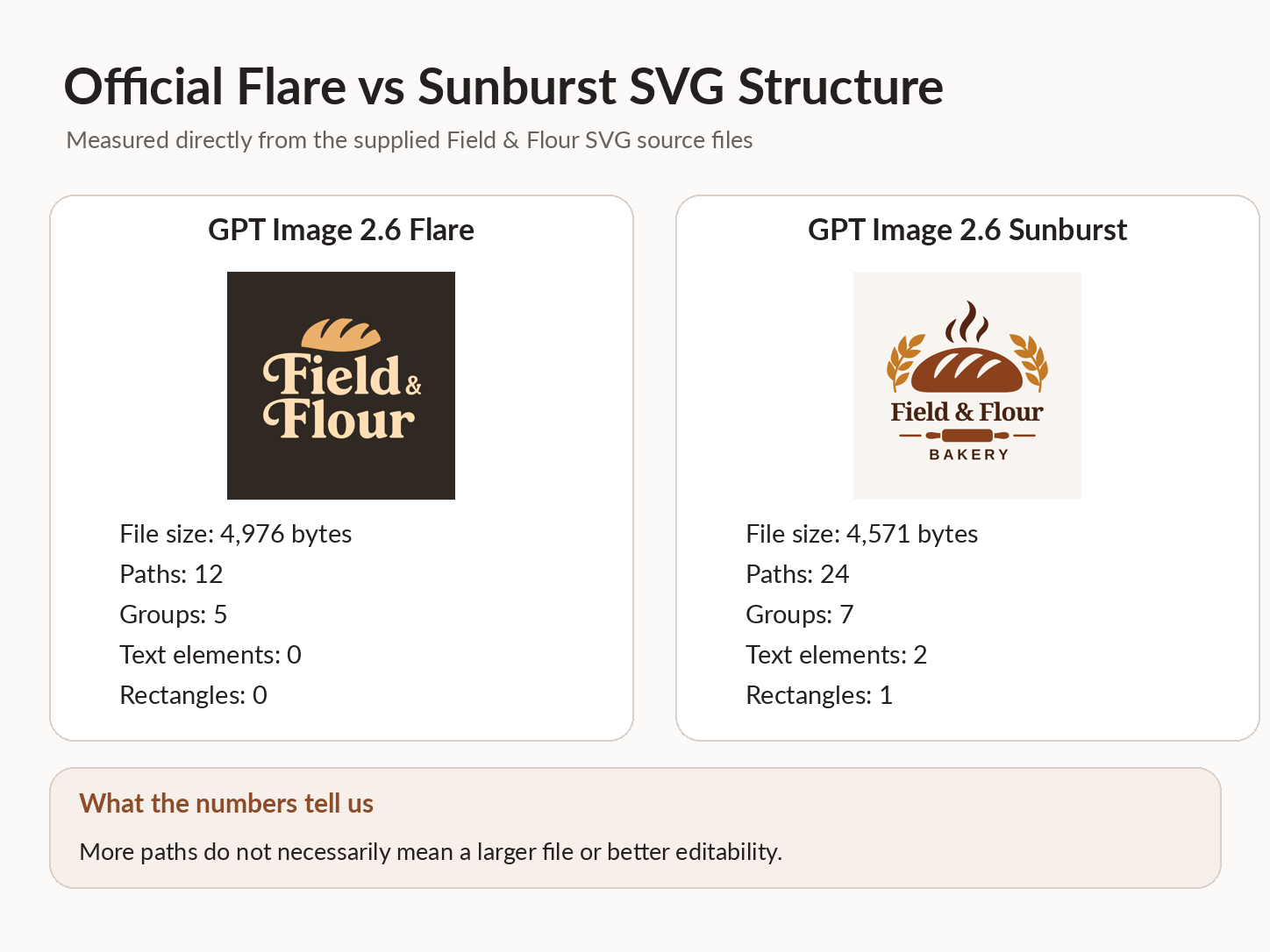
Our review of the two official SVG source files found the following structural differences:
| SVG File Metric | Flare | Sunburst |
|---|---|---|
| File size | 4,976 bytes | 4,571 bytes |
<path> elements | 12 | 24 |
<g> groups | 5 | 7 |
<text> elements | 0 | 2 |
<rect> elements | 0 | 1 |
| ViewBox | 1024 × 1024 | 1024 × 1024 |
The Sunburst SVG contains twice as many path elements as Flare (24 vs 12), yet its file is smaller: 4,571 bytes compared with 4,976 bytes.
This is a useful reminder that path count, file size, and editability measure different aspects of SVG structure.
The Flare example represents its wordmark using vector paths, while Sunburst contains two <text> elements. This difference can affect how text is handled during editing.
To inspect the files yourself, start by downloading both original SVG documents from the official links above. Open each file in a text editor or XML-aware code editor.
Examine the root <svg> element, its viewBox, and any <path>, <rect>, <circle>, <polygon>, <text>, or <g> elements. These reveal how the document represents shapes, text, and grouping.
Then compare the files using these criteria:
| Inspection Metric | What to Record | Why It Matters |
|---|---|---|
| File size | Size in KB | Helps assess asset weight |
| Path count | Number of <path> elements | Provides a basic indication of structural complexity |
| Text representation | <text> elements or outlined paths | Helps determine whether lettering is editable as text |
| Group structure | Presence and organization of <g> elements | Indicates how related elements are organized |
| Colors | Fill and stroke values | Shows how the artwork can be recolored |
| Editable objects | Whether selected components can be changed independently | Tests practical usability |
Path count alone does not measure vector quality. A design with fewer paths may still contain complex curves, while a design with more paths may offer better object separation.
For the Field & Flour examples, pay particular attention to the loaf illustration, decorative elements, and wordmark.
Finally, import both documents into a vector editor and try recoloring one element without changing the surrounding artwork. Record the actual results before making claims about which model creates more editable SVG files.
Best GPT Image 2.6 SVG Prompts for Vector Graphics
The official examples demonstrate what the models can generate. The next step is writing prompts that reflect your own design requirements.
A useful SVG prompt should specify geometry, colors, composition, and which elements should remain easy to modify.
The following prompts can be submitted through the Images API using output_format: "svg".
Prompt 1: Minimalist SVG Logo
Create a professional minimalist SVG logo for a modern outdoor brand called NORTHLINE. Combine a simple mountain silhouette with a rising sun. Use only navy blue, warm orange, and white. Keep the mark geometric, balanced, recognizable at small sizes, and suitable for vector editing. Avoid gradients, shadows, photorealistic textures, and unnecessary decorative details.
Best for: Brand identity concepts, website logos, and simple promotional graphics.
A restricted color palette and clear silhouette make it easier to judge whether the design remains recognizable at different sizes.
For commercial branding, inspect the generated lettering and confirm that the artwork is suitable for your intended use.
Prompt 2: Consistent SVG Icon Set
Generate a cohesive set of six SVG interface icons representing home, search, settings, notifications, profile, and download. Use a consistent 2px stroke appearance, rounded line caps, simple geometry, balanced spacing, and a single dark blue color. Arrange the icons in a clean grid. Make every symbol visually distinct while maintaining a unified design language.
Best for: Website navigation, software dashboards, and mobile app concepts.
The goal is visual consistency across multiple assets rather than an isolated icon.
After generation, inspect the icons' stroke appearance, proportions, spacing, and small-size readability.
A single SVG containing multiple icons may still require manual separation into individual files.
Prompt 3: Editable Flat Vector Illustration
Create a flat SVG illustration of a small creative workspace with a desk, laptop, plant, and desk lamp. Use a limited five-color palette, simple closed shapes, clean outlines, and a clear visual hierarchy. Keep the major objects visually separated for recoloring. Avoid raster textures, excessive tiny details, and complicated gradients.
Best for: Blog illustrations, website visuals, and product feature graphics.
The prompt favors distinct objects and limited decorative complexity.
After generating the artwork, verify that the objects can be independently selected and recolored before using the SVG in a reusable design system.
How to Check and Edit GPT Image 2.6 SVG Files
A real SVG file is valuable only when its vector structure supports the intended editing workflow.
An SVG may render correctly but still contain unnecessarily complex paths or objects that are difficult to modify independently.
Check Whether the SVG Contains Real Vector Paths
Open the SVG in a text editor.
Look for the root <svg> element and geometric elements such as <path>, <rect>, <circle>, and <polygon>.
These elements indicate vector-based document content.
Next, check whether the file relies on embedded bitmap data. A filename ending in .svg does not automatically prove that its visible artwork is made from editable vector shapes.
For GPT Image 2.6, OpenAI's documented SVG output produces static vector content without embedded raster images.
You can use the official Field & Flour files as examples when learning to inspect SVG source documents.
Edit and Validate SVG Colors and Paths
Import the downloaded SVG into Figma, Adobe Illustrator, or Inkscape and inspect the individual vector elements.
For the official Field & Flour examples, begin by selecting the loaf illustration and changing its fill color while leaving the wordmark unchanged. Next, inspect whether decorative elements such as wheat sprigs or the rolling pin can be selected independently.
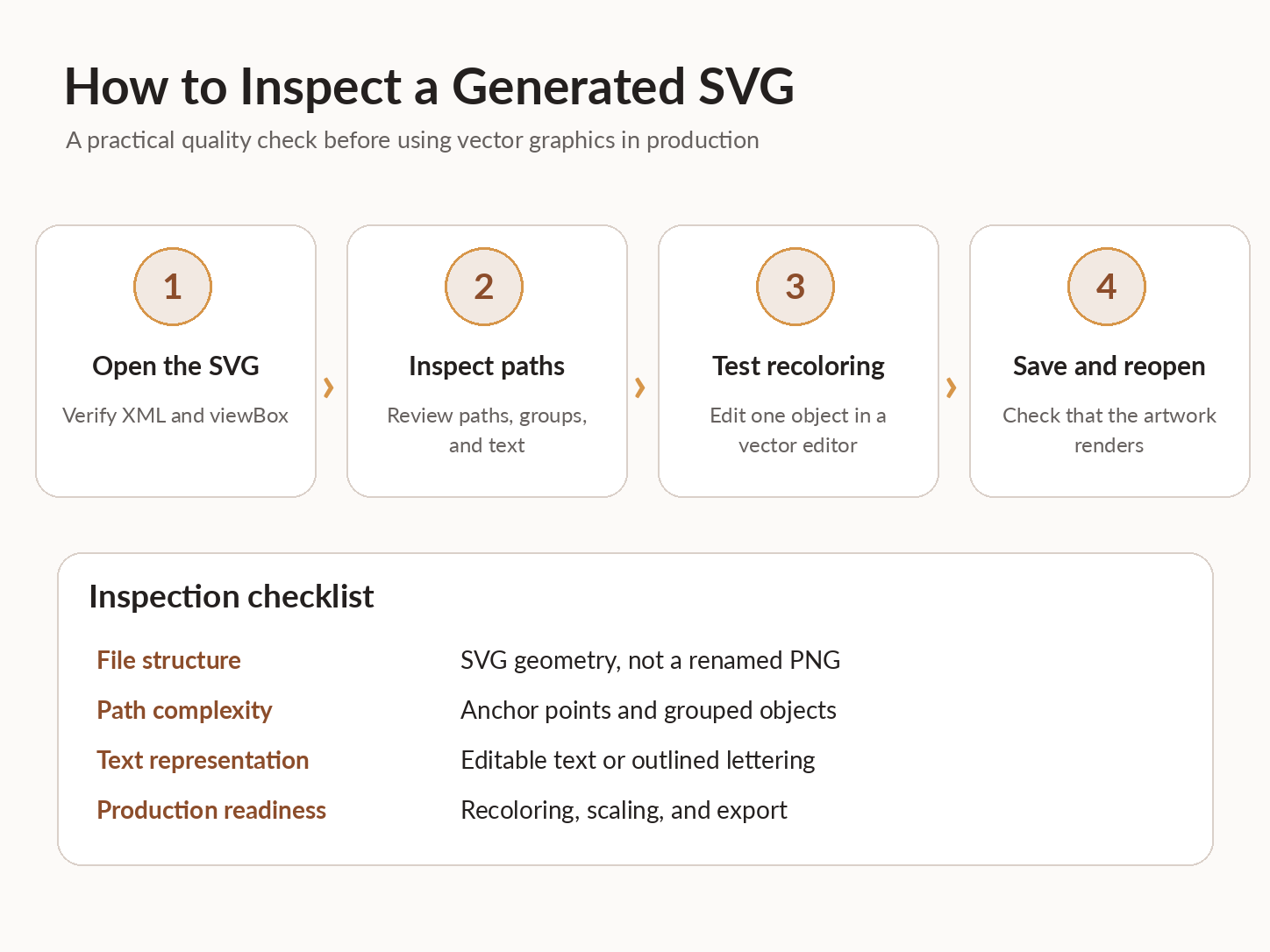
Use the following four-step validation workflow.
Step 1: Verify scaling. Enlarge the artwork and confirm that its vector edges remain sharp.
Step 2: Test recoloring. Change one prominent object's fill or stroke, then check whether unrelated elements retain their original appearance.
Step 3: Inspect path structure. Examine anchor points, compound shapes, and grouped elements to determine whether the design can be modified efficiently.
Step 4: Export and reopen. Save the modified SVG, reopen it, and confirm that its visual appearance and vector elements remain intact.
For typography, determine whether the wordmark uses editable <text> elements or paths representing outlined letters. Outlined text remains scalable but generally cannot be edited as ordinary text.
The objective is not to minimize path count at all costs, but to confirm that the file supports the editing operations required by the project.
SVG Generation vs Traditional PNG-to-SVG Tracing
Traditional bitmap-to-vector workflows usually involve generating a PNG and then tracing it with another tool.
While this can work, tracing may introduce excessive anchor points or irregular shapes.
In a Reddit discussion, a developer of a vectorization tool described a case involving 522 anchor points with a conventional tracing workflow and 59 anchor points with the developer's own method.
The example illustrates the importance of path complexity in editable artwork.
GPT Image 2.6 reduces the need for a separate conversion stage by supporting SVG output through the image generation endpoint.
The benefit is a more direct document-generation workflow. Actual path quality should still be assessed from the returned file.
GPT Image 2.6 SVG Pricing: Save 35% with LinkModel
For developers building SVG generation into websites, design pipelines, or content production systems, pricing becomes increasingly important as request volume grows.
GPT Image 2.6 Flare and Sunburst share the same published image-model token rates.
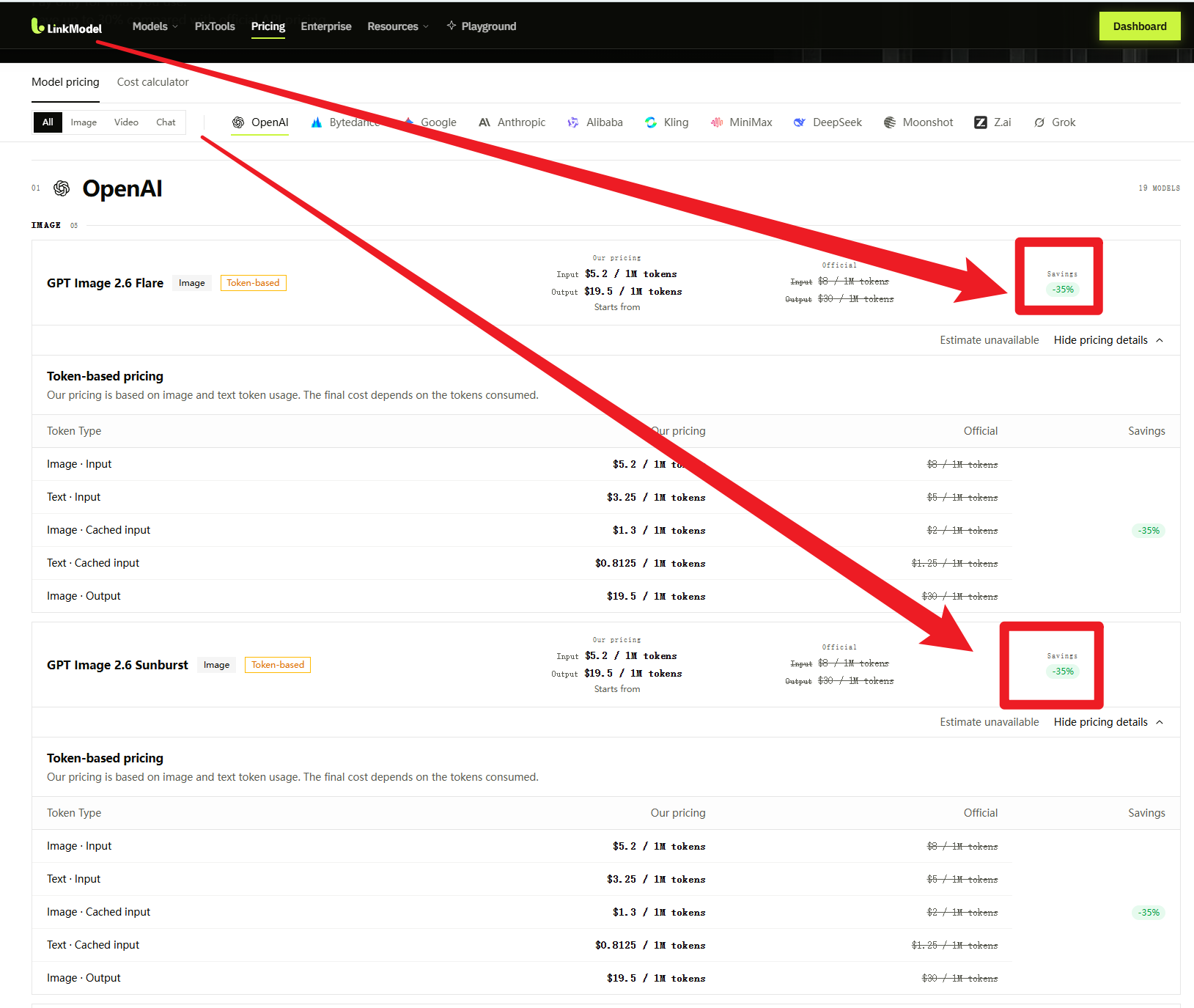
Through November 30, 2026, LinkModel charges 65% of OpenAI's official standard image-model token pricing, equivalent to 35% lower rates across the applicable billing categories.
OpenAI vs LinkModel GPT Image 2.6 API Pricing
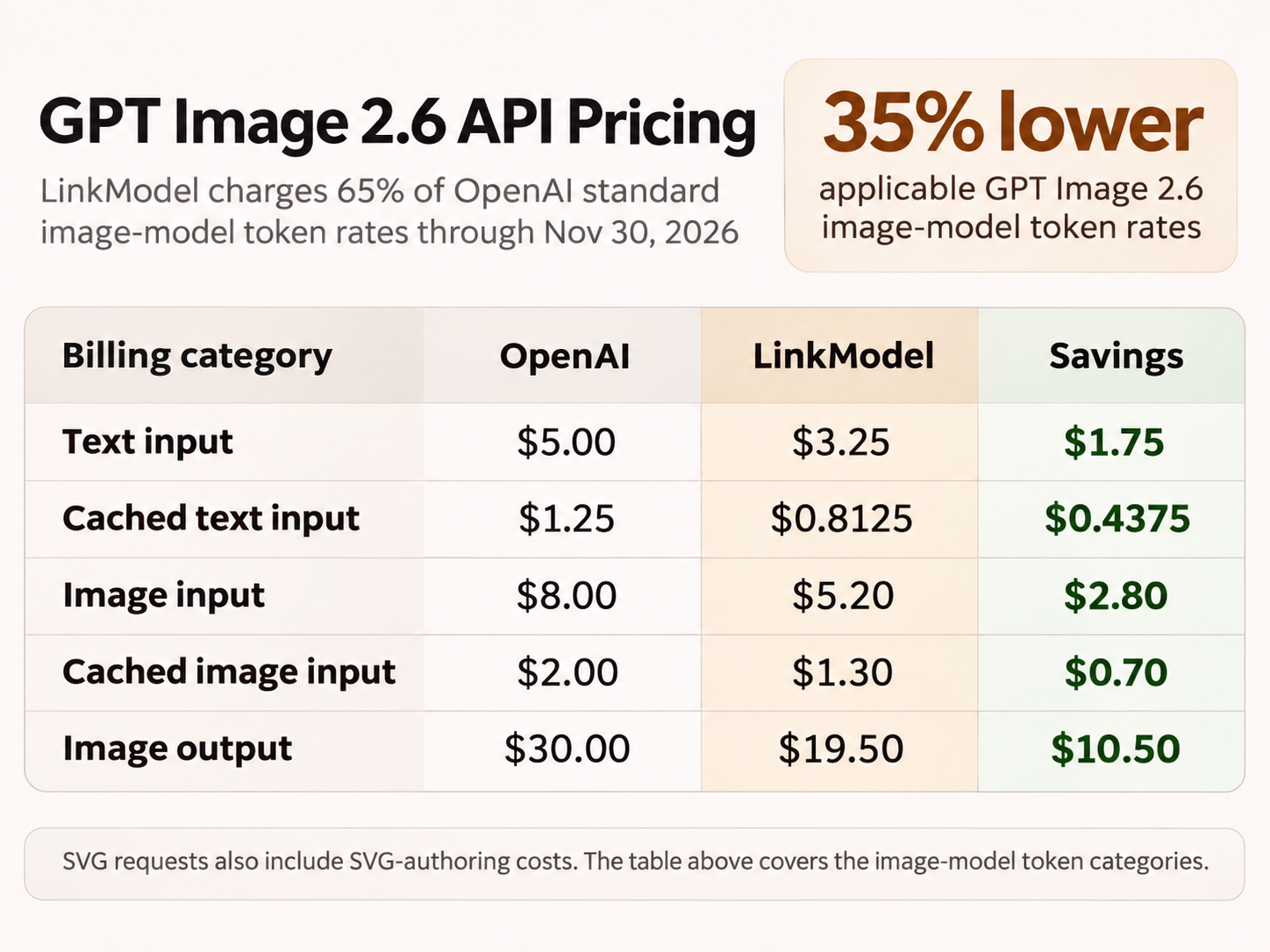
All prices are in USD per 1 million tokens.
| Billing Category | OpenAI | LinkModel | Savings |
|---|---|---|---|
| Text input | $5.00 | $3.25 | $1.75 |
| Cached text input | $1.25 | $0.8125 | $0.4375 |
| Image input | $8.00 | $5.20 | $2.80 |
| Cached image input | $2.00 | $1.30 | $0.70 |
| Image output | $30.00 | $19.50 | $10.50 |
These rates apply to the corresponding GPT Image 2.6 image-model billing categories for both Flare and Sunburst.
For example, consider a workload using 100,000 billable image output tokens.
OpenAI image output cost:
100,000 ÷ 1,000,000 × $30.00 = $3.00
LinkModel image output cost:
100,000 ÷ 1,000,000 × $19.50 = $1.95
Savings: $1.05, or 35%.
As output token consumption increases, the absolute difference between the two rates grows.
Why SVG Generation Has a Two-Stage Cost
SVG pricing requires an additional consideration because the generation process involves two stages.
Total SVG cost = Reference-image generation cost + SVG-authoring cost
The first stage uses the image model to create the visual reference.
The second stage uses an SVG authoring model to produce the actual vector document.
The authoring stage has its own applicable token rates and token consumption.
Consequently, the image output price in the table should not be mistaken for a fixed cost per SVG file.
When estimating a production budget, consider the reference-image tokens and the SVG-authoring tokens involved in each request.
Why Use LinkModel for Vector Graphics Workflows?
A practical SVG production workflow should balance model choice, editing quality, and token cost.
Start with Flare when creating simple logos, minimal icons, or early-stage concepts that may require several prompt revisions. Consider Sunburst when detailed compositions, decorative elements, or more elaborate illustrations are important to the final design.
Before generating hundreds of files, inspect a small sample of SVG documents for path complexity, object separation, and editing convenience.
A more detailed SVG is not necessarily the more efficient production asset. If a file requires extensive manual cleanup, the additional editing effort can outweigh the benefit of a visually richer first result.
For repeatable SVG production, the most useful decision sequence is:
Choose the model → Generate a representative SVG → Inspect editability → Review token consumption → Scale the approved workflow.
LinkModel's 35% lower applicable GPT Image 2.6 image-model token rates provide a direct cost advantage during the promotional period through November 30, 2026.
Frequently Asked Questions
Can GPT Image 2.6 generate real SVG vector files?
Yes. GPT Image 2.6 Flare and Sunburst support SVG generation through the Images API. Use output_format: "svg" and save the decoded response as an SVG document containing vector geometry.
Are GPT Image 2.6 SVG files fully editable?
SVG files contain editable vector elements, but the actual convenience of editing depends on their geometry, grouping, and text representation. A genuine SVG does not guarantee that every shape is independently organized or that outlined lettering remains editable text.
Can I edit GPT Image 2.6 SVG files in Figma or Adobe Illustrator?
Yes. Both applications support SVG files. You can import an SVG, inspect its vector shapes, and modify supported paths and colors. The amount of cleanup required depends on the generated document.
Can GPT Image 2.6 convert PNG images directly to SVG?
GPT Image 2.6 supports generating SVG documents, but the image editing endpoint does not currently provide direct SVG output. The documented SVG workflow uses the image generation endpoint.
Which is better for SVG output, GPT Image 2.6 Flare or Sunburst?
Flare is positioned for fast iteration, while Sunburst emphasizes more detailed visual generation. Both support SVG and use identical published image-model token rates. OpenAI's official Field & Flour SVG examples demonstrate different visual interpretations, but path quality and editing convenience should be evaluated using the actual documents.
Conclusion
GPT Image 2.6 SVG Output enables developers to create genuine SVG vector documents through the Images API using output_format: "svg". OpenAI's official Field & Flour examples demonstrate how Flare and Sunburst can produce different logo compositions from the same design brief, while the downloadable files provide a practical starting point for inspecting paths, colors, and object structure. Flare is a useful first choice for rapid design iteration, while Sunburst is worth considering for more detailed artwork. Before scaling production, validate SVG editability and account for both reference-image and authoring costs. Through November 30, 2026, LinkModel offers 35% lower applicable GPT Image 2.6 image-model token rates, helping teams reduce generation costs while building reusable vector graphics workflows.