To write an effective Grok Imagine Image 2.0 prompt, describe the subject first, then specify its defining details, setting, lighting, colors, and composition. Use references for existing products or characters, quote exact text, and make focused edits when an otherwise useful image needs a correction.
The expensive mistakes are often small: a changed label, an inconsistent face, or an incorrect date. Define what must remain accurate before generating, so you can distinguish an attractive image from an asset you can actually publish.
For developers putting these workflows into production, Grok Imagine Image 2.0 on LinkModel supports generation and editing with a 30% output discount, bringing output costs to $0.028 for 1K low and $0.056 for 2K medium. Lower output prices give your creative budget more room for variations and revisions.
How to Write Grok Imagine Image 2.0 Prompts
Write a visual brief that identifies what must appear, how it should be arranged, and which details determine acceptance. Add style after those requirements are clear.
xAI’s official prompting guide organizes prompts around six components: subject, details and focal point, art direction, light, color, and composition. It suggests four to six sentences for a simple standalone still. Use that framework to organize decisions rather than adding length for its own sake.
How to Use These Prompts
Choose the example closest to your task and replace its subject, setting, or wording.
1. For a new image: use image generation and supply the completed prompt.
2. For an edit: provide the source image and describe the change.
3. For multiple references: upload or submit them in the order named in the prompt.
4. Set the output format: choose the supported aspect ratio, resolution, and quality appropriate to the placement.
5. Review before repeating: identify the failed requirement and revise that part of the brief.
A prompt saying “use the attached product” needs an actual product image. Likewise, “image 1” and “image 2” must correspond to the references you submit.
The Six-Part Prompt Structure
| Component | What to specify |
|---|---|
| Subject | Object or person, quantity, action |
| Details | Materials, defining features, viewpoint |
| Art direction | Setting, props, photographic or illustration style |
| Light | Source, direction, softness |
| Color | Subject colors and background palette |
| Composition | Placement, crop, focus, copy space |
For a product photograph, “one amber glass bottle with a black screw cap” defines a recognizable object. “A luxurious wellness aesthetic” leaves its physical appearance unresolved.
Prioritize the requirement that would make the image unusable if it failed. That might be packaging accuracy for an advertisement or readable wording for an event poster.
A Reusable Prompt Template
The following examples translate common production requirements into complete prompts. Each includes checks for deciding whether the output is usable.
Create a [photograph, illustration, or design] of [subject and quantity] in [setting]. Show [essential physical features] from [viewpoint]. Include [supporting objects] in [positions]. Use [lighting direction and softness], with [subject colors] against [background colors]. Frame the image for [intended placement], keeping [important elements] visible and leaving [required copy space].
Completed example:
Create a product photograph of one unbranded amber glass skincare bottle standing upright on pale limestone. Show its cylindrical body, black screw cap, and simple ivory label from a three-quarter viewpoint. Place one folded linen cloth behind the bottle. Use soft daylight from the left, with warm amber glass against a neutral stone background. Keep the entire bottle visible and leave clear space above it for a headline.
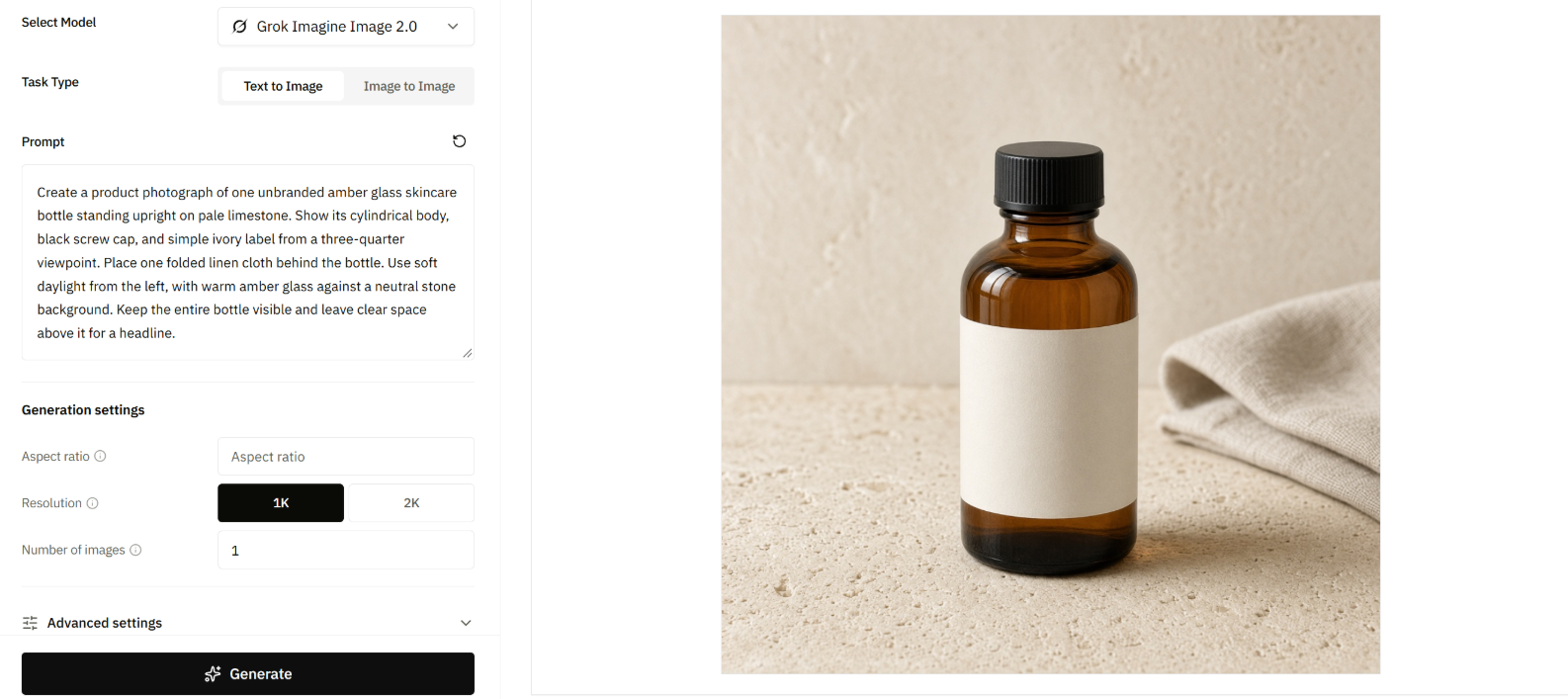
Each specific phrase resolves a different ambiguity:
| Prompt wording | Requirement it establishes |
|---|---|
| One bottle | Quantity |
| Black screw cap | Defining physical feature |
| Three-quarter viewpoint | Camera relationship |
| Entire bottle visible | Crop boundary |
| Clear space above | Headline area |
Keep the prompt as short as the task allows. Expand it when you need to resolve additional requirements, such as reference priorities or exact wording.
Realistic Photo Prompts: Skin, Lighting, and Framing
Believable photography depends on consistent relationships between the person, materials, light, and environment. A request for “photorealism” leaves those relationships largely undefined.
Our review of user questions highlighted concerns about overly smooth skin, lighting disconnected from the surrounding scene, and framing that looks excessively centered. The examples below turn those concerns into specific instructions and review criteria.
Example: A Documentary Portrait
A vague starting prompt:
Create an ultra-realistic portrait of a ceramic artist in a beautiful studio.
A more actionable version:
Create a documentary photograph of an adult ceramic artist seated at a pottery wheel in a working studio. Their hands rest on one unfinished clay bowl, with damp clay on the fingers and apron. Use soft daylight from a window on the right, with gentle shadows across the face. Show subtle skin texture across the cheeks, individual hair strands, and ordinary fabric folds. Use an eye-level, waist-up composition with the face and hands clearly visible.
The revision defines an activity, physical interaction, light source, and framing.
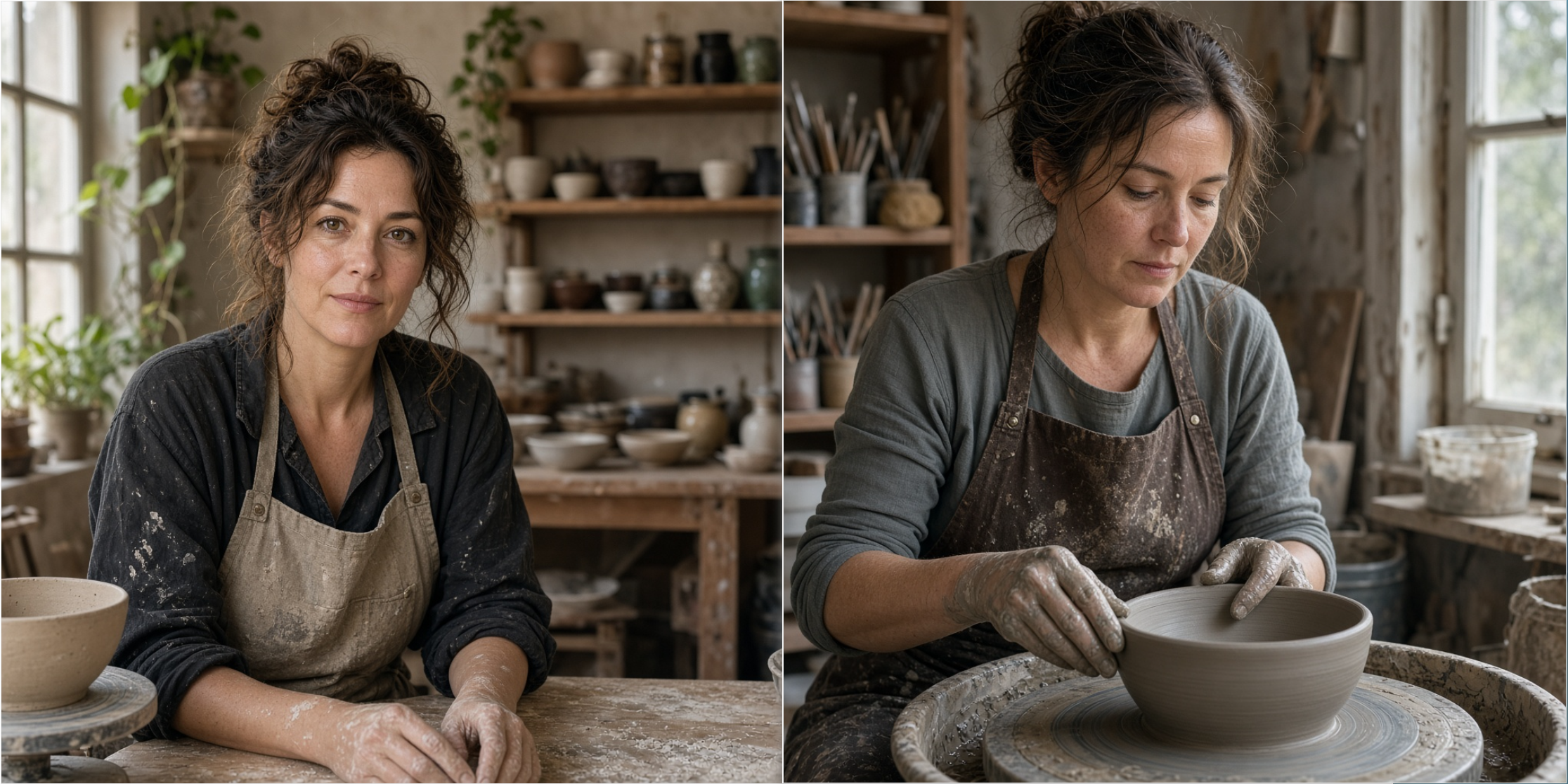
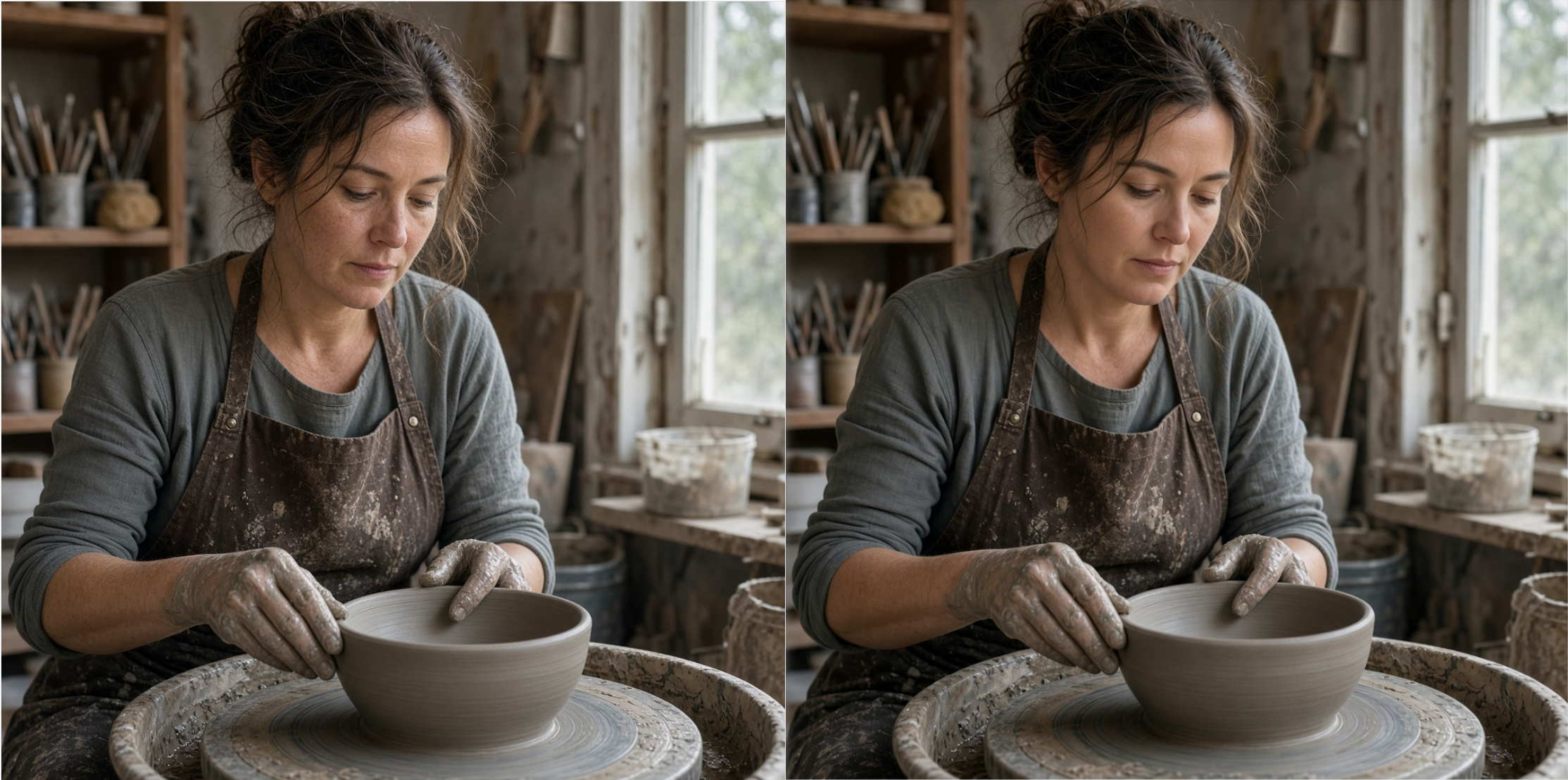
Inspect the face and hands together: fingers should meet the clay plausibly, facial texture should remain subtle, and the person should share the studio’s lighting.
If only the skin finish needs attention, use a narrower edit:
Adjust only the facial skin finish to show subtle natural texture across the cheeks and forehead. Preserve the facial features, expression, hairstyle, lighting direction, hands, and studio composition.
Added texture is not automatically an improvement. Reject exaggerated pores or sharpening that makes the face less convincing.
Example: A Casual Smartphone Photograph
Create a casual smartphone photograph of an adult traveler waiting beside a station window, holding a paper coffee cup. Place the traveler slightly right of center, with part of an empty seat visible on the left. Use overcast daylight from the window and ordinary indoor exposure. Show a relaxed posture, a lightly creased jacket, and a practical shoulder bag. Frame the traveler from the opposite seat, as though a companion took the photograph.
Inspect camera distance, posture, and context. The composition should support the everyday situation rather than look like an unrelated fashion campaign.
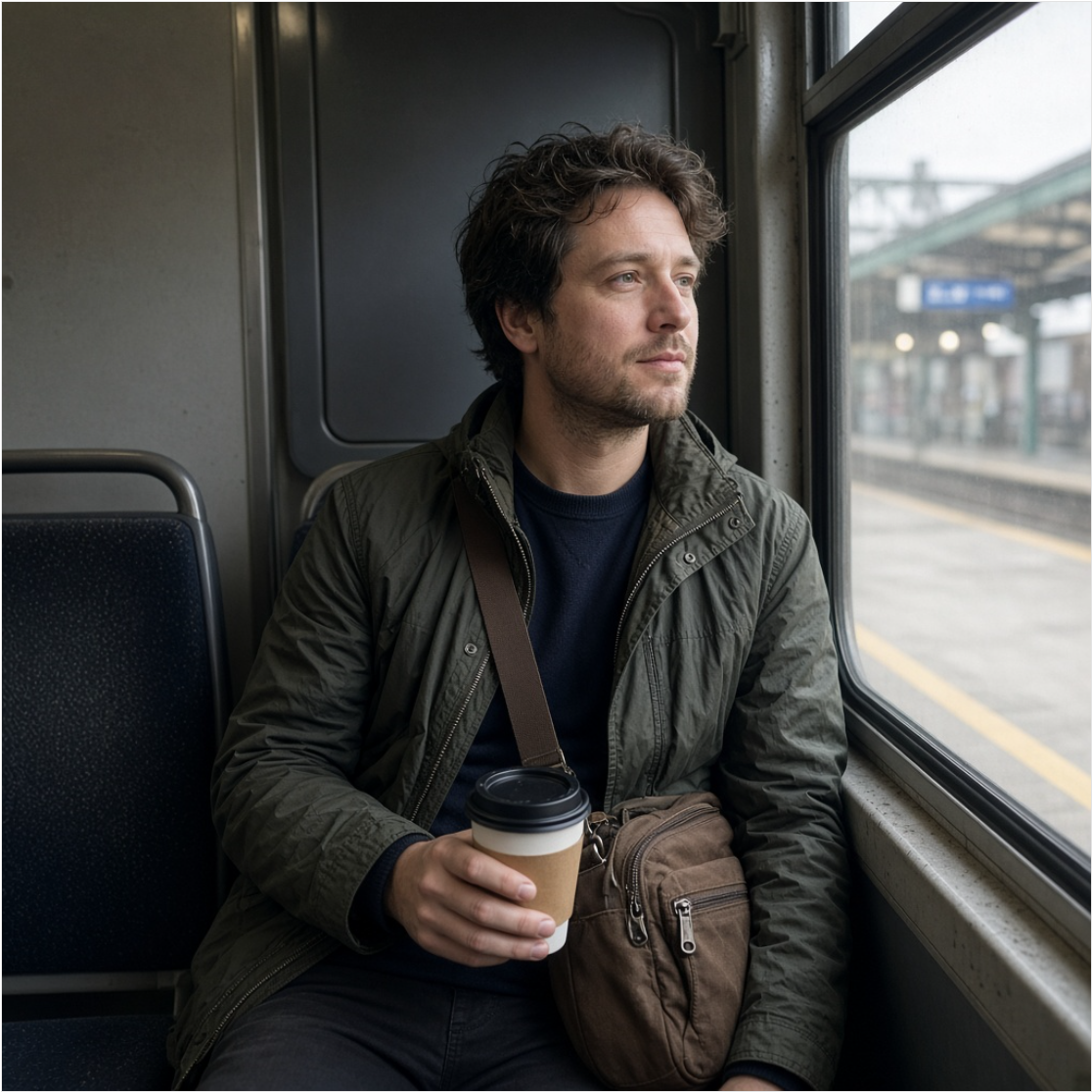
Choose imperfections deliberately. An informal crop should not remove a hand or object essential to the brief.
Product Photography Prompts That Protect Packaging
For an existing product, supply its approved image and describe the intended transformation. Review product accuracy separately from the attractiveness of the new scene.
A visually convincing approximation may work for concept development while remaining unsuitable for a catalog or paid advertisement.
Example: A Campaign Banner with Copy Space
Create a wide advertising photograph of one unbranded silver headphone set on a dark blue pedestal. Position the headphones within the right half of the composition. Keep the left half as a clean navy gradient suitable for adding a headline and a short button label later. Use soft overhead illumination to reveal the metal finish and a restrained rim light around the ear cups. Keep the headphones fully inside the frame.
Review with a draft headline overlaid. A region can appear empty while still containing too much contrast for readable copy.
Check the intended mobile placement as well. If the product and headline cannot fit, revise the layout before refining decorative details.

Poster and Typography Prompts with Exact Text
Specify wording, hierarchy, position, and spacing independently. Correct text and attractive layout are different requirements.
Check spelling and numbers before judging the overall design. A polished poster with the wrong date still fails its brief.
Example: An Exhibition Poster
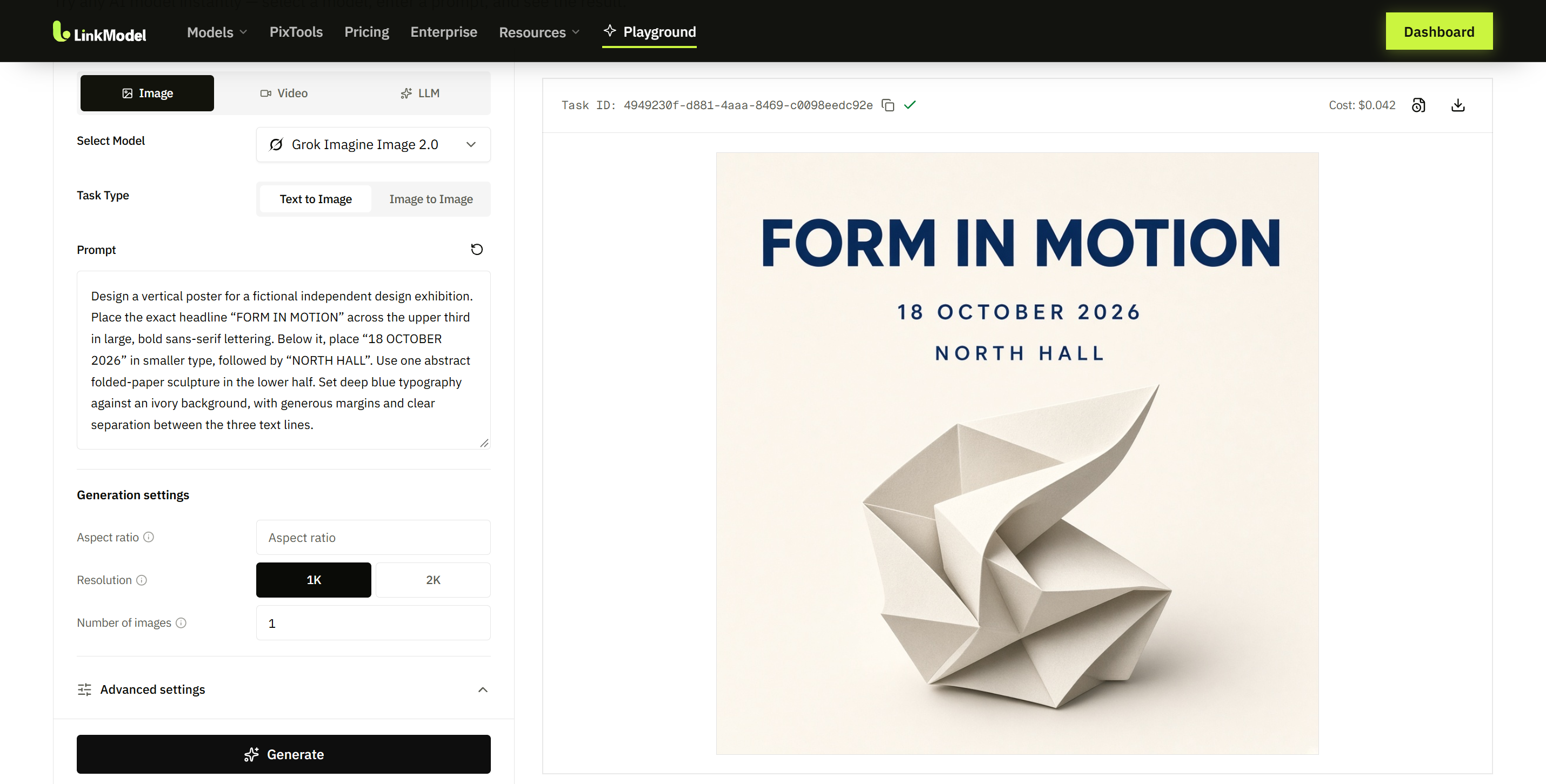
Design a vertical poster for a fictional independent design exhibition. Place the exact headline “FORM IN MOTION” across the upper third in large, bold sans-serif lettering. Below it, place “18 OCTOBER 2026” in smaller type, followed by “NORTH HALL”. Use one abstract folded-paper sculpture in the lower half. Set deep blue typography against an ivory background, with generous margins and clear separation between the three text lines.
Inspect every character, then check readability at the final display size. Correct wording at full resolution may become unreadable in a small social placement.
For dense schedules, ingredient lists, or essential legal wording, generate the visual background and add approved typography afterward.
Example: An Educational Illustration
Create a clean editorial illustration of one bicycle drivetrain viewed from the right side. Clearly separate the front chainring, chain, and rear sprocket against a plain ivory background. Use dark blue outlines and restrained orange highlights. Leave three empty callout boxes outside the mechanism for labels to be added later. Keep the mechanical parts large enough to inspect.
Verify the mechanism before adding labels. The chain should follow a plausible path, and each callout must identify its intended component clearly.
For quantitative charts, use plotting tools to control values, axes, and proportions. Image generation is more appropriate for supporting illustrations than for encoding numerical evidence.
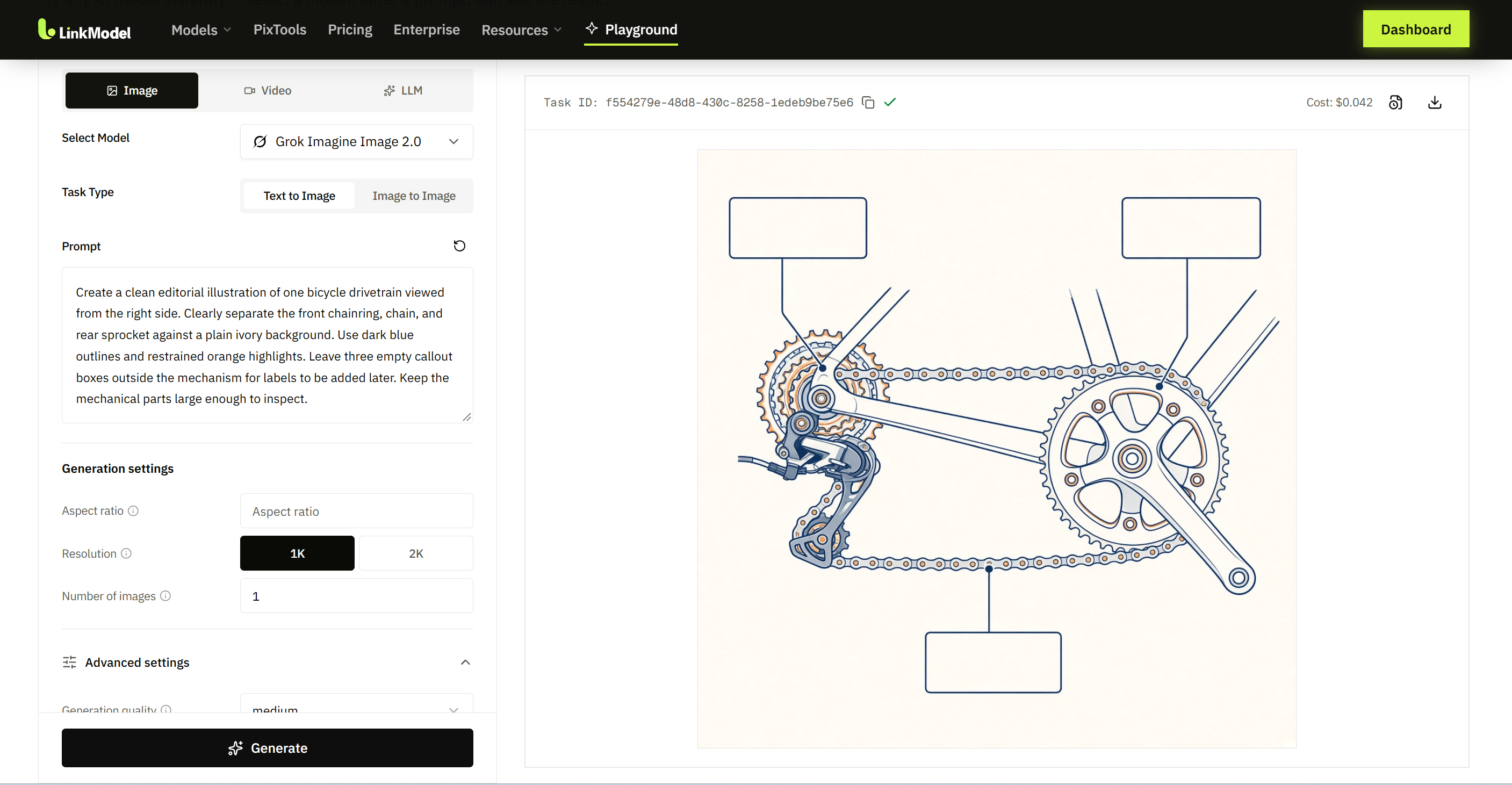
Image Editing Prompts That Preserve Approved Details
Name the requested change and the content that must remain stable. Choose editing when enough of the existing image deserves to survive.
xAI’s editing documentation supports source-image editing and using an output as the input for a later revision. Save approved checkpoints so that an unsuccessful revision does not propagate through the project.
Generate or Edit?
| Situation | Suggested next step |
|---|---|
| The main concept is unsuitable | Generate another concept |
| The composition works; the background does not | Try a background edit |
| One surface needs a new material | Try a targeted edit |
| An existing product must appear accurately | Supply its approved reference |
| Several revisions have changed key features | Return to an approved checkpoint |
For example, rebuilding an entire pose may be less practical than generating a new composition. A small upholstery change is a more focused editing task.
Example: Change One Material
Change only the chair’s seat upholstery from gray fabric to deep green velvet. Preserve the chair frame, seat shape, camera viewpoint, room layout, and surrounding furniture. Show a subtle velvet pile on the seat cushion.
Inspect geometry as well as color. The edit should not require accepting a different frame or cushion shape.
Reference Image Prompts for Characters and Composites
Assign each reference a specific responsibility. Identity, packaging, environment, and lighting should not compete without clear priorities.
xAI’s multi-image editing documentation supports up to five source images per edit. The first image supplies the default aspect ratio unless another ratio is specified. Use only the references the task needs.
Example: Combine Product, Environment, and Lighting
Create one advertising photograph using the bottle from image 1, the architectural setting from image 2, and the lighting direction from image 3. Image 1 defines the product’s packaging, proportions, cap, and label. Image 2 defines only the architecture and surface materials. Image 3 defines only the warm side lighting and shadow direction. Place one bottle upright on the foreground ledge, with realistic scale and a contact shadow.
Inspect for unwanted transfers: extra objects, altered packaging, or colors imported from the wrong reference.
The role assignments also help diagnose failure. If packaging changes, review whether another reference is overriding the product source.
Example: Keep a Character Consistent in a New Scene
Using image 1 as the character identity reference, show the same adult character reading beside a train window. Preserve the facial proportions, hairstyle, hair color, and distinctive round glasses. Change the clothing to a navy wool coat and place one closed suitcase beside the seat. Use soft overcast daylight through the window.
Review the series side by side. Gradual changes in face shape or identifying features can be harder to notice when images are judged separately.
Keep a short character specification with the approved reference. Use it as the identity source for later scenes rather than relying on an image that has already drifted.
How to Fix Grok Imagine Image 2.0 Prompt Problems
Revise the failed requirement before rewriting the entire brief. First identify whether the problem concerns the subject, composition, text, material, or reference interpretation.
What to Change When a Prompt Fails
| Visible failure | Next revision to try |
|---|---|
| The subject is too small | Specify its prominence and crop |
| The product merges into the background | Separate colors or lighting |
| The headline area contains objects | Assign a clear region for copy |
| A reference adds unwanted content | Narrow that reference’s responsibility |
| Text is incorrect | Isolate the wording correction or typeset it separately |
| An edit changes approved features | Restart from the approved source |
These are troubleshooting choices, not guaranteed outcomes.
Keep a Reviewable Prompt Record
Save the prompt, references, settings, and output together. Record failures precisely: “cap widened,” “date changed,” or “headline space occupied.”
Change one category at a time when diagnosing a problem. If you alter lighting, references, composition, and quality simultaneously, it becomes harder to determine which change helped.
Approve an image only after checking subject identity, required objects, text, framing, and suitability for its final placement.
Aspect Ratio, Resolution, and Quality Settings
Use output controls for dimensions and quality, while the prompt describes composition. Writing “wide banner” does not replace selecting an appropriate supported ratio.
The official generation documentation lists 1K and 2K resolutions and low, medium, or auto quality. Auto currently selects low for generation and medium for editing. Record these settings when comparing outputs.
Choose a Ratio Around the Placement
| Asset | Starting ratio |
|---|---|
| Square product image | 1:1 |
| Website hero | 16:9 |
| Vertical mobile creative | 9:16 |
| Conventional photograph | 3:2 |
| Wide banner | 5:2 |
A wide placement needs a composition designed for width. Cropping a finished portrait may remove essential content.
When adapting an approved asset, explain what must remain visible and where new copy should sit.
Compare Resolution Without Changing the Brief
Keep the prompt, references, ratio, and quality fixed when comparing 1K and 2K. Inspect the detail relevant to the task, such as packaging edges or small design elements.
Approve accuracy before paying for more pixels. Higher resolution cannot correct the wrong product or an inaccurate date.
Separate API Errors from Prompt Problems
Use the model identifier grok-imagine-image-2.0 and the request format documented for your provider.
For native xAI editing, the API instructions require JSON and warn that the OpenAI SDK’s standard image-edit method uses an incompatible multipart format. A rejected request needs an integration fix before a prompt revision.
Save outputs promptly: xAI describes default image URLs as temporary and offers base64 output as an alternative. Store the final asset with its generation record.
Grok Imagine Image 2.0 Pricing on LinkModel
With LinkModel’s 30% output discount, the four listed output tiers cost $0.028–$0.056 per image. Keep output charges separate from reference-image inputs when budgeting edits.
The LinkModel pricing page lists the base component rates below. Its pricing note distinguishes those published rates from account discounts that may change the final charge.
| Output setting | Published base rate | With 30% output discount |
|---|---|---|
| 1K, low | $0.040 | $0.028 |
| 1K, medium | $0.060 | $0.042 |
| 2K, low | $0.060 | $0.042 |
| 2K, medium | $0.080 | $0.056 |
Prices are USD per output image. Reference-image input is listed separately at $0.01 per image; no input discount is assumed here. The corresponding base output rates also appear on xAI’s official model page, providing the basis for the comparison.
1K medium and 2K low share the same output price, but they remain different configurations. Compare the details your asset needs rather than assuming equal price means identical results.
For developers integrating these prompts into an application or repeatable workflow, start with the LinkModel model page and its API information. Validate one representative generation and one required editing task before expanding usage. Confirm the returned dimensions, product or character accuracy, and image handling alongside the output cost.
Frequently Asked Questions
What is the best Grok Imagine Image 2.0 prompt format?
Start with the subject and quantity, then describe essential details, setting, lighting, colors, and composition. Add exact wording for text and reference instructions for existing products or characters.
Why do portraits sometimes look too smooth?
Overly polished skin appeared in our review of user questions. Describe a believable photographic situation and localized skin detail, then inspect the whole face. Added texture can introduce artifacts, so more detail is not automatically better.
How do I preserve a product or face while editing?
Use an approved reference, name the change, and identify the features that must remain stable. Compare against the source and return to the approved image if important details drift.
Should I use negative prompts?
Prefer a clear description of the desired result over a long list of exclusions. Keep essential constraints specific—for example, request one product and identify where it belongs. Avoid treating exclusions as a substitute for defining the scene.
Can Grok Imagine Image 2.0 create accurate poster text?
Provide exact wording, hierarchy, position, and spacing, then verify every character at the final display size. For dense or essential copy, generate the visual and add approved typography afterward.
Conclusion
Effective Grok Imagine Image 2.0 prompting turns a creative idea into requirements you can inspect: a recognizable subject, deliberate composition, consistent lighting, accurate wording, and clear reference priorities. Use the examples as starting briefs, diagnose specific failures, and refine from approved checkpoints. For developers bringing this workflow into production, LinkModel’s Grok Imagine Image 2.0 API supports generation and editing with a 30% output discount, starting at $0.028 per output image.