To stop edit drift in GPT Image 2.5, treat every prompt as a visual specification: clearly define what should change, what must stay unchanged, and how the edit should integrate with the original image. For editing, use three explicit sections—Change, Preserve, and Integration—and assign each reference image a specific role.
The problem is that longer prompts do not automatically produce more consistent results. Vague references, weak preservation rules, text errors, and unclear edit boundaries can cause GPT Image 2.5 to change faces, layouts, products, backgrounds, or other approved elements, leading to more retries, higher costs, and inconsistent outputs.
The solution is to use clear edit boundaries, reference roles, exact text instructions, and QA criteria. GPT Image 2.5 Flare and Sunburst are available on LinkModel at 75% of OpenAI’s corresponding API token rates—a 25% discount. With one OpenAI-compatible API, one API key, and unified billing, you can switch between Flare and Sunburst without rebuilding your integration.

Best GPT Image 2.5 Prompt Structure for Reliable Results
Write GPT Image 2.5 Prompts as Visual Specifications
A strong GPT Image 2.5 prompt should answer four questions:
What are you creating? What must be visible? What must remain fixed? What would make the result unacceptable?
That matters more than whether the prompt uses JSON mode, natural language, or labeled sections.
Our research found that vague style words such as “cinematic,” “premium,” or “professional” are less useful than observable visual instructions. Soft directional daylight, restrained warm tones, natural skin texture, shallow depth of field, and controlled highlights give the model clearer visual targets.
A reusable structure should cover:
| Prompt Field | What to Define |
|---|---|
| Deliverable | Asset type and intended use |
| Subject | Main person, product, object, or focal element |
| Scene | Environment, action, and context |
| Composition | Framing, viewpoint, hierarchy, and placement |
| Visual Direction | Lighting, palette, materials, texture, realism |
| Text | Exact copy, placement, typography, count |
| References | What each image controls |
| Preserve | Elements that must remain stable |
| Constraints | What cannot appear or change |
| QA | Conditions required for approval |
The key is responsibility separation. Composition controls layout. References control source attribution. Preserve instructions protect approved elements. Text instructions control visible copy.
A Practical GPT Image 2.5 Prompt Example
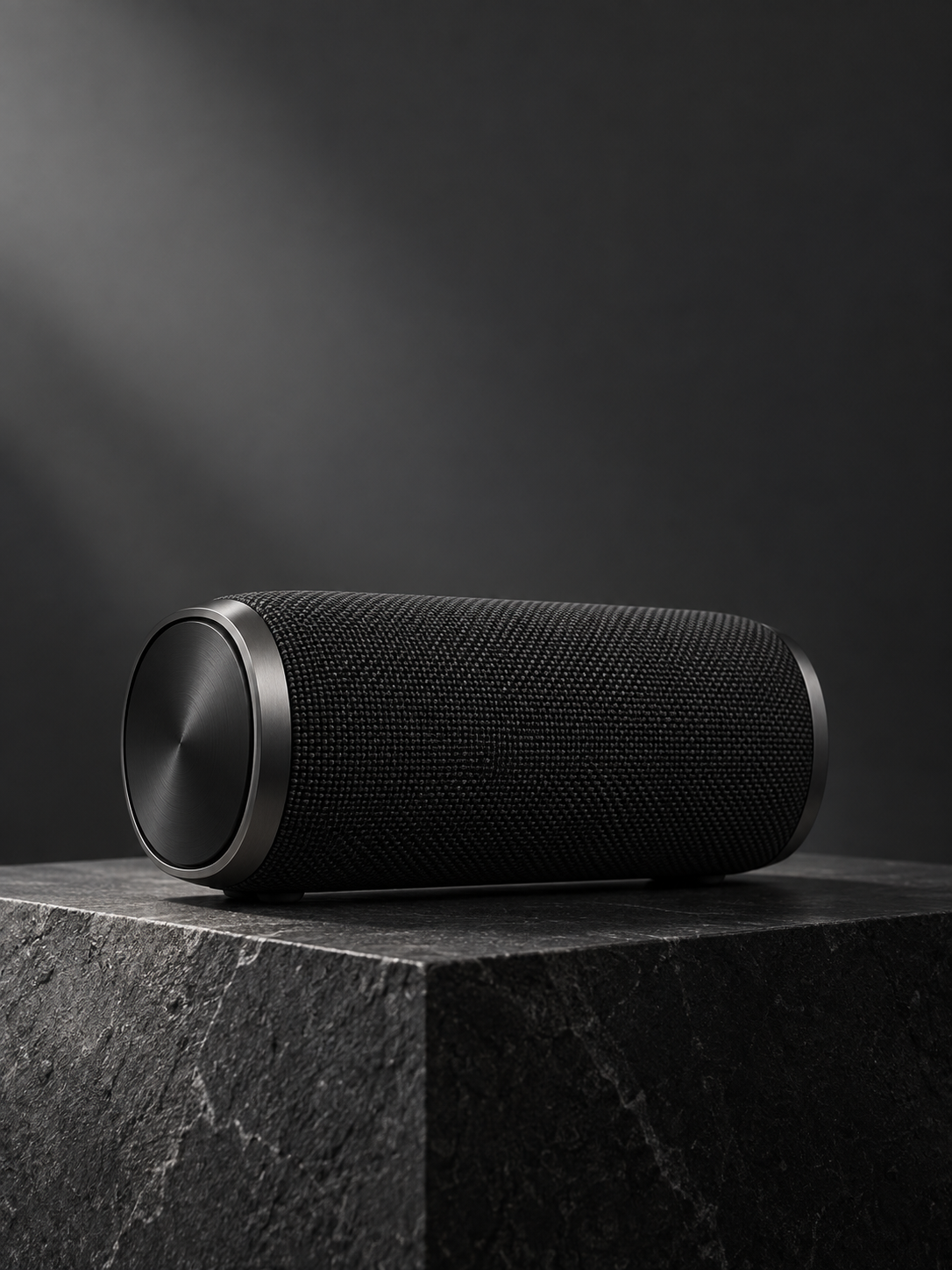
Instead of asking for “a premium cinematic product image,” define the actual asset.
- Deliverable: Create a 3:4 paid-social image for a premium wireless speaker campaign.
- Subject: A matte-black wireless speaker with accurate proportions and visible metal-edge detail.
- Scene: Place it on a dark stone pedestal against a minimal studio background.
- Composition: Position the product slightly below center and leave clean negative space above.
- Visual Direction: Use soft directional lighting from camera-left, subtle material texture, realistic contact shadows, restrained charcoal tones, and controlled highlights.
- Constraints: No unrelated objects, additional products, invented logos, or decorative text.
This gives GPT Image 2.5 fewer decisions to invent on its own.
GPT Image 2.5 Editing Prompts: Change Only What You Intend
Use Change, Preserve, and Integration
One of the strongest patterns in our research is:
- Change Only: Define what is allowed to change.
- Preserve: Define what must remain stable.
- Integration: Define how the edited element should match the original image.
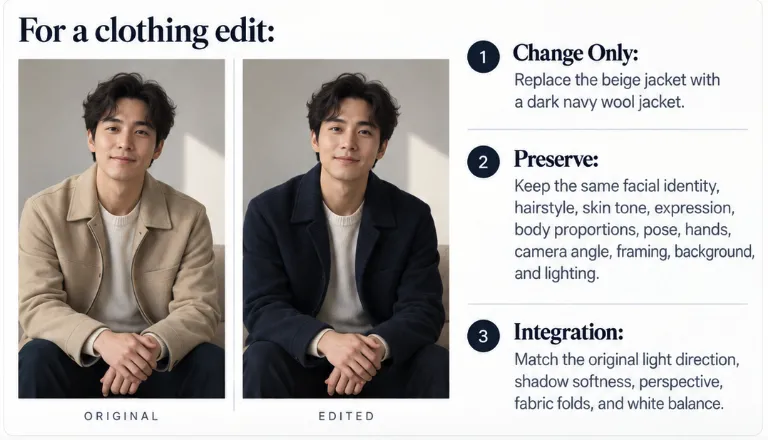
For a clothing edit:
- Change Only: Replace the beige jacket with a dark navy wool jacket.
- Preserve: Keep the same facial identity, hairstyle, skin tone, expression, body proportions, pose, hands, camera angle, framing, background, and lighting.
- Integration: Match the original light direction, shadow softness, perspective, fabric folds, and white balance.
This turns editing from a vague request into a set of explicit permissions.
What Our GPT Image 2.5 Editing Research Found
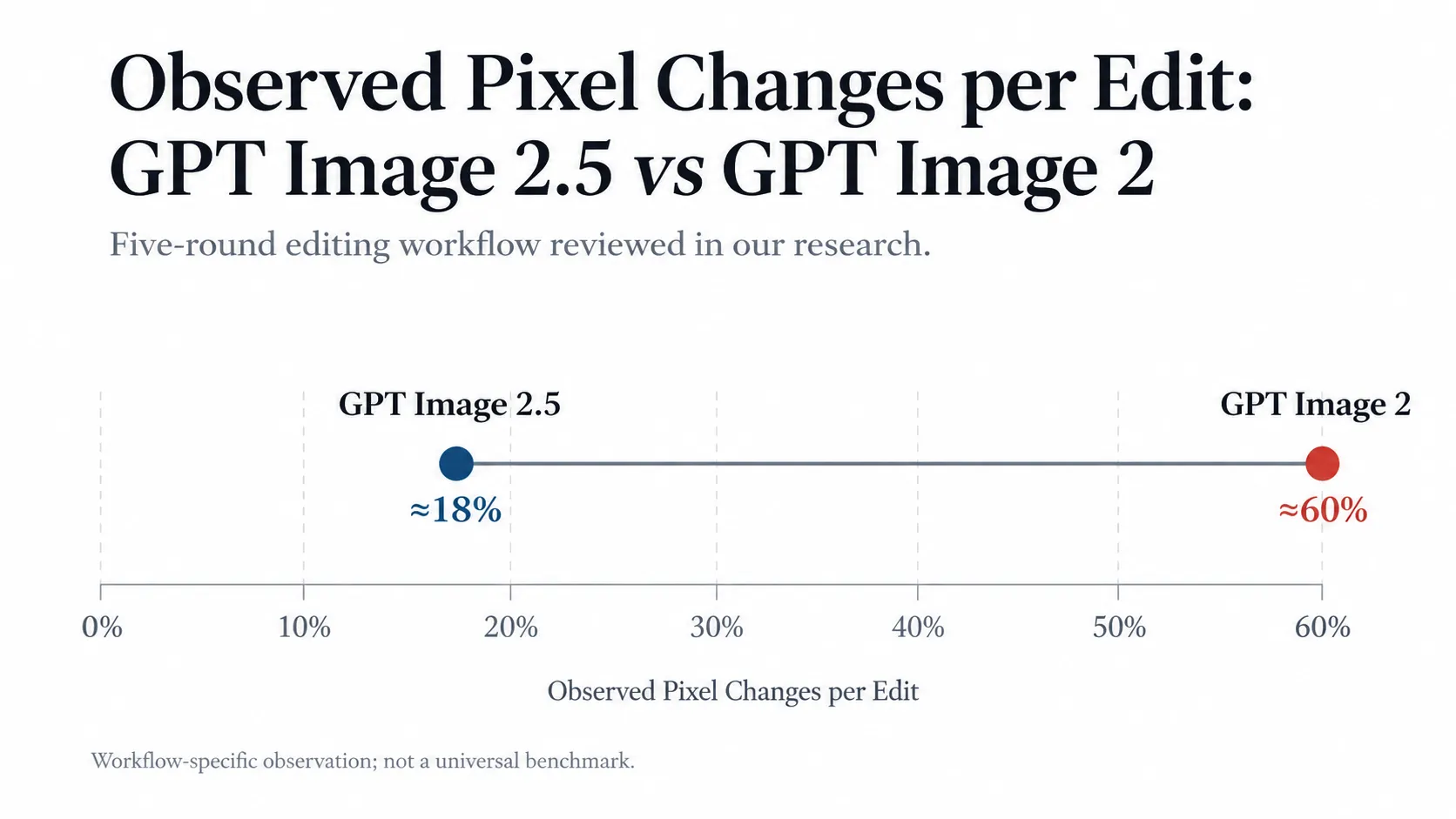
In one five-round editing workflow reviewed in our research, GPT Image 2.5 changed approximately 18% of pixels per edit, compared with about 60% for GPT Image 2.
This was a specific workflow, not a universal benchmark, but it highlights an important production metric: unwanted-change rate.
A result can look attractive while still failing if the model changes a face, product shape, approved layout, or background that was meant to remain fixed.
Generative image editing also does not guarantee pixel-identical preservation. If an untouched region must remain mathematically identical, deterministic masking or compositing is safer than relying entirely on prompting.
GPT Image 2.5 Reference Image Prompts: Give Every Reference a Role
Use Reference Role Binding
A recurring problem in our review of user questions is reference pollution.
A clothing reference changes the face. A style reference imports its background. A product reference loses geometry. Multimodal image references are blended together even though each was intended to control a different attribute.
The solution is a Reference Role Contract.
Image 1 controls identity. Transfer facial structure and hairstyle. Do not transfer clothing, background, or lighting.
Image 2 controls clothing. Transfer the jacket and footwear. Do not transfer facial identity, pose, or body proportions.
Image 3 controls palette. Transfer color relationships and contrast. Do not transfer objects or composition.
For complex tasks, use three explicit fields:
- Controls
- Must Transfer
- Must Not Transfer
The more references you use, the more important these boundaries become.
GPT Image 2.5 Character Consistency Across Multiple Images
Build a Character Master Before Building Scenes
Character consistency works better as an asset-management problem than as a one-line prompting trick.
A stronger workflow is:
Character Master → Approval → Reuse Original Reference → New Scene → Identity QA
First create an approved master asset that establishes facial geometry, hairstyle, body proportions, clothing, accessories, and other recognizable features. Then reuse that original reference for each new scene.
Do not rely only on phrases such as “same character.”
What Our Sequential Image Research Found
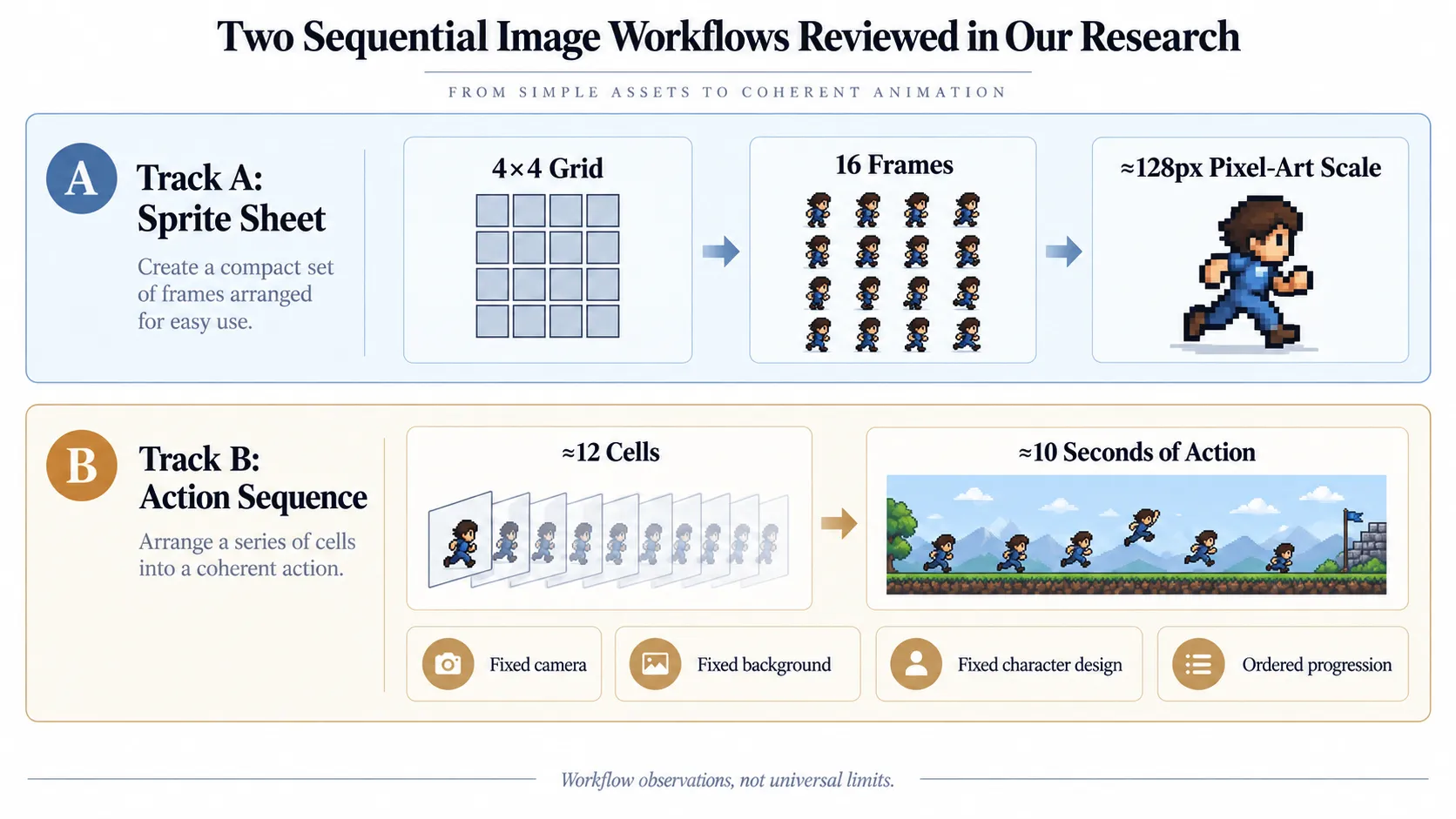
In one game-asset workflow reviewed in our research, GPT Image 2.5 was used to create a 4×4 sprite sheet with 16 frames at roughly 128px pixel-art scale.
Major hairstyle, clothing, and footwear characteristics remained relatively consistent, while leg orientation still showed frame-to-frame errors.
Another workflow created roughly 10 seconds of action from a multi-panel frame grid. Around 12 cells remained practical when the prompt explicitly fixed the camera, background, character design, frame order, and progression of the action.
The lesson is important: visual consistency does not automatically create motion consistency.
For sequential work, describe panels as ordered states in one progression rather than independent poses.
GPT Image 2.5 Text, Typography, and UI Prompts
Treat Exact Text as Data
For ads, posters, UI concepts, packaging, and infographics, treat text as a structured requirement rather than a visual suggestion.
Specify:
- Exact copy: Fresh and Clean
- Appear: Exactly once
- Position: Upper-right
- Typography: Bold geometric sans serif with strong contrast and clear spacing
- Constraint: No additional text
This reduces ambiguity around spelling, repetition, and placement.
Our review of user questions also suggests that repeatedly making a prompt longer is not always the best response to dense-text failures. Once copy and placement are explicit, testing a higher quality level can be more useful than adding more descriptive prose.
Every text-heavy output should still pass spelling and placement QA before publication.
GPT Image 2.5 UI Workflow Case Study
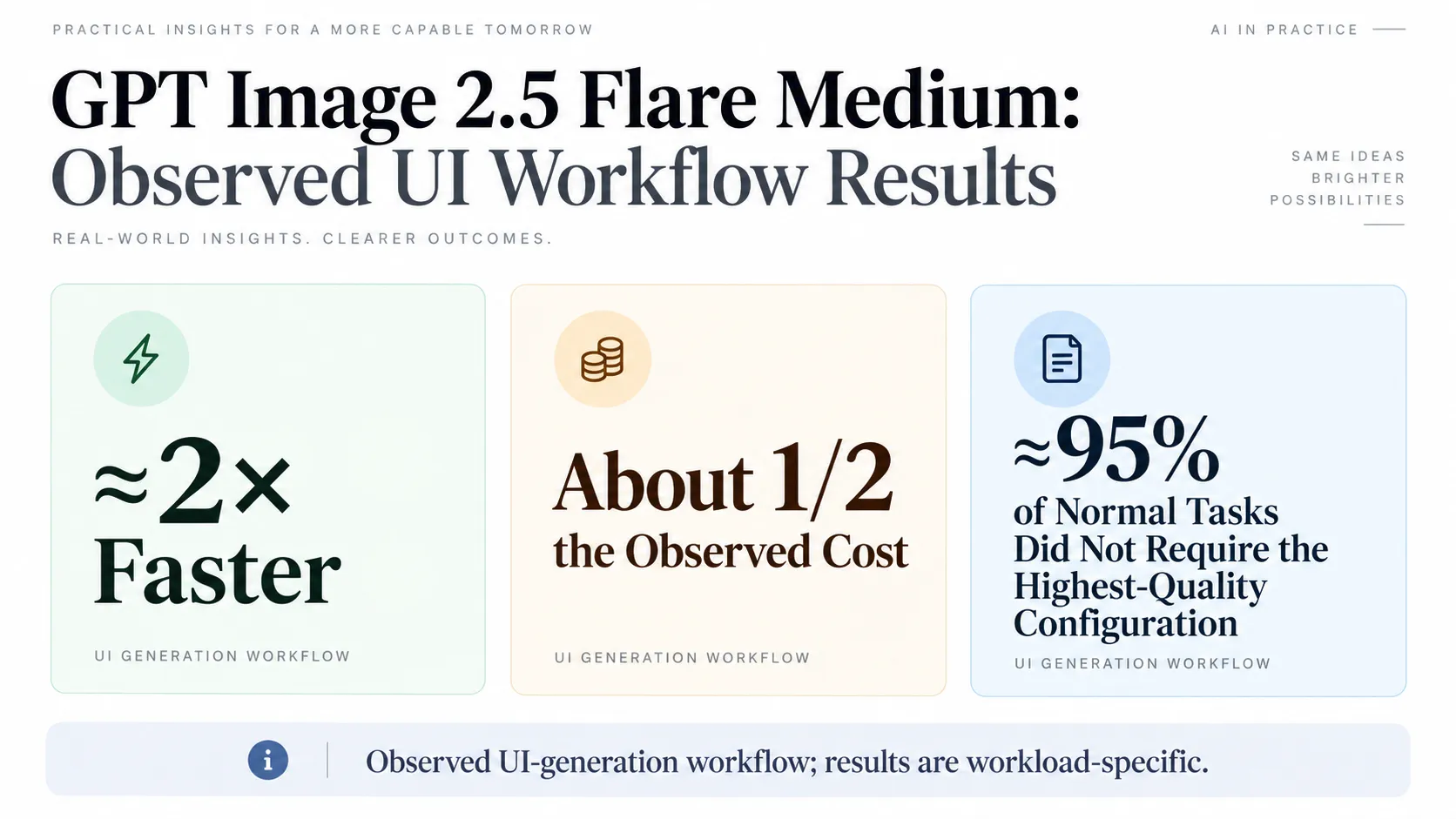
A UI-generation workflow reviewed in our research found that Flare Medium was approximately 2× faster and about half the observed cost of the previous workflow.
The same workflow estimated that roughly 95% of its normal tasks did not require the highest-quality configuration.
These figures describe one specific production workload rather than universal performance, but the strategy is broadly useful:
Do not automatically route every request through the highest-cost or highest-quality option.
For UI generation, define an acceptance threshold covering typography, hierarchy, spacing, layout coherence, text accuracy, and visual consistency.
A visually convincing UI image should also not be confused with production-ready HTML or frontend code.
GPT Image 2.5 Flare vs Sunburst: Which Should You Use?
Start With Flare and Escalate Based on QA
For most generation, iteration, and high-volume workflows, Flare is the logical starting point.
Sunburst becomes more useful when the task depends on higher precision, difficult editing, identity preservation, dense visual information, or polished final outputs.
| Flare | Sunburst | |
|---|---|---|
| Best for | Most apps, iteration, volume | Precision-heavy final work |
| Priority | Speed and throughput | Control and precision |
| Starting strategy | Test first | Escalate when QA fails |
| Key metric | Cost per accepted image | Cost per accepted image |
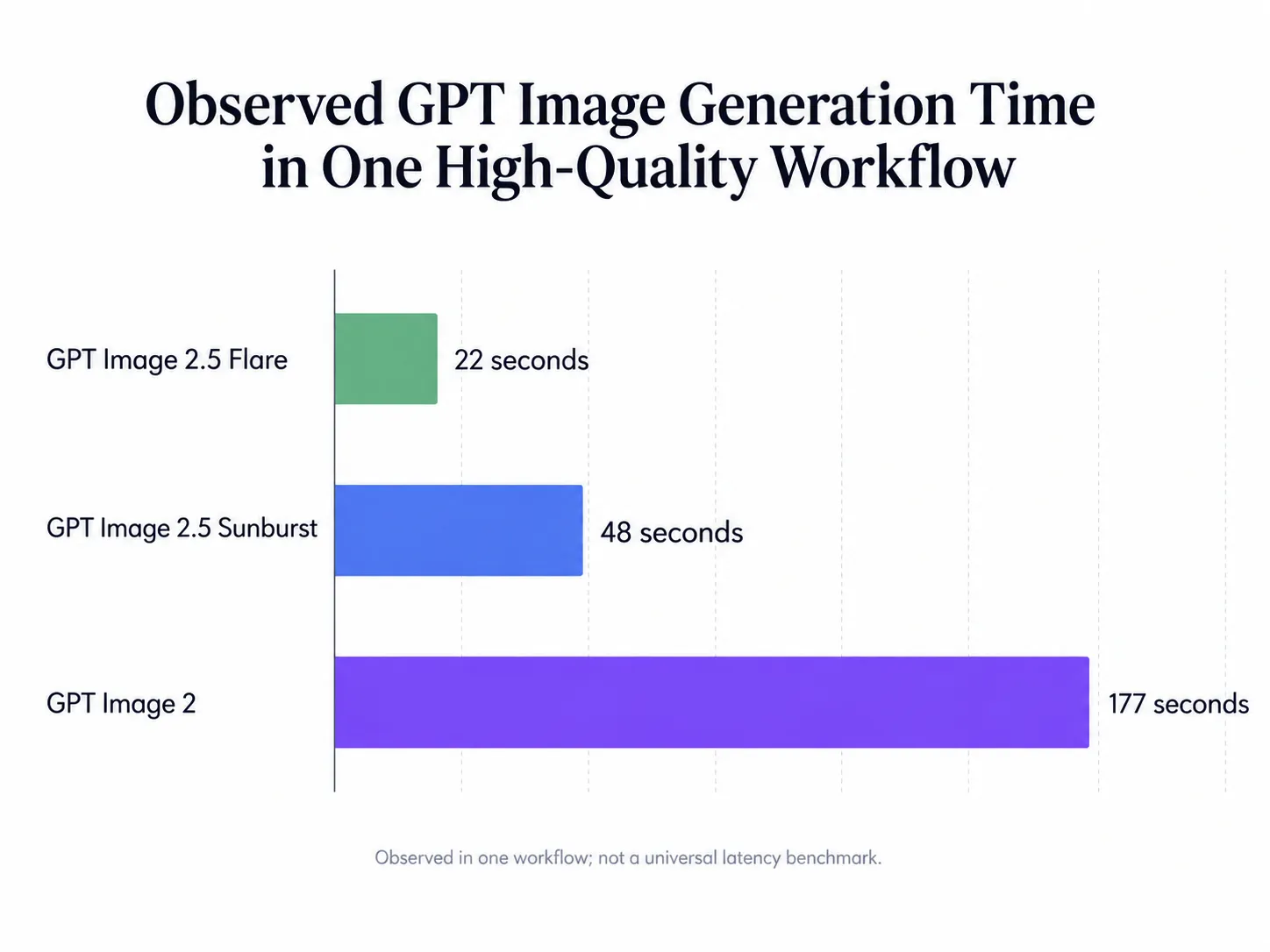
Our research includes one high-quality text-to-image workflow with these observed generation times:
- GPT Image 2: 177 seconds
- GPT Image 2.5 Flare: 22 seconds
- GPT Image 2.5 Sunburst: 48 seconds
A separate Sunburst Max portrait workflow took approximately 115 seconds.
These observations are workload-specific. They should not be treated as fixed speed ratios because prompt complexity, references, dimensions, quality settings, and platform conditions all affect latency.
The better strategy is:
Start with the fastest configuration likely to meet the requirement, run QA, and escalate only when an important acceptance criterion fails.
Measure Cost per Accepted Image
The wrong production question is:
How much did one generation cost?
The better question is:
How much did it cost to produce one image that actually passed QA?
A low-cost request can become expensive after failed edits, incorrect text, reference drift, identity problems, or repeated regenerations.
Track:
- Instruction following
- Identity preservation
- Reference fidelity
- Product geometry
- Exact text
- Unwanted changes
- Latency
- Retries
- Accepted and rejected outputs
- Final spend
The resulting metric is Cost per Accepted Image.
For production teams, this is often more meaningful than cost per request.
GPT Image 2.5 Resolution, Transparency, and API Output Settings
Separate Prompting From Technical Output Controls
A useful production rule is:
Prompt instructions define what the image should look like. API parameters define how the asset should be delivered.
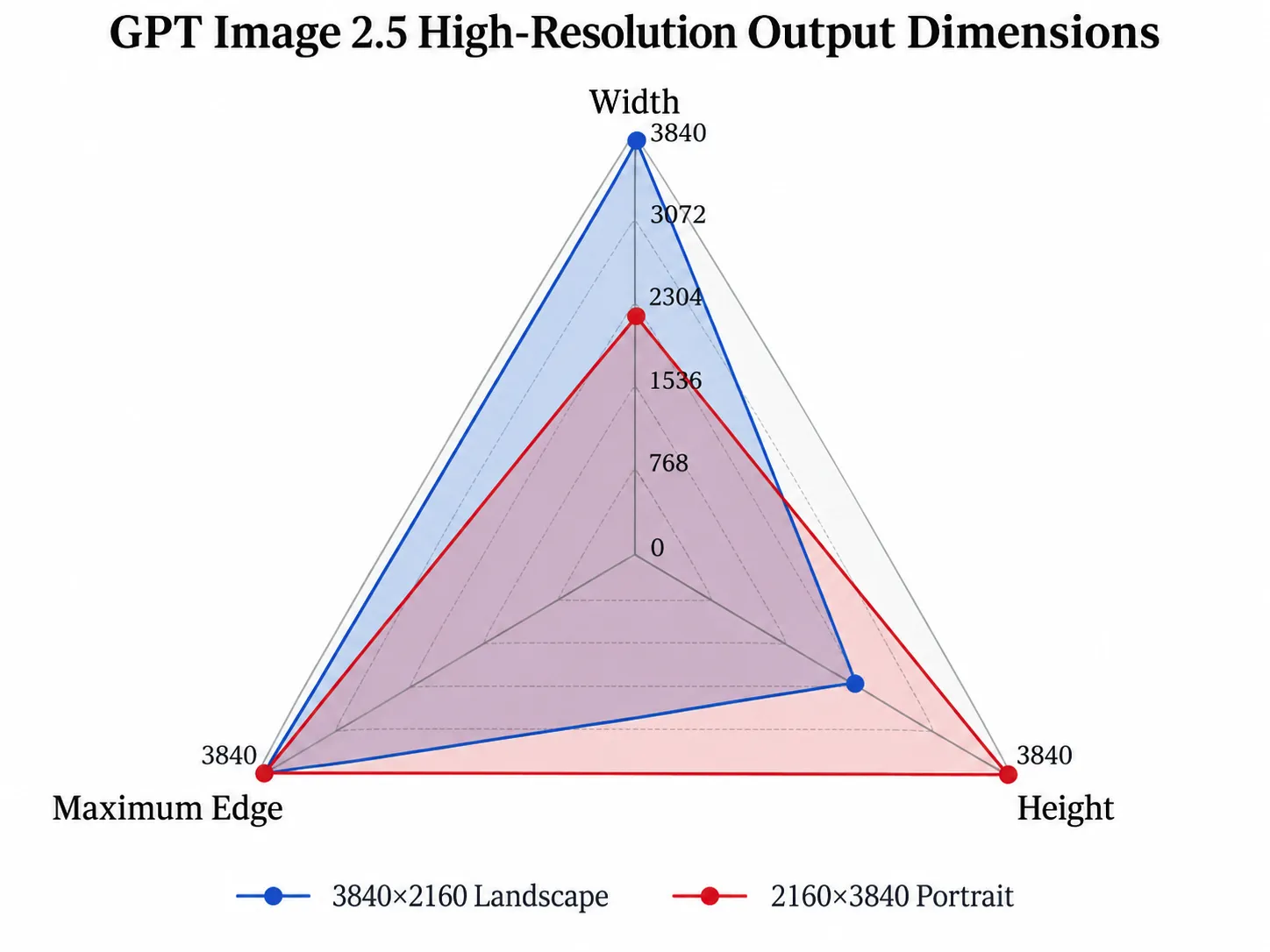
Our research of the current API documentation found support for custom high-resolution outputs, including 3840×2160 and 2160×3840, with relevant limits reaching 3840 pixels per side.
Transparency follows the same principle.
Writing “transparent background” in the visual prompt does not prove that the final asset contains a real alpha channel. A checkerboard pattern can simply be rendered into an opaque image.
For production assets, configure the appropriate transparent-background and compatible output settings, then verify the actual alpha channel.
GPT Image 2.5 Production QA: The Step Most Prompt Guides Miss
Define Acceptance Criteria Before Generating
A production workflow should follow:
Generate → QA → Accept or Reject → Retry Only What Failed → Measure Final Cost
Before generating a large batch, define what “acceptable” means.
- For a portrait, that may include facial identity, skin tone, hands, clothing, and composition.
- For ecommerce, it may include product geometry, branding, material accuracy, background, and text.
- For UI generation, it may include hierarchy, alignment, typography, spacing, and readable copy.
This makes prompting measurable and reduces subjective benchmark decisions.
It also solves a common problem: deciding what counts as “good” only after seeing which model produced the most attractive image.
The best GPT Image 2.5 prompt is not simply the one that produces the prettiest first attempt. It is the prompt that makes success and failure easy to define.
FAQ
Does GPT Image 2.5 Need JSON Prompts?
No. Our research found no reliable evidence that JSON itself improves image quality. JSON is useful for automation, reusable fields, and programmatic prompt generation, but natural language and labeled sections can work equally well. Clear responsibilities matter more than syntax.
How Do I Keep a Face Unchanged in GPT Image 2.5?
Define the requested edit under Change Only, then explicitly preserve facial identity, hairstyle, expression, skin tone, body proportions, pose, camera angle, framing, and other approved features. For repeated scenes, reuse an authoritative character reference instead of relying only on text.
How Should I Use Multiple References in GPT Image 2.5?
Give each image one job. State what it controls, what must transfer, and what must not transfer. One image can control identity, another clothing, and another palette. This reduces cross-reference ambiguity.
Should I Use GPT Image 2.5 Flare or Sunburst?
Start with Flare for most generation, iteration, and high-volume workflows. Escalate to Sunburst when precision-heavy editing or demanding final outputs fail your QA threshold. Compare them using the same prompt, dimensions, quality settings, references, retries, and accepted-image criteria.
How Do I Reduce GPT Image 2.5 Editing Drift?
Make one meaningful edit at a time, repeat the elements that must remain unchanged, and compare each revision against the approved original. For recurring characters or products, reuse the original master reference rather than repeatedly using the newest generated derivative.
Conclusion: The Best Way to Prompt GPT Image 2.5
The best GPT Image 2.5 prompting strategy is to turn creative intent into a testable visual specification. Define the deliverable and visible requirements, assign every reference a clear role, separate Change from Preserve during editing, treat exact text as data, reuse authoritative character assets, and choose Flare or Sunburst according to a real acceptance threshold. Our research suggests that the largest workflow improvements do not come from finding a magical JSON format or writing increasingly long prompts; they come from reducing ambiguity, controlling what is allowed to change, measuring retries and unwanted changes, and optimizing for the final image that actually passes QA. That turns GPT Image 2.5 prompting from trial-and-error into a repeatable production workflow.